 Editing Costing Models and Assigning Attributes
Editing Costing Models and Assigning Attributes
Use
In
 Easy Cost Planning the planner can use the costing model that you create with this function as a planning form. This enables the costs to be calculated from the planner's point of view. You can use the costing model for all similar planning processes.
By assigning attributes to the role of the planner, you decide which screen areas are displayed for the planner in the cost estimate and also to what extent they can be changed. This assignment applies across all models and hence is only required once for each role.
Prerequisites
To be able to define costing models, experience in using the SAP System is required, particularly in the following areas:
Application |
Area |
Classification System (CA-CL) |
Characteristics |
Activity-Based Costing (CO-OM-ABC) |
Templates |
Product Cost Controlling (CO-PC) |
Costing tools, special unit costing and costing items |
Overhead Cost Controlling (CO-OM) |
Chart of accounts, cost centers, cost elements and activity types, internal orders, overhead |
Materials Management (MM) |
Purchasing, services, material valuation, inventory management |
In order to carry out cost planning, a costing variant must have been defined in Customizing for every object to be planned. If you want to view the costs in groups, you must have already defined cost component groups in Customizing for the application component concerned under Define Cost Component Structure.
During the implementation phase, organizational limits must have been made for the namespaces of the characteristics, to control the use of characteristics that use the Classification System (CA-CL).
For the Execution Services, you must have made the required settings in Customizing for the respective application component under Execution Services.
Features
The following graphic gives you an overview of the costing run:
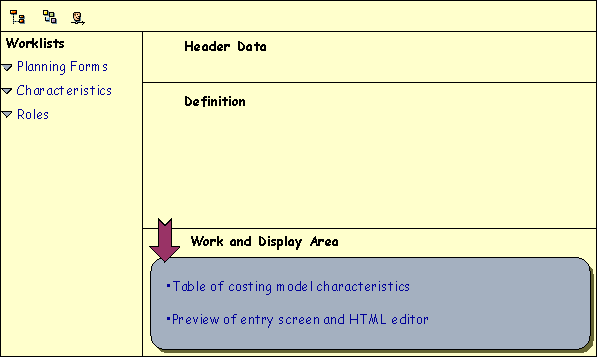
You can show or hide ( ) the screen area Worklists and also change the size of the screen areas.
Worklists area
This area contains the planning forms, characteristics and roles. These are the predefined directories. The worklists provide an overview of the data present in the system and a user-friendly view of its structure. Once you have loaded the most frequently used planning forms, characteristics and roles into the worklists, they are always available for you to use. The directories can be made available to everyone, or limited to a specific role to which you must have been assigned, or defined in such a way that they are only available for your yourself to use.
To load available data in the worklists either choose  immediately next to the node, or
  . You can create, insert (
 ), rename worklists and extend the display of worklists (from user-specific to role-specific or globally to all users), or restrict (
 ) them. You can copy planning forms, characteristics or roles to other worklists of the same category per drag & drop. Make sure that you select nodes supplied with a hyperlink together with the symbol in front of them. It is not possible to copy subdirectories. Using
  you can call up any worklists that are in the system but have not yet been displayed. To delete worklists, choose
  . To remove subdirectories or loaded data from a worklist choose
  . To save worklists, choose
  in the screen area Worklists.
You can call a costing model and role directly by clicking on the relevant node in the worklist.
You can assign a characteristic directly to a model. To do so, you must have chosen the model and called up the assignment of the characteristics in the work area. You can copy the characteristic into the table in the work area using drag and drop.
Definition area
Here you can edit a costing model or role. If you want to switch from editing the costing model to editing the roles either choose  or choose the role directly in the worklist. Choose
  to return to editing the costing model, or choose it directly in the worklist.
Having selected a costing model or created a new one, you can carry out all changes or definitions (by clicking on the nodes) in this area. You can create a description for the model ( ). You can then use it to document the model. When the planner wants to create a cost estimate, this description is available for finding a planning form. For information on the editor, see
the PC editor and
editing text.If you have selected a role, you can select here the attributes which should be assigned to the role.

If you assign the attribute Hide cost estimate item view to the single role Maintain internal orders (SAP_CO_OM_JOB_INTORDER_MAINT) then the relevant button is hidden, meaning it is no longer possible to show the item view. This applies to all planners to whom this role has been assigned. If you want to make it impossible to show the item view for a planner to whom several roles have been assigned, then you have to assign this attribute to all of this planner’s roles. The simplification of the screen achieved by this is particularly useful for occasional users, especially if they do not have extensive knowledge of Controlling in the SAP System. However, for the planner it also means that it is no longer possible to change the costing items manually.
Work and Display area
In this area, you can assign the characteristics. When you create new characteristics, you can define the characteristics directly from here. If the characteristics exist already, you can change them using  in the Characteristics maintenance column.
In addition to this, you can display a preview on the entry screen by clicking on the node Structure model entry screen You can then edit it here.

If you delete, change, edit or create new characteristics then these changes will only be displayed in the preview once you have saved the model.
Activities
Choose  . Enter a name for the costing model. The name must not begin with a number or contain any blanks. If you do not enter a description, the system copies the name automatically into the Description field. You can change the description at any time by choosing
  .
.
If you are copying a model (), enter yes to the dialog box Save template? Otherwise the template will not be copied.
(Save attribute assignment).Multilingual capability
If the planner needs the costing model to be available in more than one language, you need to carry out the following activities, noting the special features:
Characteristics
When creating the characteristic, enter the description of the characteristic on the tab Descriptions in all the languages that you require.
If you want to set default Values, go to the Values tab, select a value and choose Enter the description in all of the languages that you require.
If you choose Extras
® Change Language, you can enter the characteristic description and the descriptions for all values for the language selected.Entry screen
Do not change the characteristic descriptions on the entry screen. Additional text (for example notes or texts for hyperlinks) and changes can only be entered in one language, and consequently are only available in that language. The Confirm button and the heading Comment are automatically displayed in the correct language.
Derivation rules
You must ensure that descriptions are available in all of the languages that you require. Make sure when you use a costing model (item category J) that this also applies for the description of the model used. Do not enter any descriptions in the item lines. The descriptions are then automatically displayed in the correct language. Exception: you can only enter the description for item categories comment line, calculation line (process and cost center/activity type), text item and variable item in one language, which in turn are only available in that particular language.
Costing Model Description
Once you have created the model, log on to the system in each language in turn which you need to be available. Call up the model for editing and choose . Enter the description for each model in the correct language and save your entries. To ensure the description of the model is available in the languages you require, enter it in each of the relevant languages.
Result
The costing model is available as a template on a permanent basis. For more information, see
Using Easy Cost Planning.
Example
Example of the Easy Cost Planning of a Project