 Creating Project Objects
Creating Project Objects
Use
There are various methods of creating project objects in the project planning board. You can
In the following, only creating completely new objects is described. For information on how to copy or create WBS elements and activities using templates, see
Creating Project Objects by Copying.Features
To create project objects, choose  or Create in the context menu in the table area. On the left-hand side of the screen a separate Templates window appears, in which there is the Individual objects group.
Under Individual objects you can find all possible project objects (WBS elements, activities etc.).
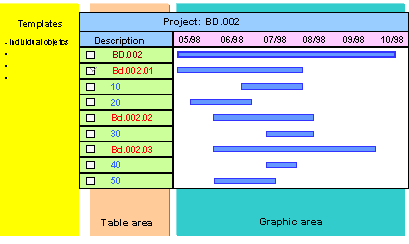
If you want to create a new project object or insert a new object in an existing structure, copy the object in question from the Templates to the selected position in the table area.
There are various ways of doing this:
Using Drag & Drop

If you use drag & drop to create project objects, the new object is always subordinate to the object it is positioned after in the project hierarchy.
Using Double-Click or the Context Menu
The following table describes how you create project object with a double-click or using the context menu.
Function |
Prerequisite |
Action in Templates Screen Area |
Effect |
Create WBS element |
Double-click on WBS element Or select WBS-element and choose Create in the context menu |
The new WBS element is always placed on the top level of the project. The WBS elements are numbered automatically. | |
WBS element has been selected in the table area |
Double-click on WBS element Or select WBS-element and choose Create in the context menu |
Assigns the new WBS element in the project hierarchy to the selected WBS element. | |
Create activity |
WBS element or activity has been selected in the table area |
Double-click on the activity category (internal, external, costs, or service) Or select an activity category and choose Create in the context menu |
Creates an activity for the selected WBS element or below the selected activity. |
Create activity element |
Activity has been selected in the table area |
Double-click on the activity element (work, external, costs, or service) Or select an activity element and choose Create in the context menu |
Creates an activity element for the selected activity. |
Create subnetwork |
Activity has been selected in the table area |
Double-click on Subnetwork Or select Subnetwork and choose Create in the context menu |
Enables you to add more detail for an activity by creating a subnetwork. Enter a standard network as a template. See also: Subnetworks |
Create component allocation |
Activity has been selected in the table area |
Double-click on Material component Or select Material component and choose Create in the context menu |
Creates an material component allocation for the selected activity. See also:  Material
 |
Create milestones |
WBS element or activity has been selected in the table area |
Double-click on Milestone Or select Milestone and choose Create in the context menu |
Creates a milestone for the selected activity or WBS element See also: Milestones |
PS texts |
WBS element or activity has been selected in the table area |
Double-click on PS text Or select PS text and choose Create in the context menu |
Creates a PS text for the selected activity or WBS element |
Documents |
WBS element or activity has been selected in the table area |
Double-click on Document Or select Document and choose Create in the context menu |
Assigns a document to the selected activity or WBS element |
You can make entries for various project objects (project definitions, WBS elements, milestones, activities, activity elements) directly in the table area. You can thus change your entries in the table area without having to go to the corresponding detail screen. Click on the relevant field. For example, the following fields can be changed in this way: Description , ID , basic dates, forecast dates, actual dates, Duration, Work , Work center , long text.