 Changing the Network for the Generator
Changing the Network for the Generator
Use
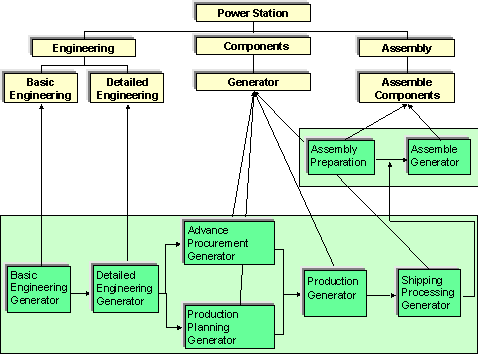
The network for the generator has to be changed so that activities for in-house production have to be planned instead of activities for external procurement.
First of all, delete all the activities that belong to the Generator network. You can find these under the WBS elements Basic Engineering, Detail Engineering and Generator. Then you can copy a standard network for in-house production and assign the Basic Engineering, Generator and Detail Engineering Generator activities to the appropriate WBS elements. Furthermore, change the relationship of the Sales Processing Generator activity. Assembly is to become part of this activity. Therefore, a successive, or follow-up relationship ensues for the Assembly Generator activity (please see graphic below).
Procedure
Menu Path |
From the Simulation node, choose Change. |
Transaction Code |
CJV2 |
Field |
Data |
Vers. key |
SIM20### |
Project def. |
A-20### |
 Open project.
Deleting an Activity
Activity |
Assigned to WBS element |
Basic Engineering Generator |
Basic Engineering |
Detail Engineering Generator |
Detail Engineering |
Activity 030 RFQ/Inquiry Generator to 070 Shipping Processing Generator |
Generator (below WBS element component) |

You can select more than one activity by keeping the Cntrl key pressed.
The systems flags the activities for deletion.
Creating a New Activity
 .
.A structure overview with templates appears on the left-hand side of the screen.
Field |
Data |
Standard network |
A-20301 |
 .
.The network is copied to the structure overview as a template.
Processing an Activity
 .
.The detail screen for the first activity appears.
 .
.Activity |
WBS element |
Basic Engineering Generator |
A-20###-02-01 |
Detail Engineering Generator |
A-20###-02-02 |
.Changing the Relationship
By copying the relationships from the control station technology standard network, this activity follows up activity 20 for the assembly of the control station in the network Assembly Components.
 .
.Field |
Data |
Activity |
80 |
You have set this activity in a follow-up relationship to the activity for the assembly of the generator.
. .
.