 Using Relationships to Link Activities
Using Relationships to Link Activities
Usage
Relationships determine the sequence in which the activities are to be carried out. You now enter FS (finish-start) relationships for your project, which means that the activities are carried out sequentially. You can maintain the relationships either directly in the Project Builder for the given activity, or in the network graphic.
In this case, you maintain the relationships in the network graphic and then check them in the Project Builder.
Prerequisites
You have
opened your project in the Project Builder and expanded it completely.Procedure
 .
.The Change Network: I/#### Basic Dates screen appears. The network graphic shows all the activities you have created.
 .
. .
.The cursor takes on the form of a pencil.
The following graphic shows how you need to drag the line from Order Management Conception to Order Management Execution to create an FS relationship.
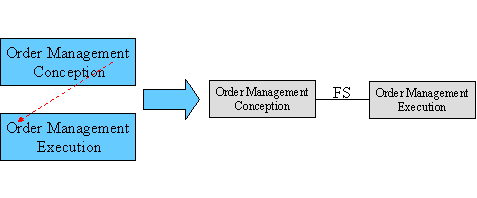
The system displays the relationships using a line and the type of relationship, for example, FS (Finish Start).

If the system displays the regular cursor instead of the pencil, simply choose .
 .
.The Confirm Activity dialog box appears.
 .
.The system displays the time sequence of the network.
 to return to the Project Builder.
In the Work Area you see the detailed view for the activity.
 in the Identification and View Selection area of the screen.
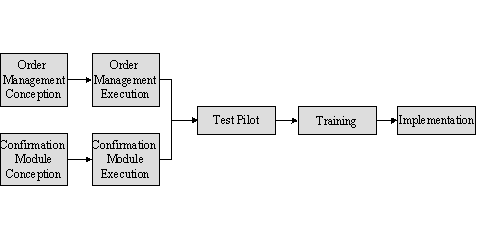
The system branches to the relationship overview. Activity 0050 has the predecessors 0030 and 0040 and the successor 0060.
 .
.Result
You have now structured your project and defined the time sequence of the work steps. You can now plan the CO activities, costs, and dates.
Planning the Output and Duration of Activities Scheduling the Project Planning Costs