To test a mobile app on your desktop, you have to ensure some prerequisites.
Prerequisites
Your operating system is Microsoft Windows and you use a current WebKit-based browser
(Google Chrome or Apple Safari). Other operating systems work as well, but the
procedure may differ. Also, the mobile library is currently not optimized for
Mozilla Firefox and Microsoft Internet Explorer.
Note
The URL in the script tag is pre-filled as
https://sapui5.hana.ondemand.com/resources/sap-ui-core.js.
This is the URL where the resources are located in the SAP HANA Cloud delivery.
Test this URL first and if it does not work, replace this URL with the
location of SAPUI5 on your local server.
Also note that the version of SAPUI5 deployed on
https://sapui5.hana.ondemand.com/ may be updated with a delay of some days or
weeks after a new release of SAPUI5, even though we try to keep them in sync.
This example will work nevertheless.
Procedure
- Right-click on your desktop and choose .
- Enter a name for the new file, for example "mobile.html", and confirm the
extension change warning.
- Right-click on the new file and choose Edit. Make sure
it opens in Notepad and not in MS Word.
- Copy and paste the HTML code below and save the file. Keep in mind that the
SAPUI5 URL may need to be adapted.
- Drag and drop the file into the browser window.
- To load the example on a mobile device, you put the file on a server.
- To play around with the app in your desktop browser, add the following URL
parameter to the file URL: sap-ui-xx-fakeOS=ios, so that the
URL reads : "mobile.html?sap-ui-xx-fakeOS=ios". This enables the simulation of
touch events on desktop PCs. This also enables the iPhone/iPad styling; if you
want to see the Android styling, use sap-ui-xx-fakeOS=android
instead.
<!DOCTYPE HTML>
<html>
  <head>
    <meta http-equiv="X-UA-Compatible" content="IE=edge" />
    <meta http-equiv="Content-Type" content="text/html;charset=UTF-8"/>
    <title>Mobile App in 23 Seconds Example</title>
    <script src="https://sapui5.hana.ondemand.com/resources/sap-ui-core.js"
        id="sap-ui-bootstrap"
        data-sap-ui-libs="sap.m"
        data-sap-ui-theme="sap_mvi">
    </script>
    <!-- only load the mobile lib "sap.m" and the "sap_mvi" theme -->
    <script>
      // create a mobile App
      // it initializes the HTML page for mobile use and provides animated page handling
      var app = new sap.m.App("myApp", {initialPage:"page1"}); // page1 should be displayed first
      // create the first page of your application
      var page1 = new sap.m.Page("page1", {
          title: "Initial Page",
          content : new sap.m.Button({ // content is just one Button
              text : "Go to Page 2",
              tap : function() {
                  app.to("page2"); // when tapped, it triggers drilldown to page 2
              }
          })
      });
      // create the second page of your application
      var page2 = new sap.m.Page("page2", {
          title: "Page 2", showNavButton: true, // page 2 should display a back button
          navButtonTap: function(){
              // when tapped, the back button should navigate back up to page 1
              app.back();
          },
          icon: "http://www.sap.com/global/ui/images/global/sap-logo.png",
          content : new sap.m.Text({text:"Hello Mobile World!"})
      });
      app.addPage(page1).addPage(page2); // add both pages to the App
      // place the App into the HTML document
      app.placeAt("content");
  </script>
 </head>
 <body class="sapUiBody">
   <div id="content"></div>
 </body>
</html>
Results
You should now see the following mobile App on
iOS:
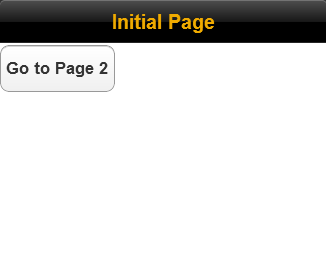
And the following mobile App on
Android:
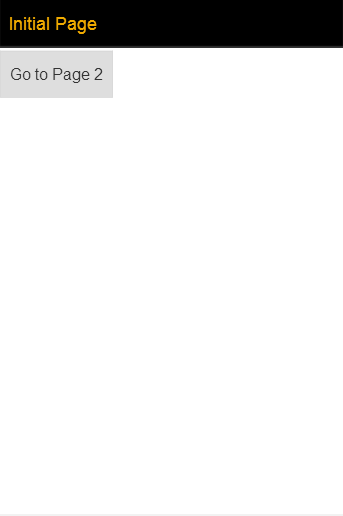
If you have set the
sap-ui-xx-fakeOS URL parameter, you can navigate to the second
page by clicking the button.
To open the application on a real mobile device, you can also put the
HTML document on a Web server and load the resulting URL in your mobile
browser.

 New
New  Text Document
  .
.