 Assigning Context and Result
The function can import a context and can return a result after processing. The context and result are optional in the event mode of operation.
Procedure
Open the function in the
Object Manager
panel.Under the
Detail
section, choose theSignature
tab.The
Signature
tab page opens.Assign a context.
You can add an existing data object, a new data object or multiple elements.
Add an Existing Data Object
Choose
Add Existing Data Object
button.In the
Object Query
dialog box that appears, select the data object and chooseSelect
.The data object is added as the context.
Add a New Data Object
Choose

Add New Data Object

Add New Data Object

For more information, see Creating Data Objects
Add Multiple Elements
Choose
Add New Data Object
Add New Elements
In the
Create New Elements
dialog box that appears, select the type from the type column.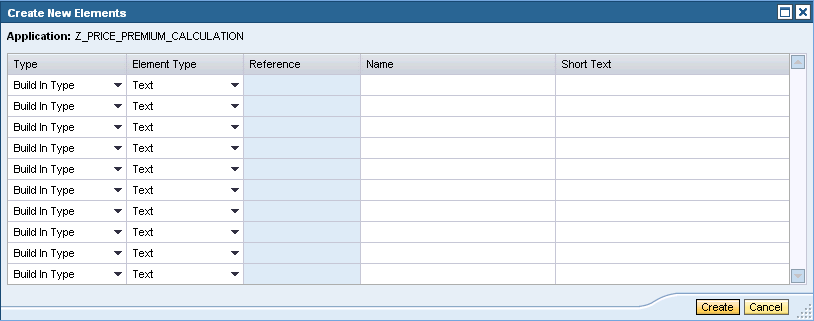
Select the element type, enter a name and choose
Create
button.The new element is added as the context.
Assign a result.
You can assign a default object, an existing data object or a new object.
Select a Default Object
Choose
 (
(Graphical Access
).In the context menu, choose
Default Objects
and choose the data object type.
Select an Existing Data Object
Choose
(Graphical Access
).In the context menu, choose
Select...
.In the
Object Query
dialog box that appears, select the data object.The data object is added as the result data object.
Select a New Data Object
Choose
(Graphical Access
).In the context menu, choose
Create...
.In the
Object Creation
dialog box that appears, create the data object.For more information, see Creating Data Objects