 Creating Value Range Expressions
In this step, we define the two different income ranges (low and medium) to which the different income tax formulas will be associated. The ranges will later serve as comparison parameters in a decision tree where a given gross salary will be compared against the ranges.
 Note
Note
It is sufficient to define only the ranges for low and medium incomes. This is because the structure of the decision tree makes it possible to implicitly define the high income range as the negative branch for the tests against the two other ranges. The decision tree will then illustrate the simple logical thought that if a given income is neither low nor medium, it can only be high.
Procedure
In the
Object Manager
panel, underDetail
section, chooseContained Objects
tab.The
Contained Objects
tab page opens.Choose
Expression
from theType
field and chooseCreate Object
.In the
Object Creation
dialog box that appears, chooseValue Range
in theType
field.Enter Gross_Salary_is_low in the
Name
field and chooseCreate and navigate to object
button.The value range expression appears in the
Object Manager
panel.Define the incoming parameter by choosing
 (
(Graphical Access
).In the context menu, choose
Other Context Parameter...
.In the
Context Query
dialog box that appears, select theGROSS_SALARY
data object.The data object is added as the incoming parameter for the value range expression.
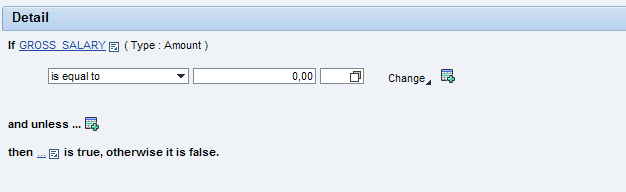
Value Range Definition: Initial Screen
Enter values for the incoming parameter.
Choose
is less than
as the range, enter 25000 as the amount and chooseEUR
as the currency.
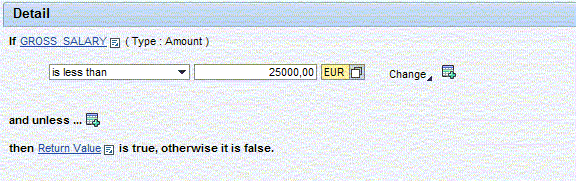
Value Range Definition For Low Income
Save the value range expression.
Create the following value range expression using the above procedure.
Name of the Value Range Expression |
Incoming Parameter |
Values |
|---|---|---|
Gross_Salary_is_Medium |
Choose |
Choose value range as Amount 100000 and EUR as the currency. |