
 Configuring the SAP NetWeaver Administrator to
Work with the SLD
Configuring the SAP NetWeaver Administrator to
Work with the SLD

Use
Use this procedure to adjust the SAP NetWeaver Administrator to present and manage data obtained from different J2EE systems. The following usage scenarios are possible:
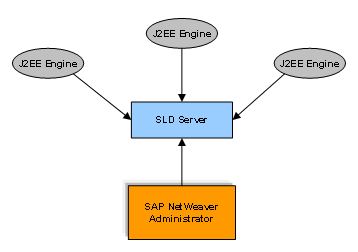
Scenario 1: To connect a SAP NetWeaver Administrator to an SLD Server to which several J2EE systems are reporting data. In this case, the NetWeaver Administrator needs only a connection to the SLD Server to read and manage the data the J2EE systems are reporting to the server. In this case, the J2EE Engine on which the SAP NetWeaver Administrator is running is not reporting data to the SLD Server and cannot be administered.
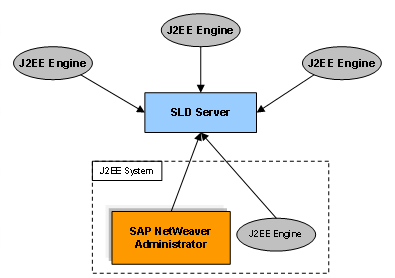
Scenario 2: The situation is the same as in the previous scenario, but in this case the J2EE Engine on which the SAP NetWeaver Administrator is running also reports data to the SLD Server and can be administered.
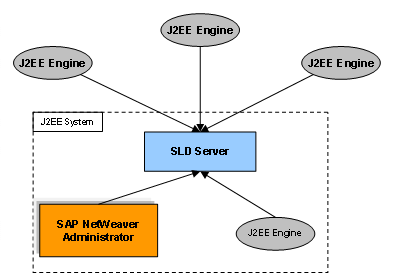
Scenario 3: To start your local SLD Server, use your local SAP NetWeaver Administrator, connect your local J2EE Engine to report data to your SLD Server, and have several other J2EE Engines that report data to your SLD Server.
Procedure
...
1. Open the Visual Administrator and connect to the system where the SAP NetWeaver Administrator is installed.
If you want to |
Then |
Use Scenario 1 |
... 1. From the server node, choose Services → SLD Data Supplier. 2. Choose the CIM Client Generation Settings tab and specify the parameters of the system that will provide the data. 3. In the list that appears, check the following: sap.com/tc~lm~webadmin~mainframe~wd/webdynpro/ public/lib/sap.com~tc~lm~webadmin~mainframe~wd.jar sap.com/tc~lm~webadmin~sld~wd/webdynpro/ public/lib/sap.com~tc~lm~webadmin~sld~wd.jar 4. Enter the HTTP Connection parameters and then choose Save. 5. Choose the CIMClient Test option to check if the connection is successful. |
Use Scenario 2 |
... 1. From the server node, choose Services → SLD Data Supplier → HTTP Settings tab. 2. Enter the Host and the HTTP port of the system to which your system will report the data.. 3. Enter your Administrator user and password and choose the Save option. 4. Choose the CIM Client Generation Settings tab and specify the parameters of the system that will provide the data. 5. In the list that appears, check the following: sap.com/tc~lm~webadmin~sld~wd/webdynpro/ public/lib/sap.com~tc~lm~webadmin~sld~wd.jar sap.com/tc~lm~webadmin~mainframe~wd/webdynpro/ public/lib/sap.com~tc~lm~webadmin~mainframe~wd.jar 6. Enter the HTTP Connection parameters and then choose Save. 7. Choose the CIMClient Test option to check if the connection is successful. |
Use Scenario 3 |
... 1. Open a Web browser and go to http://<host:http_port>/sld/. 2. Choose Administration → Profile. 3. From the Section dropdown box, choose Server Settings. 4. Set up <your_host> as the object server. More information: service.sap.com/sld → Media Library → Post-Installation Guide - SLD of SAP NetWeaver 7.0. 5. Choose Back to Administration → Data Suppliers. 6. Set up the SLD Bridge. More information: service.sap.com/sld → Media Library → Post-Installation Guide - SLD of SAP NetWeaver 7.0 7. Open the Visual Administrator again and perform the same steps used to configure Scenario 2. 8. Choose the first button at the top of the SLD Data Supplier service with the blue arrow to trigger the data transfer to SLD.
|