
 Web Dynpro Java ESS Application Fails While
Running
Web Dynpro Java ESS Application Fails While
Running

Problem Description
A requested ESS Web Dynpro application fails while running.

There are many different ESS applications. This document only describes general problems and analysis steps that can be applied to all ESS applications. Application-specific problems are not described.
|
Scenario Type: |
Error analysis |
|
NetWeaver Component: |
SAP Web AS: Web Dynpro Java (BC-WD) |
|
Validity: |
SAP Web AS 6.40 |
Architecture
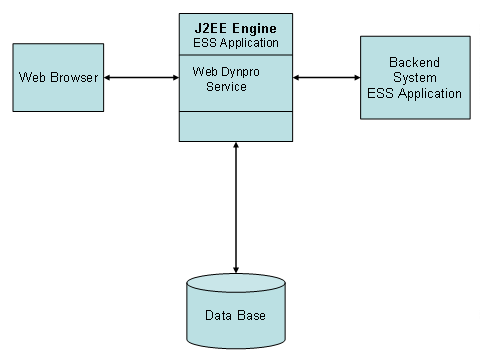
Possible Error Sources
...
1. The ESS application part running on the engine encountered an error
2. The ESS application part running on the SAP back-end system encountered an error
3. The connection to the back-end system is broken
4. The user does not have the necessary permission to execute the application
Decision Roadmap
Prerequisites
You need to log on to the J2EE Engine as an administrator, so make sure you have a valid administrator user and password. You also need to log on to the back-end system, so you need a valid SAP back-end user with permissions to check the system log, ABAP runtime errors and to view table data.
Main Tools
Web Dynpro Content Administrator
Log Viewer
Execution
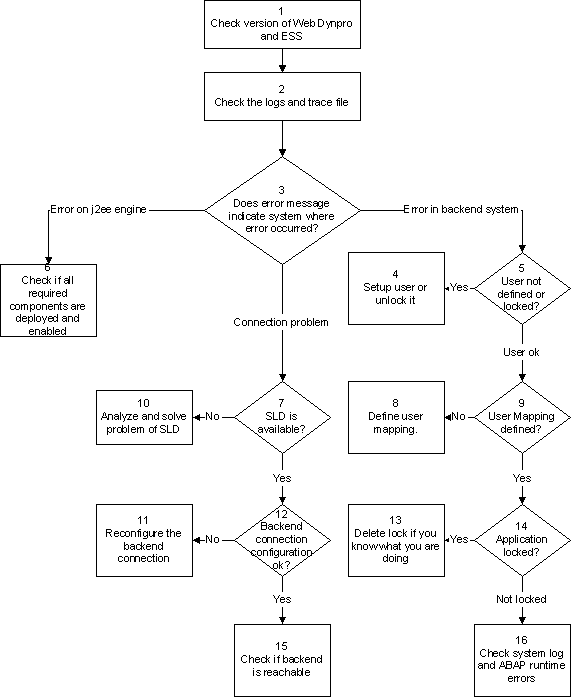
1. See Find out which version of Web Dynpro and ESS are installed.
2. See Check the ESS log, the Web Dynpro log and the default trace file.
3. Does the error message indicate if the problem is on the J2EE Engine, the back-end system or in the connection between the J2EE Engine and the back-end system?
4. If the user is locked, you can try to unlock it. If the user is not defined, then set up the user following the description in ESS documentation.
5. See Check if user is locked or not defined in the back-end system.
6. See Check if all required components are deployed and enabled.
7. See Check if SLD system can be reached.
8. Follow the description in the ESS documentation of how to define the mapping.
9. See Check if a mapping user to a personnel number is defined.
10. Follow instructions in PAS for SLD problems (Access To SLD From ABAP Fails).
11. Enter the correct connection data following the steps described in the ESS documentation.
12. See Check if the back-end connection configuration is ok.
13. Delete the application lock if you are really sure that the user is not currently working in a transaction. Otherwise the user will lose data.
14. See Check if there is an application lock in the back-end system.
15. See Check if the back-end system can be reached.
16. See Check the system log and look for ABAP runtime errors in the back-end system.
Analysis
Find out which version of Web Dynpro and ESS are installed
To find out which version of Web Dynpro and ESS are installed, log on to the SLD system.
Use the technical system browser to select the entry for the J2EE Engine running on the machine.
The Web Dynpro framework consists of the following deployed objects:
● Service webdynpro
● Library tc~wd~pdflib
● Applications
○ sap.com/tc~wd~corecomp
○ sap.com/tc~wd~dispwda
○ sap.com/tc~wd~pdfobject
○ sap.com/tc~wd~pdfsvrchal
○ sap.com/tc~wd~tools
The ESS applications and components are listed under Applications.
The components that are used by applications are prefixed with sap.com/pcui_gp
The deployed ESS applications are prefixed with sap.com/ess.
You can use the version information if you cannot solve the problem using the steps described above. You can use the version information to search for notes in CSN. If you have to create a CSN request for the problem, do not forget to also include the version information.
Check the ESS log, the Web Dynpro log and the default trace file
Using the Log Viewer, open the ESS application log file in directory log\applications\xss.
Depending on the problem, the error message may have been written to the Web Dynpro log file (userinterface) located in system/log. Additional information may also be found in the server’s default trace file, which is located directly in the log directory.
Check if all required components are deployed and enabled.
Using the Web Dynpro Content Administrator, check if all required components of the requested application are deployed and enabled. See Log on to Web Dynpro Content Admin for information about starting the Content Administrator application.
The tree on the left displays all deployed Web Dynpro applications. Expand the tree to see all applications and check if the requested application is enabled.
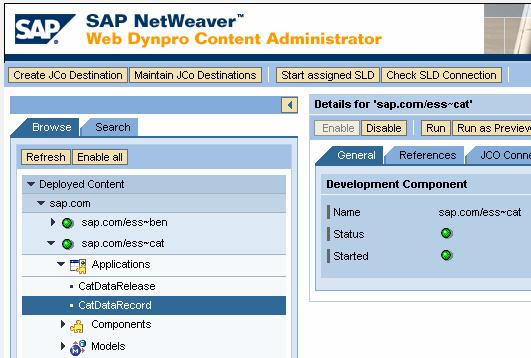
Click on the node of the requested application. In the right pane, switch to the General tab. Check if the Status of the Development Component is green. If the status is red then the application is disabled. You can enable the application by selecting Enable.
If the application is enabled, check if all required components are deployed and enabled.
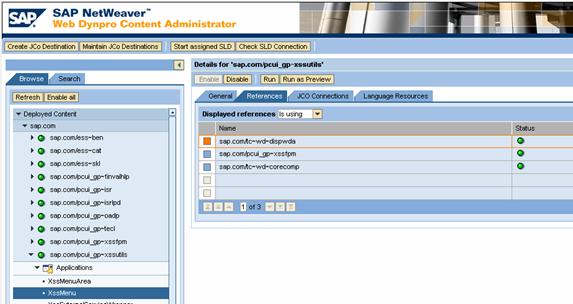
In the right pane switch to the References tab. Select Is using as Displayed references. The table contains all Web Dynpro components the application is using. Check if the status of all entries in the table is green. If an entry has a red status then this component is not deployed or not enabled. Search for the name of this component in the tree on the left. If a component with this name is not listed, then the component is not deployed. You can use the SDM UI to try to deploy the missing component.
If the component is listed, click on the node in the tree and switch to the General tab. Check if the status of these components is green. If it is red you can try to enable it by clicking on the enable button.
Check if user is locked or not defined in back-end system
Follow instructions in Find out which SAP back-end system is used as an ESS back-end system to find out which SAP back-end system is used as an ESS back-end system.

Log on to the SAP back-end system as an administrator and start transaction SU01. Enter the logon name of the user and check if the user is defined and not locked. If the user is locked, try to unlock it.
Check if user is mapped to a personnel number
To check if a user has been mapped to a personnel number, log on to the back-end system as an administrator. See Find out which SAP back-end system is used as an ESS back-end system to find out which SAP back-end system is used as an ESS back-end system.
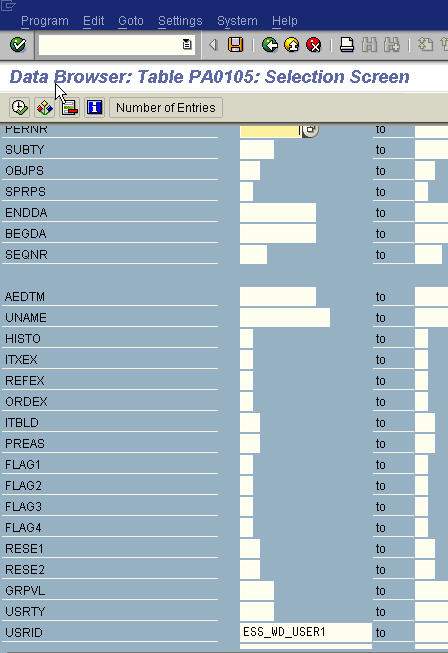
Call transaction SE16 to display the content of table PA0105. In field USRID, enter the name of the user and execute the query. If no entry is found then the user has not been mapped.
Follow steps in ESS documentation for information about setting up a user and define the mapping.
Check if there is an application lock in the back-end system
ESS applications use SAP back-end locks to synchronize access to the business objects. To check if such a lock is blocking the request of the current user, log on to the back-end system as an administrator. See Find out which SAP back-end system is used as an ESS back-end system to find out which SAP back-end system is used as an ESS back-end system.
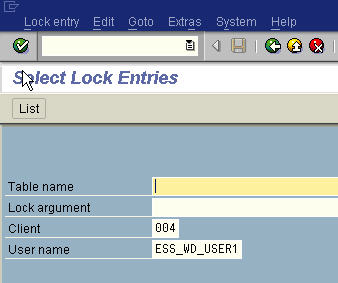
Call transaction SM12 and enter the name of the user and execute the query. If a lock exists you can try to delete the lock if you are sure of what you are doing. Note that deleting a lock can cause data loss or inconsistencies if the process that created the lock is still running.
Check the system log and look for ABAP runtime errors in the back-end system
To check if the application logic in the back-end system failed due to errors, log on to the back-end system as an administrator. See Find out which SAP back-end system is used as an ESS back-end system to find out which SAP back-end system is used as an ESS back-end system.
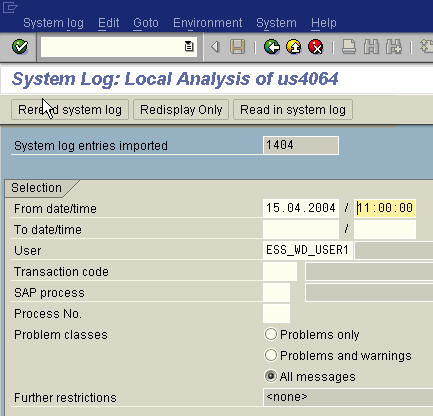
Call transaction SM21 to check the syslog for error messages of the ESS application.
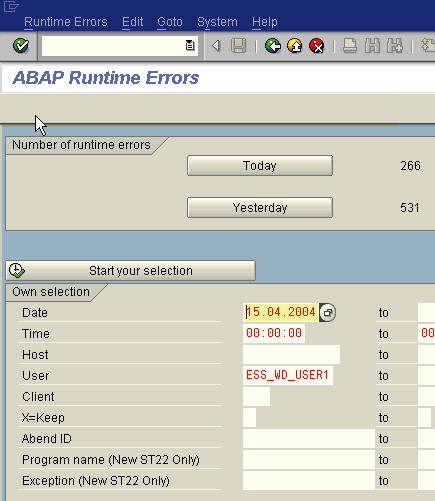
Call transaction ST22 to check the ABAP runtime error for error messages of the ESS application.
Check if SLD system is can be reached
The SLD system has defined a GRMG scenario. Log on to the central CCMS system and check the status of SLD in transaction RZ20 (SAP CCMS Technical Experts Monitor → GRMG SelfMonitoring → Scenario Execution → System Landscape Directory Heartbeat)
Check if the back-end connection configuration is OK
Using the Web Dynpro Content Administrator, check if the back-end connection configuration is OK. See Log on to Web Dynpro Content Admin for information about starting the Content Administrator application.
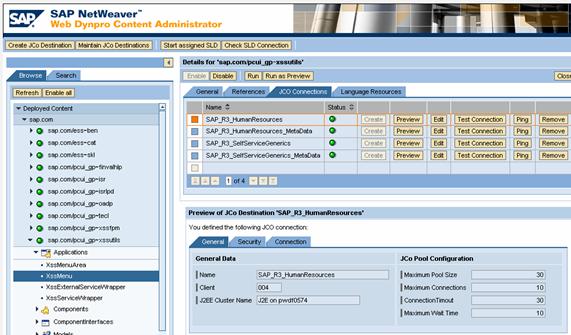
In the tree on the left side, select the requested application. In the right pane, switch to the JCO Connections tab. Each entry in the table contains the configuration for a back-end connection. Choose Preview to see all information for the selected connection. Check if the connection configuration has valid values.
Check if the backend system can be reached
Using the Web Dynpro Content Administrator, check if the back-end connection configuration is OK. See Log on to Web Dynpro Content Admin for information about starting the Content Administrator application.
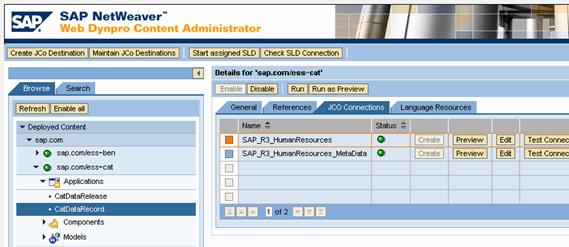
In the tree on the left side, select the requested application. In the right pane, switch to the JCO Connections tab. For each entry in the table, choose Test Connection to test the connection to the back-end system. This test is performed using an RFC ping. You can perform additional tests using the connection information obtained by choosing Preview in the table. Log on to the back=end systems via the SAP Logon using this connection information.
Find out which SAP back-end system is used as an ESS back-end system
Use the Web Dynpro Content Administrator to find out which SAP back-end system is used.
See Log on to Web Dynpro Content Admin for information about starting the Content Administrator application.
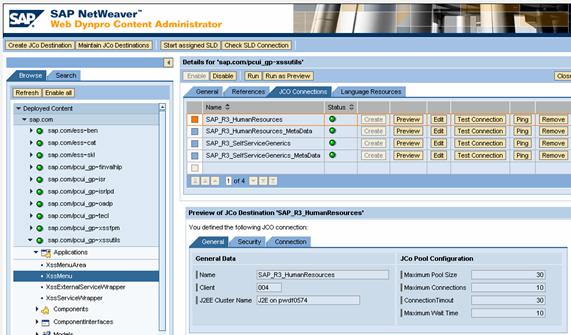
Select the ESS application that you want to check and switch to the JCO Connections tab on the left side. For each row in the JCO Connections table, choose Preview to see the connection data including the SAP back-end system name and client. The number of connections is even because connections always come as a pair (one for the RFC metadata and one for the business data).
Log on to Web Dynpro Content Admin
Start the Web Dynpro Content Administrator tool with a Web browser using the following URL <http(s)>://<hostname>:<port>/webdynpro/welcome
such as http://localhost:50000/webdynpro/welcome and select Content Administrator. Log on as an administrator.
Additional Information