Importing a Data Source (RFC/BOR Interface) 
Introduction
To reduce the time required to create entity types in your data model, SAP NetWeaver Gateway Service Builder provides you with the Import RFC/BOR Interface function with which you can import an existing data source and reuse this data to create new entity types with ease. A wizard is provided to guide you through the process. This document explains how to import a data source and create entity types.
Creating Entity Types from Data Source (RFC/BOR)
Creating an entity type from a data source comprises three steps:
Importing the data source.
Selecting the parameters from the data source.
Editing the selected parameters.
To create entity types from a data source, proceed as follows:
Log onto the SAP NetWeaver Gateway system.
Open transaction SEGW.
The SAP NetWeaver Gateway Service Builder opens.
Create a new project. For more information, see Creating a Service Builder Project.
Switch to edit mode.
Right click the Data Model folder and select
 Import
  RFC/BOR Interface
  .
.The Wizard 1 of 3: Create Entity Type from Data Source-Import Entity Type From Data Source screen of the wizard to guide you through the creation of entity types opens.
Do the following in the wizard:
Enter a name for the new entity type in the Entity Type Name field
Select either the Remote data source or the Local data source radio button in the Target System region.
Remote: Select this option if the data source to fetch the properties resides in the remote system. On selecting this option the RFC Destination field is activated.
Local: Select this option if the data source to fetch the properties resides in the local system. The RFC Destination field is not activated for Local option.
 Note
NoteIn cases when a model is created using the Import RFC/BOR function and later has to be transported to another system where the DDIC objects may not be available, it is recommended to create the model using the RFC destination as NONE. If the RFC destination is NONE, then no DDIC objects will be assigned to the entity type and the individual data element assignment to the properties (in the ABAP type editor) will not happen and local data types will be generated in the MPC.
End of the note.For Remote Data Source, enter the parameters of the connection in the RFC Destination field. For example, TCP/IP or SAP connections. Alternately, you can also use the input help available for this field.
Select the type of the data source from the Type field drop-down list in the Data Source Attributes region.
Select either Business Objects Repository or Remote Function Call to retrieve the properties of the entity type.
Depending on the selection in the Type field, enter the name of the data source in the Name field. Alternately, you can also use the input help available for this field.
Choose Next to proceed.
NoteIf any entries are incorrect, an error message is displayed.
End of the note.
If the validation check is successful, the Wizard Step 2 of 3: Create Entity Type from Data Source-Select Parameter(s) screen of the wizard opens.
This screen displays the structures/table types and their properties.
Expand the Data Source Parameter and select the required structures, tables types, and properties.
Structures are imported into the Service Builder as complex types
Tables types are imported into the Service Builder as new entity types
Properties are defined for the entity type and complex type imported
To remember during the selection of the properties:
If the Target System is Local, and when you select a property without selecting its structure/table type, the property will be assigned with the corresponding data element. Whereas, if the Target System is Remote, then the data element assignment will not happen.
If the Target System is Local, and when you select a property along with its structure/table type, then the DDIC structure is assigned to the Complex Type/Entity Type. Whereas, if the Target System is Remote, then the DDIC structure assignment will not happen.
 Recommendation
The new entity type if created with a structure assigned to it has the following advantages:
Conversion exit routines are used automatically
Labels are used from the DDIC
In the DPC class, the RFC or BOR interface parameters with structure or table types can be directly assigned instead of using move-corresponding.
End of the recommendation. NoteUnselected parameters can be selected later by using the Import
Properties function as mentioned in the Importing Properties section below.End of the note.
Select the check-box under Assign Structure to create additional artifacts.
Complex types will be created if the parameter is a structure type and entity types will be created if the parameter is a table type. In addition, DDIC assignment will be retained for the newly created artifacts.
If this check-box is not selected then all the properties will be created under one root as a flattened structure.
NoteThe parameters marked as mandatory are mandatory in the data source.
End of the note.Choose Next.
The Wizard Step 3 of 3: Create Entity Type from Data Source-Modify Entity Type screen of the wizard opens.
This screen provides the following editable and non-editable information:
Name
Description
Edit Status
Is Entity
If the property belongs to the entity type, this check box is selected. If it is not selected, the property belongs to the complex type.
Non-Editable
Complex/Entity Type Name
This is the name of the property. It can either be a complex type or entity type
Editable
ABAP Name
This is the technical name. This will not be displayed in the metadata.
Non-Editable
Type
Type of property.
Non-Editable
Name
This is external name displayed in the metadata.
Editable
Is Key
Indicates whether the imported property is to be imported as a key of the entity type. Each entity type must define at least one key property.
Editable
Label
This is the label for the properties which will be displayed in the metadata.
Editable
NoteThe check-box Create Default Entity Set will be selected by default if an entity type is chosen for creation. You can choose not to create entity sets by unselect this box. If there are no entity types then this will be disabled. All entity sets will be created with the suffix name Set. For example, If Entity type name is E1 then the default entity set name will be E1Set.
End of the note.Choose Finish.
The selected data source parameters are imported into the Service Builder.
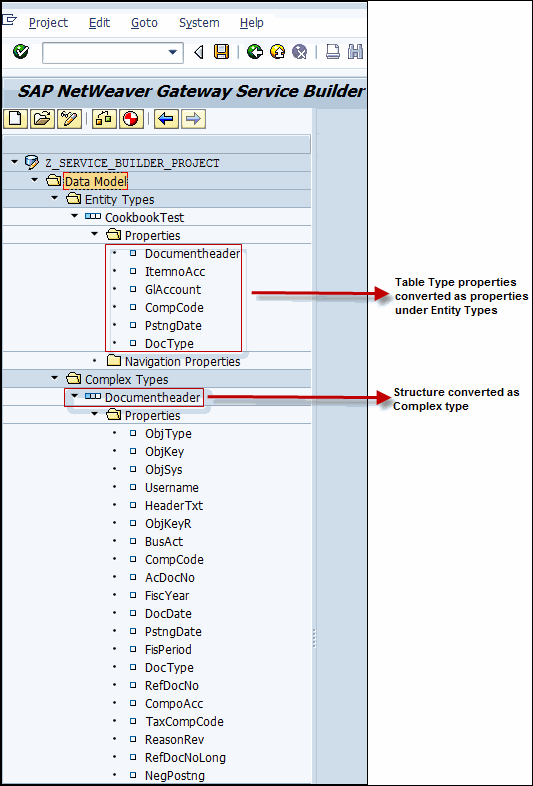
Selected data source parameters imported into the Service Builder
The new entity type you have created can also be assigned to a structure. The advantages of assigning a structure to the entity types are:
Conversion exit routines are used automatically
Labels are used from the DDIC
In the DPC class, the RFC or BOR interface parameters with structure or table types can be directly assigned instead of using move-corresponding.
You can also verify if the properties selected without their structures/table types are assigned with a data element.
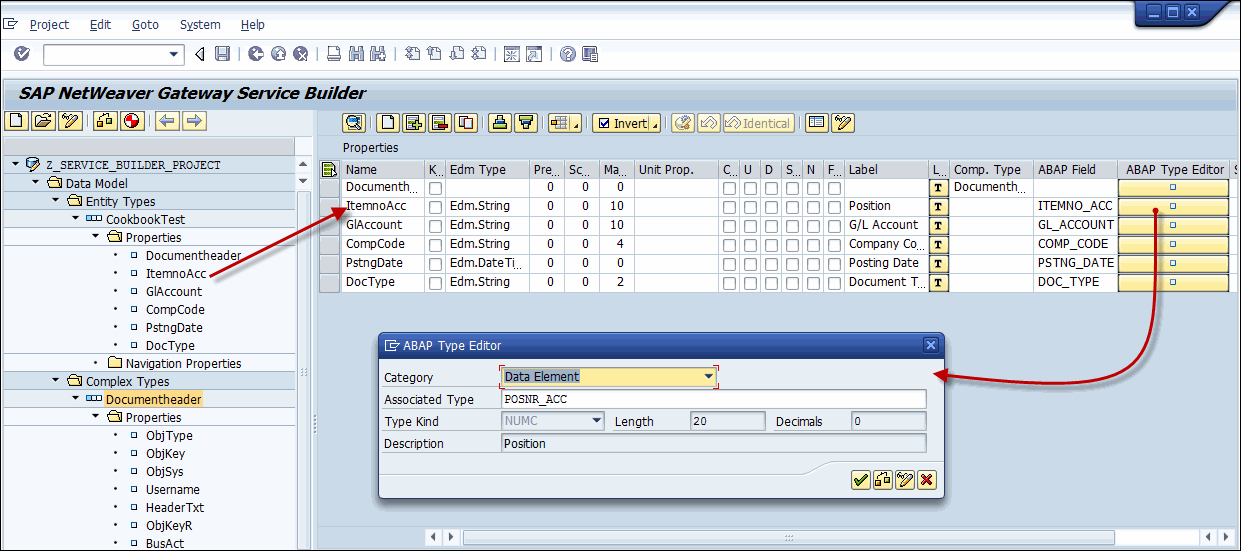
Data Element automatically assigned
NoteThe Service Builder runs an OData compliance check. The appropriate information messages resulting from the check are displayed. Double click the message to repair the error. See Entity Types for editing the entity types in the mass edit view.
End of the note.After fixing all the errors you can generate runtime objects.
See Generating the Service for detailed instructions to generate a service.
After generating the runtime objects, you can proceed to register and then maintain the service in the configured Gateway hub systems.
See Service Maintenance to maintain services.
Note
If the model developed in a system where the import from RFC uses the target system as Local is transported to another system, and If an error occurs in the transported system due to the non availability of the DDIC objects in the target system, the DDIC assignments of the artifacts can be removed.
Importing Properties
There might be instances when some properties were not selected during an import of RFC/BOR Interface. In such cases, the Import properties function can be used to import more properties from the same data source.
Note
Importing more properties is supported only for projects created in SAP NetWeaver Gateway 2.0 Support Package 6.
This section will guide you to import more properties for the entity/complex types from the same data source that were created during an import of RFC/BOR.
To import properties proceed as follows:
Right click on the entity type or on the complex type you have imported and select
Import Properties .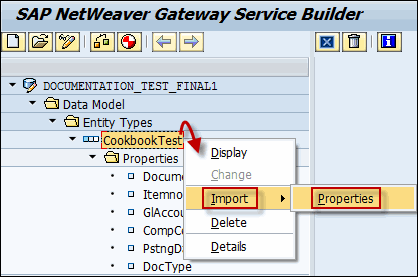
Import Properties
The Wizard Step 1 of 2: Import Properties-Select Parameter(s) page appears.
The properties that were already selected will be non selectable, and the other properties can be selected.
Select the required properties and choose Next.
The Wizard Step 2 of 2: Import Properties-Modify Entity Type page appears.
The properties that were added are represented with the editable Name, Is Key and Label columns.
Click Finish to complete the import.
The selected properties will now be imported into the entity type/complex type. The Service Builder will also perform a OData Compliance and the messages will be displayed in the details region.