 Classic Framework Page
The Classic Framework Page provides the navigational and structural components required to navigate and operate the portal. You can modify the Classic Framework Page or create your own framework pages to meet the requirements of your organization.
Location in Portal Catalog:  Portal Content
  Portal Users Standard Portal Users Classic Framework Page
  (pcd:portal_content/every_user/general/frameworkpage)
 Caution
Do not modify the delta link source object of the above-mentioned framework page, which is located in a subfolder under the Content Provided by SAP folder.
 Note
Note
For information about integrating SAP NetWeaver Enterprise Search into the Classic Framework page, see SAP NetWeaver Enterprise Search on SAP Help Portal.
The Headerless Framework Page supplied with the portal supports headerless navigation (see Headerless Navigation). You cannot access the Headerless Framework Page through the Portal Catalog. It is supplied as part of the Classic Framework Page.
Structure
The Classic Framework Page is a single portal page containing default iViews and pages. These components are positioned in the framework page using default page layouts also supplied by SAP.
The Classic Framework Page contains the following iViews and pages:
Page: Classic Framework Page (com.sap.portal.frameworkpage)
This is a portal page that contains the following iViews and pages:
iView: Masthead iView
NoteAn administrator can show or hide the links in the Masthead iView at runtime by setting the Show Link in Masthead: <Link Name> properties in the iView using the Framework Page Configuration tool. For more information, see Creating and Editing a Framework Page.
If you have configured your portal to accept anonymous users, you can add the language personalization dropdown list to the masthead, by selecting the Show Dropdown List in Masthead: Language Personalization for Anonymous Users property in the Masthead iView. At runtime, anonymous users can change the portal language. If the anonymous user logs in as an authenticated user, the dropdown list disappears from the masthead, and the portal appears in the language defined for that user.
End of the note.iView: Tool Area
NoteThis iView is assigned to the Classic Framework Page, but is by default in a hidden state. To display it, change the Visible property of this iView by editing it in the Classic Framework Page (see Editing Page Content and Layout).
End of the note.iView: Top-Level Navigation (see Top-Level Navigation)
iView: Page Title Bar (see Page Title Bar Navigation)
Page: Desktop Innerpage (com.sap.portal.innerpage)
This page contains the following iViews that comprise the navigation panel (see Navigation iViews) and the content area:
iView: Detailed Navigation (com.sap.portal.detailedNavigationTree) (see Detailed Navigation)
iView: Dynamic Navigation (see Dynamic Navigation)
NoteWhen Collaboration is installed, the Classic Framework Page includes an additional Detailed Navigation iView that enables the integration of rooms in the portal.
End of the note.iView: Related Links (see Related Links)
iView: Browser Document Mode (com.sap.portal.BrowserDocumentMode)
This iView adds an X-UA-Compatible header into the framework page that affects the Browser Mode and the Document Mode in Microsoft Internet Explorer. The default value is IE=EmulateIE7 that sets the Browser Mode in Microsoft Internet Explorer to IE7 Compatibility View and the Document Mode to Quirks.
For more information, see SAP note 1700793.
iView: Portal Favorites (see Portal Favorites iView)
NoteThe Portal Favorites iView is available only after you have installed Knowledge Management.
End of the note.iView: Content Area
iView: Collaboration Detailed Navigation (com.sap.netweaver.coll.CollaborationDetailedNavigation)
The following figure illustrates the relative positioning of the components in the Classic Framework Page.
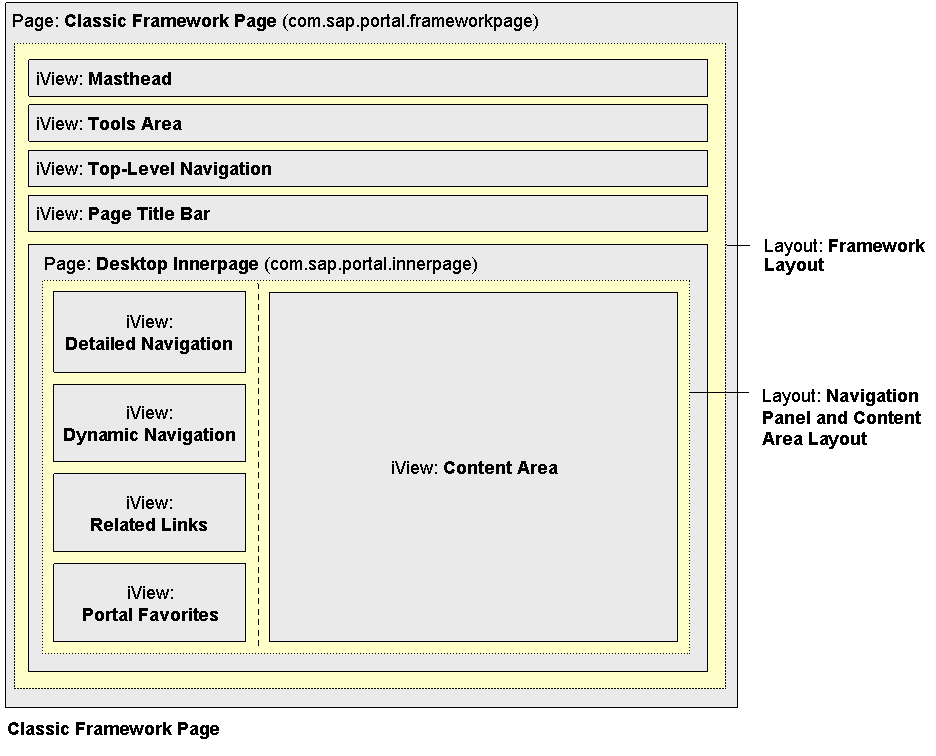
Layouts in the Classic Framework Page
The pages and iViews in the Classic Framework Page are spatially positioned through the use of two default page layouts:
Page Layout |
Assigned to Page |
Description |
|---|---|---|
Framework Page Layout (pcd:portal_content/com.sap.pct/admin.templates/layouts/com.sap.portal.layoutPortal1_Framework) |
Classic Framework Page |
Layout is a single full-width column |
Navigation Panel and Content Area Layout (pcd:portal_content/com.sap.pct/admin.templates/layouts/com.sap.portal.layoutPortal1_WAandNavPanel) |
Desktop Innerpage |
Layout is in the following two columns:
|