
 Configuring Collaboration Services
in the Portal
Configuring Collaboration Services
in the Portal

Use
You can determine which collaboration services are available on the Collaboration Launch Pad (CLP), in the room member list, on the user interface of the User Details iView, and in the context menu for each user throughout the portal.
Users launch the services using menus. Exception: On the user interface of the User Details iView, links are provided for launching services that are frequently required.

After installation of the SAP NetWeaver usage type Enterprise Portal, you work through the basic configuration of the associated Collaboration capabilities. During basic configuration, you activate predefined groups of services as menus or link groups. For more information, see Activating the Complete Grouping of Collaboration Services. Therefore, the configuration of services is required only if you want to provide company-specific groupings of services.
Overview
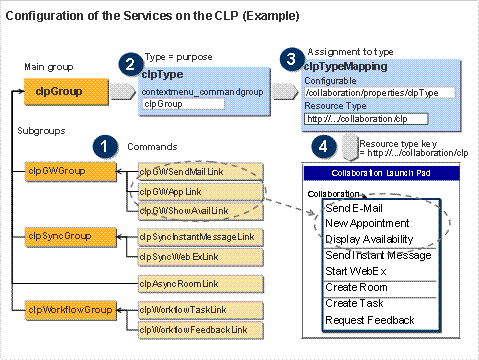
The graphic below uses the CLP as an example to illustrate the configuration steps that are required to make services available. The individual configuration steps are described in the Features section.
...
1. Grouping the commands for launching services in one main group, which can consist of subgroups or individual commands.
2. Assigning the main group to the configuration object (Type) that corresponds to the purpose – in this example, to clpType.
3. Assigning the technical key for this type (resource type key) to the CLP iView.
4. Testing the corresponding links in the CLP iView.
Prerequisites
The Content Administration portal role is assigned to your user. This allows you to launch the configuration iView required through the following path: Content Administration → Collaboration Content → Collaboration Launch Pad Administration.
Alternatively, you can access the configuration iView through the System Administration portal role. This gives you access to the shared system configuration for the KM and Collaboration components.
Procedure
Function |
Description |
Grouping the commands for launching services
– See step one in the graphic |
Each command (link command) controls the launching of a service through the corresponding link. For each service, SAP delivers two command variants – one for the Collaboration menu and one for the context menu. For more information, see Standard Configuration. SAP recommends that you do not change the commands. The following applies when grouping the services: ● You can create subgroups of commands to structure the menus, for example, a command group for synchronous services. As with main groups, you create subgroups as command groups. ●
You can
assign both command groups (command groups) and individual commands (link commands) to the main group. Limiting a service for portal roles
Copy the commands to your own namespace, if you have limited the roles they can be used by. This ensures that you changes are retained after an upgrade. |
Defining the purpose of the main group of commands
– See step two in the graphic |
The specific purpose – the iView that a set of commands is intended for – is represented by a type (for example, clpType for the services in the CLP Collaboration menu). To define the purpose of a main group of commands, assign it to one of the following attributes of the corresponding type: ●
Services for
CLP, Member List, or User Details ●
Services in
the context menu for
displayed users or user groups
Note the implementation of the commands: ○ For services that are made available in the CLP Collaboration menu or the Member List, you must use only commands with the implementation CLPUICommand. ○ For the remaining cases, you must use only commands with the implementation UILaunchCommand. |
Assigning the type to the iView (type mapping)
– See step three in the graphic |
By means of the assignment of the type to a resource type, you link the type (including the assigned main group of commands) to actual resource types. These resource types include: ● Users or user groups ● iViews such as the CLP and the Member List
To make the corresponding group of services available in the Collaboration menu, the resource type must be entered in the iView properties in the Type Mapping Key field. |
Checking and testing
– See step four in the graphic |
To test your configuration, launch the corresponding iViews. |

Different Configurations for CLP and Member List
If you want to deviate from the standard configuration and provide different sets of services for the member list and the CLP, proceed as follows:
●
Create a new
command group for the Member List
and assign the required commands to this group.
If required, you can create subgroups of commands and assign these to the main
group of commands for the Member List.
● Create a new type for the Member List and in contextmenu_commandgroup, assign the main group of commands defined for it to this type.
●
Assign the
new type to the Member List iView.
To do this, you enter the resource type in the properties of the Member List iView in the Type Mapping Key field.
You can also make available a separate group of services for each room template. To do this, create a separate Member List iView for each room template and configure the services required as described above.