
 Web Dynpro Java Application Fails to
Start
Web Dynpro Java Application Fails to
Start

Problem Description
A requested Web Dynpro Java application fails to start
|
Scenario Type: |
Error analysis |
|
NetWeaver Component: |
SAP Web AS: Web Dynpro Java (BC-WD) |
|
Validity: |
SAP Web AS 6.40 |
Overall Web Dynpro Architecture
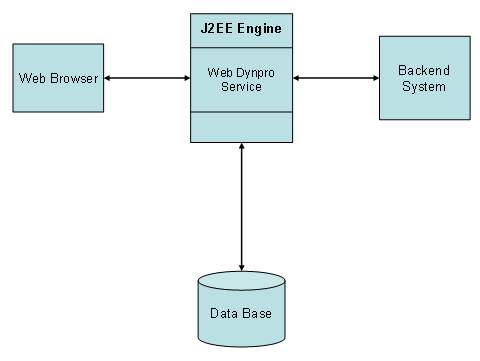
Possible Error Sources
...
1. The J2EE Engine was shut down
2. The database was stopped
3. The J2EE Engine is out of memory
4. The Web Dynpro service was stopped or failed to start
5. The Web Dynpro application is not deployed or was removed
6. The Web Dynpro application was disabled
7. If the application consists of Web Dynpro components, the previous two points can apply to each component
8. The back-end system was shut down (if the application uses a back-end system)
9. The SLD system is not available (if the application uses a back-end system)
Decision Roadmap
Prerequisites
You need to log on to the J2EE Engine as an administrator, so make sure you have a valid administrator user and password.
Main Tools
Visual Administrator
Web Dynpro Content Administrator
Execution
Find out which version of Web Dynpro is installed
To find out which version of Web Dynpro is installed, log on to the SLD system.
Use the technical system browser to select the entry for the J2EE Engine running on the machine. The Web Dynpro framework consists of the following deployed objects:
● Service webdynpro
● Library tc~wd~pdflib
● Applications
○ sap.com/tc~wd~corecomp
○ sap.com/tc~wd~dispwda
○ sap.com/tc~wd~pdfobject
○ sap.com/tc~wd~pdfsvrchal
○ sap.com/tc~wd~tools
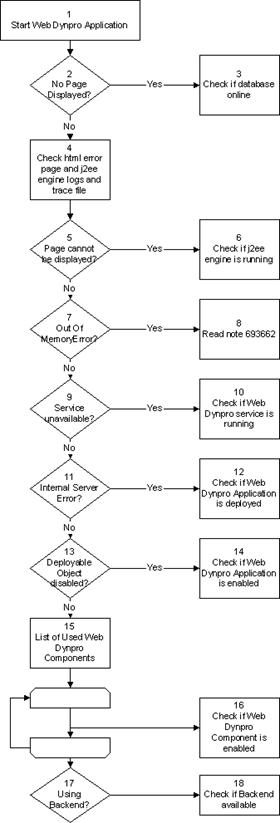
1. Start the requested Web Dynpro application with a Web browser.
2. If no page is displayed in the browser and the status bar of the browser shows the message Opening page … for several minutes, then the database could be offline.
3. Proceed with Check if the database is online.
4. Check the HTML error page and the logs and default traces for information that describes the error. Using the Log Viewer, open the server log files in the directory log/system.
Depending on the problem, the error message may have been written to the user interface, database or server log. Additional information may also be found in the default trace file of the server which is located directly in the log directory.
5. If the error message is similar to The page cannot be displayed, then the J2EE Engine could be down.
6. Proceed with Check if the J2EE Engine is running.
7. If the error message contains the word OutOfMemoryError then the default settings of the Java Virtual Machine used by the J2EE Engine are insufficient.
8. See Note 693662.
9. If the error message is similar to Service Unavailable, then the Web Dynpro service may be stopped or could have failed to start.
10. Proceed with Check if the Web Dynpro Service is running.
11. If the error message is similar to Internal Server Error, then the Web Dynpro application could be not deployed or was removed.
12. Proceed with Check if Web Dynpro application is deployed.
13. If the error message is similar to Deployable object … containing the requested application … is disabled on the server. Please contact your system administrator then the Web Dynpro application could be disabled.
14. Proceed with Check if Web Dynpro application is enabled.
15. Follow the instructions in Find out which Web Dynpro components are used by an application to get a list of the used Web Dynpro components.
If the Web Dynpro application consists of separate Web Dynpro components, repeat the following steps for each component:
16. Check if the Web Dynpro application is deployedand Check if Web Dynpro application is enabled.
17. Follow the instructions in Find out if the Web Dynpro application is using a SAP back-end system to see if the Web Dynpro Application uses a SAP back-end system to access business data via RFC.
18. Proceed with Check if the back-end system is available if the application is using a back-end system.
Analysis
The following sections describe how to perform the various checks mentioned in the steps above.
Check if the database is online
Using
the standard database administrative tools, check if the database is online.
See
 Visual
Administrator: Logon Failure for instructions. If the database is not
online then try to restart the database and the J2EE Engine and proceed with
Start the requested Web Dynpro
application.
Visual
Administrator: Logon Failure for instructions. If the database is not
online then try to restart the database and the J2EE Engine and proceed with
Start the requested Web Dynpro
application.
Check if the J2EE Engine is running
Using
the standard J2EE Engine tools, check if the J2EE Engine is running. See
Visual
Administrator: Logon Failure for instructions. If the engine is not
running, try to start it and proceed with Start the
requested Web Dynpro application.
Check if the Web Dynpro Service is running
Using the Visual Administrator, log on as administrator and check if all parts of the Web Dynpro service are deployed and started:
● Expand Server ® Services and scroll down to node webdynpro. Check if the service is started (an icon with an arrow and a star, like the one next to Administration Adapter in the following figure) and not stopped (an icon with an arrow and a star with a cross, like the one next to ABAP Communicator below). If the service is stopped, you can try to start it by selecting the webdynpro node and choosing Start in the context menu.
● Double click on Server ® Services ® Deploy to display the Deployed Components and activate the Application radio button at the bottom of the panel.
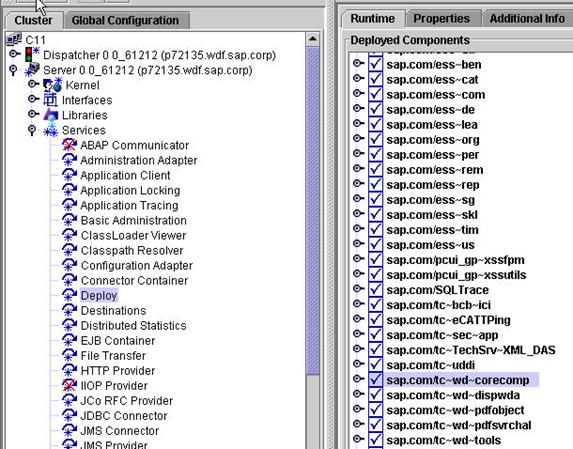
● Check that the following applications are deployed and started
○ sap.com/tc~wd~dispwda
○ sap.com/tc~wd~corecomp
○ sap.com/tc~wd~tools
If they are deployed but not started, you can try to start the applications in the given order of the list by selecting the application and clicking on the Start Application button on the right.
● If all these are started, the Web Dynpro service is up and running
● If one of the applications is not deployed, you can deploy it using the SDM. The corresponding sda files are located in the SDM repository. See the SDM documentation for further details.
● Follow the instructions described in Check if the referenced services and libraries of an Application are available to check if all referenced services and libraries are available for the Web Dynpro service applications
Check if the Web Dynpro application is deployed
Using the Log Viewer, check the default trace file for entries with a message containing webdynpro/dispatcher.
If the error text contains the following pattern:
Failed to start deployable object part info for <development component> and application <application name> then the Web Dynpro application could not be found on the server.
To check if the application is deployed, use the Visual Administrator and log on as an administrator user.
● Double-click on Server ® Services ® Deploy to display the Deployed Components
● Switch to the Application radio button to show the deployed applications.
If the application is not in the list, then it is not deployed on the server. You can deploy it using the SDM.
If the status of the application is stopped, you can try to start the application. If this fails, follow the instructions in Check if the referenced services and libraries of an Application are available to check if all referenced services and libraries are available for this application.
If the application is deployed then it could be disabled by an administrator. Proceed with Check if Web Dynpro application is enabled to check if the application is disabled.
Check if the Web Dynpro application is enabled
Using the Web Dynpro Content Administrator, check if the requested application is enabled.
See Log on to Web Dynpro Content Admin for information about starting the Content Administrator application.
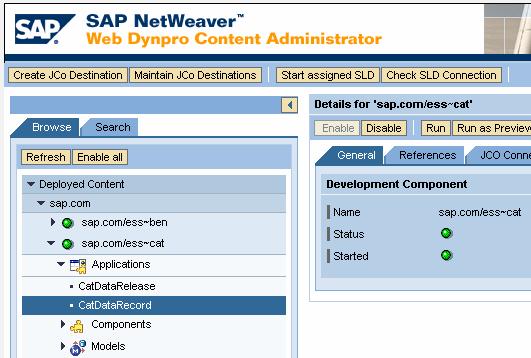
The tree on the left lists all deployed Web Dynpro applications. Expand the tree to see all applications and check if the requested application is enabled.
If the application is disabled, you can try to enable it by clicking on the Enable button.
Find out if the Web Dynpro application is using a SAP back-end system
Using the Web Dynpro Content Administrator, check if a Web Dynpro application is using a SAP back-end system to access business data via RFC.
See Log on to Web Dynpro Content Admin for information about starting the Content Administrator application.
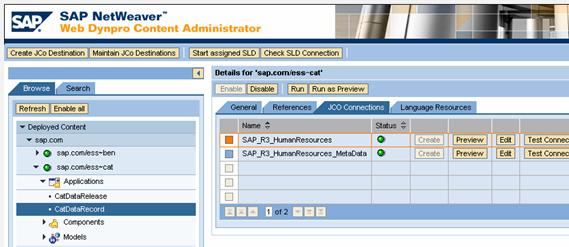
In the tree on the left, select the application. In the right pane, switch to the tab strip named JCO Connections. The Web Dynpro Applications is using a SAP bac-kend system if the table contains entries.
Check if the back-end system is available
If this application communicates with an SAP back-end system via RFC and stores the connection data in SLD (System landscape directory), you can check the connection configuration in the content administrator.
See Log on to Web Dynpro Content Admin for information about starting the Content Administrator application.
After you log on, if there is an error message saying that the SLD is not configured properly, follow the steps described in Check configuration of SLD.
Select the application that you want to check and switch to the JCO Connections tab on the left side. Select Test Connection to check the connection with an RFC ping. To display the connection configuration, select Preview.
The test fails if one of the following applies (the message in the WD Content Administrator should indicate the reason):
1. The local or central SLD is not configured for this engine
This can be checked and configured as described in Check configuration of SLD.
2. The SLD is not running or is not reachable
Choose CIMClient Test as described in the previous point to test the connection to the central SLD, or use a browser with the URL build of the values of the HTTP connection parameters host, port and use HTTPS?: http<s>://<Host>:<Port>/sld . If the browser shows an error page, then the SLD is not reachable.
3. The back-end system is not available or is not reachable
Use the Web Dynpro Content Administrator to get the connection configuration of the SAP back-end system. See Check if the back-end system is available for instructions. Use the CCMS or SAP Logon to check if the SAP system is reachable.
Check configuration of SLD
You can check and modify the SLD configuration settings of the J2EE Engine using the Visual Administrator. Log on as an administrator user and double click on Server ® Services ® SLD Data Supplier.
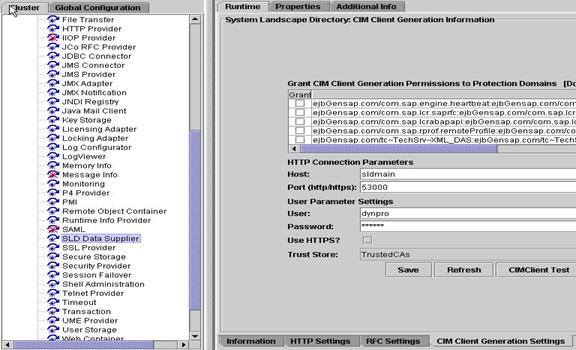
Switch to tab CIM Client Generation Settings. If the HTTP connection parameters host, port, user and password are not set, then the SLD is not configured to be used by Web Dynpro applications. Configure the parameters with the values of the central SLD system and save the configuration. Select CIMClient Test to test if the configuration data is correct and the connection to SLD could be established.
Find out which Web Dynpro components are used by an application
Using the Web Dynpro Content Administrator, view a list of all components that a Web Dynpro application is using.
See Log on to Web Dynpro Content Admin for information about starting the Content Administrator application.
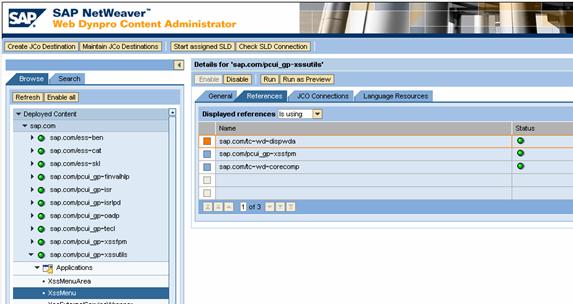
In the tree on the left side, select the application. In the right pane switch to the tab strip named References. Select Is using as Displayed references. The table contains all Web Dynpro components the application is using.
Check if the referenced services and libraries of an application are available
Using the Web Dynpro Content Administrator, view a list of all referenced services and libraries that a Web Dynpro application is using.
See Log on to Web Dynpro Content Admin for information about starting the Content Administrator application.
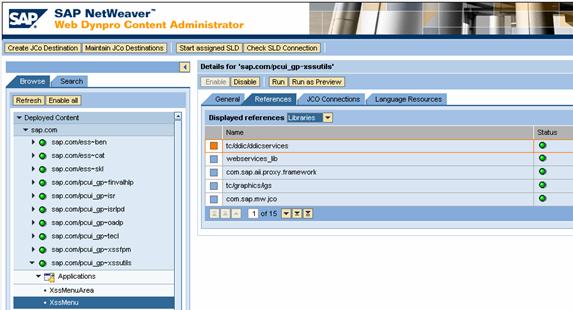
In the tree on the left, select the application. In the right pane, switch to the tab strip named References.
First select Services as Displayed references. Check that the status of all entries in the table is green, which means that all referenced services are available.
Secondly, select Libraries as Displayed references. Check that the status of all entries in the table is green, which means that all referenced libraries are available.
For all entries with a red status, check if the service/library is deployed and started. To check if the service/library is deployed and started, use the Visual Administrator of the J2EE Engine. All deployed libraries are listed under node Server ® Libraries and all services are listed under node Server ® Services.
If the service/library is not deployed or started then try to deploy or start it.
Log on to Web Dynpro Content Admin
Start the Web Dynpro Content Administrator tool with a Web browser using the following
URL <http(s)>://<hostname>:<port>/webdynpro/welcome
e.g. http://localhost:50000/webdynpro/welcome
and select Content Administrator. Log on as an administrator user.
Additional Information
CSN components and notes
Further information can be found in the CSN system. The notes for Web Dynpro Java runtime use component BC-WD or BC-WD-JAV.
Documentation
Web Dynpro
Content Administrator