
 Implementing Native Collaboration Services
Using Samples
Implementing Native Collaboration Services
Using Samples

Use
SAP ships samples of native collaboration services provided by Microsoft Outlook and Windows Messenger, which you can install and make available using the following menus:
● Collaboration menu of the Collaboration Launch Pad (CLP)
● Collaboration menu of the room member list
● User context menu
Based on the code samples and this documentation, you can learn how to implement further services provided by third-party client applications in the CLP.
Technical Background
All native collaboration services create and render a DynPage using a portal component. The DynPage extracts the selected users from the Collaboration Context Container. With this information, the DynPage creates and renders the VBScript and JavaScript to create a Microsoft Outlook e-mail item, for example.
Overview
This document explains the general steps of an implementation project based on the example of how to implement Microsoft Outlook services.

The Java source code excerpts included in the documentation show only the most relevant parts of the coding. For necessary imports and other detailed information, take a look at the Java source code files.
...
1. Create a Portal Application project.
2. Create a portal component.
3. Create a DynPage:
○ Check the browser to allow the execution of VBScript or JavaScript.
○ Retrieve the selected users passed using a Collaboration Context Container.
○ Execute operation on a third-party product using VBScript or JavaScript.
○ Close the window after the execution.
4. Create a generic service.
5. Create a new Microsoft Outlook mail item using VBScript.
○ Pre-fill the Microsoft Outlook mail item.
6. Create a new Microsoft Windows Messenger conversation using VBScript.
○ Invite a user to a conversation.
○ Four strategies for retrieving an IUser SIP address.
○ Sample: Use UME attributes (optionally mapped using LDAP) to invite a user to a conversation.
7. Create the portalapp.xml.
8. Create a link command.
Procedure
...
1. Create a new Portal Application project similar to the sample below.
com.sap.netweaver.coll.demo.sdn_cs_outlook |
(1): Link commands for the portal components
(2): Command that defines that link commands should always be updated
(3): Resource bundle
(4): Portal components
(5): DynPages
(6): Generic service
(7): Portal Application configuration XML
2. Create a portal component.
This is the fundamental implementation step for a native collaboration service. The portal component is needed for the link command and the DynPage. The native collaboration service is a link command, which corresponds to a menu item in the Collaboration menu in the CLP. A link command calls a portal component, which creates and renders a DynPage.
The following code excerpt shows the implementation of a portal component:
public class OutlookMailComponent extends PageProcessorComponent { public DynPage getPage() { return new OutlookMailComponentPage(); } // method: getPage
} // class: OutlookMailComponent
|
3. Create a DynPage.
The DynPage contains the logic of the native collaboration service. It retrieves the selected users of the Collaboration Launch Pad from the Collaboration Context Container and renders the VBScript and JavaScript to access and control the third-party products.
The following code excerpt shows the outline of the DynPage:
public class OutlookMailComponentPage extends DynPage {
/** reference to the logger */ private static final Location logger =
[…]
public OutlookMailComponentPage() { super(); this.setClassLoader(this.getClass().getClassLoader()); } // constructor
public void doInitialization() throws PageException { // do initialization here e.g.: get internationalized texts […] } // method: doInitialization
public void doProcessAfterInput() throws PageException { } // method: doProcessAfterInput
public void doProcessBeforeOutput() throws PageException { // retrieve selected users and render VBScript and JavaScript […] } // method: doProcessBeforeOutput
} // class: OutlookMeetingComponentPage
|
The native collaboration service is executed in two steps:
○ Preparation: Method doInitialization
■ Get internationalized texts
○ Execution: Method doProcessBeforeOutput
■ Retrieve the selected users
■ Check the browser for VBScript support
■ Render the VBScript and JavaScript
Method doInitialization
During the initialization of the DynPage, the internationalized texts are retrieved from the resource bundle: OutlookBundle. If the resource bundle cannot be found, an exception is logged and the keys for the resource bundle entries are used as the texts:
[…]
/** name of the resource bundle */ private final static String RESOURCE_BUNDLE_NAME =
/** error message: Browser is no MSIE => in general does not support VBScript */ private final static String MSG_ERROR_BROWSER_KEY = "xmsg_error_browser";
/** error message value for key: MSG_ERROR_BROWSER_KEY */ private String msgErrorBrowser = null;
/** error message: ActiveX (VBScript) execution not allowed by browser settings */ private final static String MSG_ERROR_ACTIVEX_KEY = "xmsg_error_activex";
/** error message value for key: MSG_ERROR_ACTIVEX_KEY */ private String msgErrorActiveX = null;
[…]
public void doInitialization() throws PageException { // extract the internationalized texts out of the resource bundle try { // get the reference to the resource bundle and get the texts ResourceBundles resBundle = ResourceBundles.getBundle(RESOURCE_BUNDLE_NAME); this.msgErrorBrowser = resBundle.getString(MSG_ERROR_BROWSER_KEY); this.msgErrorActiveX = resBundle.getString(MSG_ERROR_ACTIVEX_KEY); } catch (MissingResourceException ex) { // if resource bundle was not found => log exception and use the keys //for the texts logger.errorT("doInitialization", "Could not find resource bundle \"" + RESOURCE_BUNDLE_NAME + "\"! Reason: " + LoggingFormatter.extractCallstack(ex)); this.msgErrorBrowser = MSG_ERROR_BROWSER_KEY; this.msgErrorActiveX = MSG_ERROR_ACTIVEX_KEY; } } // method: doInitialization
[…]
|
If the texts are to be internationalized, the link command and the DynPage must create a generic service to register the class loader. For more information, see the Create Generic Service section.
Method doProcessBeforeOutput
In general, the method doProcessBeforeOutput performs the following steps:
i. Check the browser to allow the execution of VBScript or JavaScript.
ii. Retrieve the selected users passed using the Collaboration Context Container.
iii. Execute operation on a third-party product using VBScript or JavaScript.
iv. Close the window immediately after the execution.
(i) Check the browser.
The browser is checked on the server-side by analysing the header of the request. The execution of the native collaboration service is only allowed if the browser is Microsoft Internet Explorer due to the VBScript support required. Otherwise, an error message appears:
[…]
public void doProcessBeforeOutput() throws PageException {
// retrieve the portal component request
IPortalComponentRequest request =
// check for Microsoft Internet Explorer => only if browser is a type of // Internet Explorer the browser supports VBScript! if (this.isBrowserMSIE(request)) {
[…]
} else {
// JavaScript: Browser is not Internet Explorer => does not support VBScript this.getForm().addRawText("<script language=\"javascript\">\n"); this.getForm().addRawText(" alert (\"" + this.msgErrorBrowser + "\");\n"); this.getForm().addRawText("</script>\n");
}
[…]
} // method: doProcessBeforeOutput
// ================================================================= // BROWSER CHECK METHODS // =================================================================
/** * checks if the browser is an Microsoft Internet Explorer * @param request reference to IPortalComponentRequest * @return true, if the browser is an Microsoft Internet Explorer */ public boolean isBrowserMSIE(IPortalComponentRequest request) { String userAgent = request.getServletRequest().getHeader("user-agent"); return (userAgent != null ? userAgent.indexOf("MSIE") > -1 : false); } // method: isBrowserMSIE
[…]
|
(ii) Retrieve the selected users passed using the Collaboration Context Container.
The following code excerpt shows the methods required to retrieve the selected users:
[…]
public void doProcessBeforeOutput() throws PageException {
// retrieve the portal component request
IPortalComponentRequest request =
// use the portal component request to extract the selected // user IDs out of the Collaboration Context Container List uniqueIDs = null; try { ContextContainer container = new ContextContainer(request); uniqueIDs = this.getUsersListFromEntitiesList(container.getPeopleList()); container.invalidateDataContainer(); } catch (ContextException ex) { throw new PageException(ex); }
[…]
} // method: doProcessBeforeOutput
// ================================================================= // USER MANAGEMENT HELPER METHODS // =================================================================
private List getUsersListFromEntitiesList(List mixed) { List userIDs = new ArrayList(); for (int i = 0; i < mixed.size(); i++) { String entityId = (String) mixed.get(i); if (this.isGroup(entityId)) { userIDs.addAll(this.getUsersFromGroup(entityId)); } else { userIDs.add(entityId); } } return userIDs; } // method: getUsersListFromEntitiesList
private boolean isGroup(String uniqueId) { try { String objectType = UMFactory.getPrincipalFactory().getPrincipalType(uniqueId); return IPrincipalFactory.IGROUP.equals(objectType); } catch (UMException ex) { return false; } } // method: isGroup
private List getUsersFromGroup(String uniqueId) { List users = new ArrayList(); try { IGroup group = UMFactory.getGroupFactory().getGroup(uniqueId); if (group != null) {
Iterator it = group.getUserMembers(false); } return users; } catch (UMException ex) { return users; } } // method: getUsersFromGroup
[…]
|
Explanations:
ContextContainer container = new ContextContainer(request); |
The request object is used to create a new instance of the context container. Then the context container analyzes the parameters passed and retrieves the cached information.
uniqueIDs = this.getUsersListFromEntitiesList(container.getPeopleList()); |
In the next line, a separate method is used to retrieve only the selected users of the passed people. This method checks the list of the passed people for groups and then resolves the group and returns the users of this group instead.
container.invalidateDataContainer(); |
Once the selected users have been retrieved, the Collaboration Context Container must be invalidated. This is necessary to remove the instance of the Collaboration Context Container from the cache.
(iii) Execute operation on third-party products, for example, Microsoft Outlook.
Once the browser has been checked and the selected users have been retrieved, the VBScript and JavaScript to execute operations on third-party products are added to the form on the DynPage (this.getForm().addRawText("…");). The following code excerpt shows the basic content:
public void doProcessBeforeOutput() throws PageException {
[…]
// write the VBScript method in the body of the portal component // for the Microsoft Outlook access this.getForm().addRawText(" <script language=\"VBScript\">\n"); this.getForm().addRawText(" Sub MS_Outlook_CreateMail() \n");
// do the necessary VBScript operations here […]
// VBScript: close the VB method and the SCRIPT tag this.getForm().addRawText(" End Sub\n"); this.getForm().addRawText("</script>\n");
// JavaScript: Invoke the VBScript method on PageLoad this.getForm().addRawText("<script language=\"javascript\">\n"); this.getForm().addRawText(" MS_Outlook_CreateMail();\n"); this.getForm().addRawText("</script>\n");
[…]
} // method: doProcessBeforeOutput
|
The JavaScript code that invokes the VBScript is executed on PageLoad. In the VBScript code, the Microsoft Outlook mail item is created and prefilled with the selected users.
For more information about Microsoft Outlook and Microsoft Windows Messenger:
○ See step five: Create a new Microsoft Outlook mail item using VBScript.
○ See step six: Create a new Microsoft Windows Messenger conversation using VBScript.
(iv) Close the window.
Once the native collaboration service is executed, you must close the window. This is achieved with the following JavaScript:
public void doProcessBeforeOutput() throws PageException {
[…]
// JavaScript: Render the JavaScript to close the window after // at least 10 milliseconds this.getForm().addRawText("<script language=\"javascript\">\n"); this.getForm().addRawText(" function closeWindows() {\n"); this.getForm().addRawText(" window.close();\n"); this.getForm().addRawText(" }\n"); this.getForm().addRawText(" setTimeout( \"closeWindows()\", 10);\n"); this.getForm().addRawText("</script>\n");
} // method: doProcessBeforeOutput
|
4. Create a generic service.
If internationalized texts for the link command and the DynPage are to be used in the portal component, you must register the class loader to find and retrieve these texts from a resource bundle.
A generic service can register the class loader with minimal effort. The following code excerpt shows the implementation of a generic service:
public class OutlookService extends GenericService {
public OutlookService() { super(); } // constructor
} // class: OutlookService
|
You need to register the GenericService in the portalapp.xml (see step seven) and set the attribute startup to true. Now the ClassLoader is registered.
5. Create a new Microsoft Outlook mail item using VBScript.
This section explains the basics of retrieving the reference to Microsoft Outlook, creating a new Microsoft Outlook mail item, and prefilling this mail item.
The code excerpts in this section are VBScript samples. You must add this coding to the form on the DynPage using the following operation: this.getForm().addRawText("…");
<script language="VBScript"> Sub MS_Outlook_CreateMail()
' if an error occurs => proceed On Error Resume Next
' try to get a reference to the Microsoft Outlook application Set oApp = CreateObject("Outlook.Application")
' check for valid reference => if not => report error via message box If oApp is Nothing Then MsgBox "No ActiveX/VBScript supported by browser!" Exit Sub End If
' create a new mail item Set oMail = oApp.CreateItem(0) ' 0 = olMailItem
' set the recipients of the mail item oMail.To = "recipient1@sap.com;recipient2@sap.com"
' display the mail item on the screen oMail.Display
' clear the object references Set oMail = Nothing Set oApp = Nothing
End Sub </script>
|
The creation of a Microsoft Outlook mail item and other Outlook items always follows the order below:
○ Retrieve the reference to the Microsoft Outlook application object.
○ Check that the reference is valid. Otherwise, issue an error message.
○ Create a new Outlook item, in this case, a new mail item.
○ Set the attributes to be prefilled in the mail item object.
○ Display the mail item.
○ Finally, clean up the references.
Prefill the new Microsoft Outlook mail item
The VBScript above shown does not contain any generic addition of the selected users. Therefore, the list of the selected users (List uniqueIDs) passed using the Collaboration Context Container is used to retrieve the IUser object itself, to extract the e-mail address of the users. These e-mail addresses are put together in a list separated by semicolons. Then this string is set in the TO attribute for the Microsoft Outlook mail-item. The following code excerpt shows this function:
public void doProcessBeforeOutput() throws PageException {
[…]
// VBScript: create the Outlook mail item this.getForm().addRawText(" Set oMail = oApp.CreateItem(0)\n");
// VBScript: set the eMail addresses of the selected users // into the TO field o the mailItem try {
// helper variables IUser user = null; String mailAddresses = ""; boolean first = true;
// retrieve the handle for the user factory of the user management IUserFactory userFactory = UMFactory.getUserFactory();
// find the first user with a valid mail-address and create a // Outlook mail item for (int i = 0; i < uniqueIDs.size(); i++) { // retrieve the user and check for existing mail-address user = userFactory.getUser((String) uniqueIDs.get(i)); if (user.getEmail() != null) { if (!first) mailAddresses = mailAddresses + ";"; mailAddresses = mailAddresses + user.getEmail(); first = false; } }
// set the TO field this.getForm().addRawText(" oMail.To = \"" + mailAddresses + "\"\n");
} catch (Exception ex) { // forward all occuring exceptions as PageException throw new PageException(ex); }
[…]
} // method: doProcessBeforeOutput
|
6. Create new Microsoft Windows Messenger conversation using VBScript.
This section explains the basics of retrieving the reference to Microsoft Windows Messenger and inviting a user to a conversation.
The code excerpts in this section are VBScript samples. You must add this coding to the form for the DynPage using the following operation: this.getForm().addRawText("…");
<script language="VBScript"> Sub MS_Messenger_SendInstantMessage()
' if an error occurs => proceed On Error Resume Next
' try to get a reference to the Microsoft Windows Messenger application Set oMessenger = CreateObject("Messenger.UIAutomation.1")
' check for valid reference => if not => report error via message box If oMessenger is Nothing Then MsgBox "No ActiveX/VBScript supported by browser!" Exit Sub End If
' if messenger is not logged in try to login ' if login is not successful => do not invite anyone ' because Messenger shows sign in information dialog If oMessenger.MyStatus = 1 Then dtTimestamp = Time iTimeout = 8 oMessenger.AutoSignin ' TimeOut is 8 seconds for the AutoLogin Do Until oMessenger.MyStatus = 2 If oMessenger.MyStatus = 1 Or DateDiff("s", dtTimestamp, Time) > iTimeout Then Exit Sub End If Loop oMessenger.Window.Show End If
' if messenger is not logged in try to login Set oChat = oMessenger.InstantMessage("contact1@sap.corp")
' clean up the references Set oChat = Nothing Set oMessenger = Nothing
End Sub </script>
|
The creation of a Microsoft Outlook mail-item and other Outlook items as well always follows the same order:
○ Retrieve the reference to the Microsoft Windows Messenger application object.
○ Check that the reference is valid. Otherwise, issue an error message.
○ If not signed in, try to sign in automatically.
○ Invite the contact to a conversation and display the conversation dialog.
○ Finally, clean up the references.
Invite a user to a conversation
The VBScript above shown does not use a generic means to invite the selected user passed using the Collaboration Context Container. Due to a limitation on the part of Microsoft Windows Messenger, you can invite only one user to a conversation using VBScript. The following code excerpt shows the invitation to the first selected user:
public void doProcessBeforeOutput() throws PageException {
[…]
// VBScript: Invite the first selected user to the Conversation try {
// helper variables IUser user = null; String mailAddress = null; String sipAddress = null;
// retrieve the handle for the user factory of the user management IUserFactory userFactory = UMFactory.getUserFactory();
// find the first user with a valid mail-address and create a // Windows Messenger chat-session for (int i = 0; i < uniqueIDs.size(); i++) {
// retrieve the user and check for existing mail-address user = userFactory.getUser((String) uniqueIDs.get(i)); if (user.getEmail() != null) { // check for valid mail-address (means @ in eMail) mailAddress = user.getEmail(); if (mailAddress.lastIndexOf("@") != -1) { // SAP Corperate Portal specific solution: // retrieve the SIP address by replacing //"sap.com" with "sap.corp" of the mail-address sipAddress = mailAddress.substring(0, mailAddress.lastIndexOf("@")) + "@sap.corp"; this.getForm().addRawText(" Set oChat = oMessenger.InstantMessage(\"" + sipAddress + "\")\n"); // chat-session created => break break; } }
}
} catch (Exception ex) { // forward all occuring exceptions as PageException throw new PageException(ex); }
[…]
} // method: doProcessBeforeOutput
|
The Microsoft Windows Messenger native collaboration service requires the SIP address of the user. The SIP address of a user is not a user management default attribute.
Four strategies for retrieving an IUser SIP address
As already mentioned, the SIP address is not a default attribute for an IUser object in user management. Therefore, strategies are needed to retrieve this attribute. To get the SIP address of a user, four different strategies are possible:
○ SIP address is the same as the e-mail address:
Use the e-mail address of the IUser to initialize the conversation.
○ SIP address is similar to the e-mail address:
Retrieve the e-mail address
of the user and convert it to the SIP address
(for example, replace the sap.com suffix with sap.corp as implemented by the
sample service).
○ SIP address is an additional User Management Engine (UME) attribute:
■
Add an additional SIP
address attribute to the IUser.
See
 Adding
Custom Attributes to the User Profile
Adding
Custom Attributes to the User Profile
■ Retrieve the SIP address attribute for the IUser and use it to initiate the conversation.
○ SIP address is an additional attribute for user management mapped using LDAP:
■
Map the attribute SIP
address of LDAP to a (new) attribute for the IUser.
See:
Attribute
Mapping
■ Retrieve the SIP address attribute for the IUser and use it to initiate the conversation.
Sample: Using UME attribute (optionally mapped using LDAP) to invite a user to a conversation
public void doProcessBeforeOutput() throws PageException {
[…]
// VBScript: Invite the first selected user into a Conversation try {
// helper variables String sipAddress = null;
// find the first user with a valid mail-address and create a // Windows Messenger chat-session for (int i = 0; i < uniqueIDs.size(); i++) {
// retrieve the user and check for existing mail-address sipAddress = this.getUserSIPAddress((String) uniqueIDs.get(i)); if (sipAddress != null && sipAddress.length() > 0) { this.getForm().addRawText(" Set oChat = oMessenger.InstantMessage(\"" + sipAddress + "\")\n"); } else { this.getForm().addRawText(" MsgBox \"" + this.msgErrorNoSIP + " \" \n"); }
}
} catch (Exception ex) { // forward all occuring exceptions as PageException throw new PageException(ex); }
[…]
} // method: doProcessBeforeOutput
[…]
// ================================================================= // USER MANAGEMENT HELPER METHODS // =================================================================
/** * returns the SIP address for the user defined by the given ID.<br> * <b>The attribute <code>sip</code> in the namespace * <code>com.sap.security.core.usermanagement</code> has to be available * as an User attribute in UME either manually defined or mapped via LDAP.</b> * @param userID user unique ID * @return SIP address for the user defined by the given ID */ private String getUserSIPAddress(String userID) { // SIP address container String sipAddress = null; // get the SIP address of a user try { // try to retrieve the user for the given user ID IUser user = UMFactory.getUserFactory().getUser(userID); // if a user was found, try to retrieve the SIP address sipAddress = this.getUserAttribute(user, "com.sap.security.core.usermanagement", "sip"); } catch (UMException ex) { // if an exception occurs => no SIP address available sipAddress = null; } // return the SIP address of the user return sipAddress; } // method: getUserSIPAddress
/** * returns the attribute value o the given user for the given attribute namespace and name * @param user reference to the <code>IUser</code> * @param attributeNamespace namespace of the attribute * @param attributeName name of the attribute * @return attribute value */ private String getUserAttribute(IUser user, String attributeNamespace, String attributeName) { if (user == null) return null; String[] attribute = user.getAttribute(attributeNamespace, attributeName); return attribute != null && attribute.length > 0 ? attribute[0] : null; } // method: getUserAttribute
|
This is the default implementation of the demo service delivered by SAP.

Once you have uploaded this service, you need to map the additional UME attribute sip (with the namespace com.sap.security.core.usermanagement) using LDAP.
7. Create the portalapp.xml.
The following portalapp.xml contains the three portal components: “OutlookCreateMeeting”, “OutlookCreateEmail”, and “OutlookCreateTask”. In addition, the generic service: “OutlookService” is part of the portalapp.xml file in order to register the class loader:
<?xml version="1.0" encoding="iso-8859-1"?> <application> <application-config> <property name="releasable" value="true"/>
<property name="ServicesReference" <property name="Vendor" value="sap.com" /> <property name="SecurityArea" value="NetWeaver.KMC" /> </application-config> <components> <component name="OutlookCreateEmail"> <component-config>
<property name="ClassName" value="com.sap.netweaver.coll.sdndemo.services.outlook. <property name="SafetyLevel" value="low_safety"/> </component-config> <component-profile/> </component> <component name="OutlookCreateMeeting"> <component-config>
<property name="ClassName" value="com.sap.netweaver.coll.sdndemo.services.outlook. <property name="SafetyLevel" value="low_safety"/> </component-config> <component-profile/> </component> <component name="OutlookCreateTask"> <component-config>
<property name="ClassName" value="com.sap.netweaver.coll.sdndemo.services.outlook. <property name="SafetyLevel" value="low_safety"/> </component-config> <component-profile/> </component> </components> <services> <service name="OutlookService"> <service-config> <property name="className" value="com.sap.netweaver.coll.sdndemo.services.outlook.OutlookService"/> <property name="startup" value="true"/> <property name="SafetyLevel" value="low_safety" /> </service-config> <service-profile> <property name="generic_classloader_registration" value="yes" /> <property name="generic_so_registration" value="no" /> <property name="generic_service_key" value="com.sap.netweaver.coll.demo.sdn_cs_outlook.OutlookService" /> </service-profile> </service> </services> </application>
|
8. Create the link command.
Select Content Administration ® Collaboration Content ® Collaboration Launch Pad Administration ® Link Command, create the link command, and configure it.
The following figure shows the parameters required for the link command to execute the Microsoft Outlook Send E-Mail service:
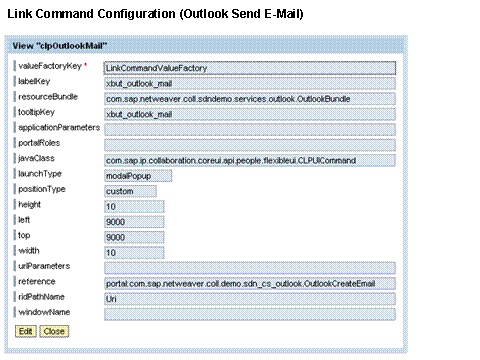
For the position of the link command, use a position from the screen. The native collaboration service only appears briefly in the taskbar but it does not become visible on the screen.