
 CMS GUI
Import Failed
CMS GUI
Import Failed 
Problem Description
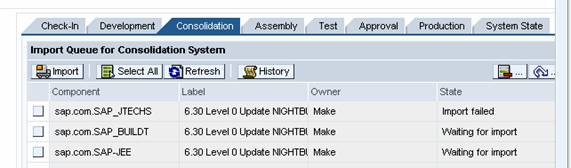
The import of a software component or change request ends with the message import failed in the status column.
|
Scenario Type: |
Error analysis |
|
NetWeaver Component: |
Change Management Server (CMS) |
|
Validity: |
CMS version >= 630 SP 5 |
Decision Roadmap
Prerequisites
Main Tools
Execution
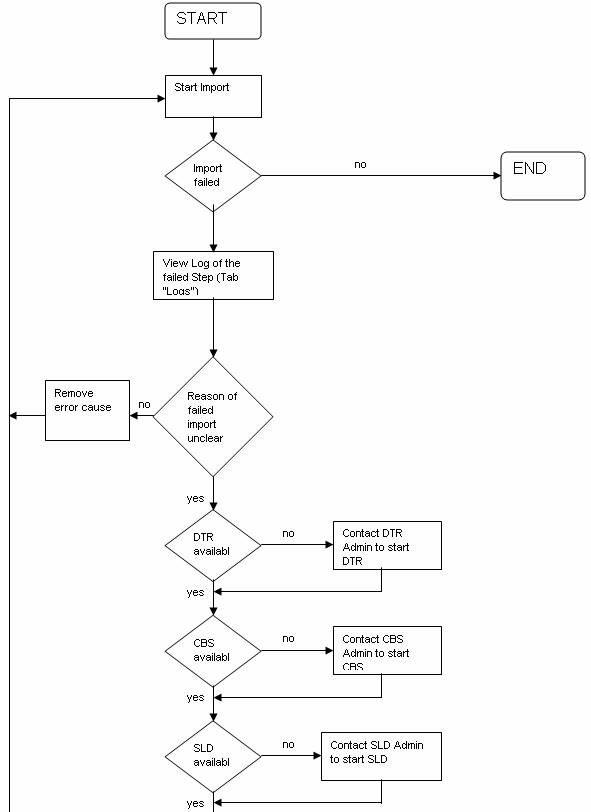
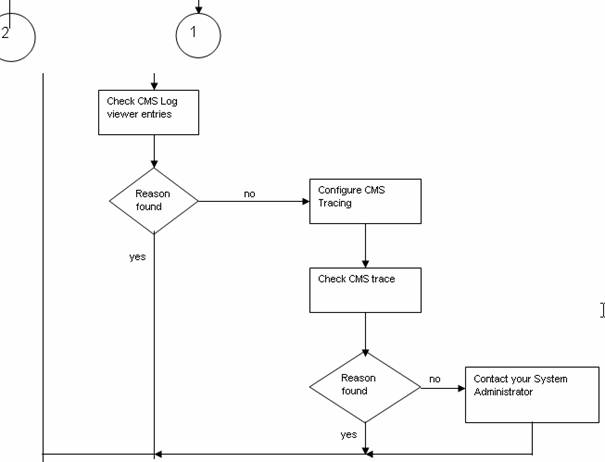
An error occurred while importing the component. Perform the following steps to identify the error source:
Analysis
Check the logs
...
1. Mark the row of the component.
2. Select the Logs tab.
3. Click on the link of the step with return code Import failed.
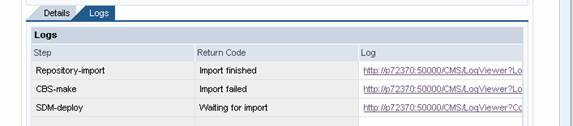 Check if the contents of this log show you the
reason why the import failed.
Check if the contents of this log show you the
reason why the import failed.
Check the availability of the needed components
1. Go to the Landscape Configurator via the link in the navigation area.
a. Select the tab Track Data for the needed track.
b. Select Go To DTR and Go To CBS.
If you can log-on there both DTR and CBS are available.
If DTR or CBS are not available contact the person who is responsible for the component which is not running. After the component is running again try importing/assembling again.
2. Go to the Tab Domain Data.
a. Open a new browser window and type in the address field the SLD URL.
You find this URL in the tab Domain Data in the area External Servers.
Finish this URL by typing /sld. If you can log-on the SLD is available.
If the SLD is not available contact the person who is responsible for SLD. After SLD is running again try importing/assembling again.
3. If all components are available proceed with the steps in the following section. Check the CMS server log information.
Check the CMS server log information
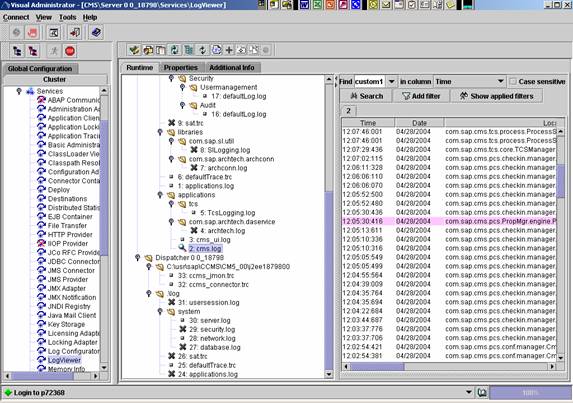
1. Open the Visual Administrator and connect to the J2EE Engine hosting the CMS server.
To find out this engine find out the CMS URL:
a. Go to SLD ® Administration.
b. Select Content Administration.
c. Select Landscape Description as subset and Change Management Service as class.
d. From the list choose the CMS. In the bottom of the list you find the CMS URL.
2.
In the Visual Administrator tree on the left side
select
<server instance> ® server
XXX ®
services ®
LogViewer
3.
In the Log Viewer on the left hand side tree,
double-click on
Cluster XYZ
® Server
XYZ ®
applications ®
cms.log
In the frame on the right side the CMS server log will be displayed. It contains detailed information about the error cause (error stack trace).
Some possible errors and what to do
Error |
What it means |
What to do |
Exc=com.sap.cms.tcs.interfaces.exceptions.TCSFileNotFoundException: File not found: \\pwdfm047\JTrans/CMS/archives/sap.com~LandscapeTestSC1~CMS_CMT2_D~5/\\pwdfm047\JTrans/CMS/archives/sap.com#LandscapeTestSC1#CMS_CMT2_D#5 |
The file to be imported into the consolidation system could not be found in the configured folder |
Check the configuration: ·
Is the configured transport directory the right one?
·
Is the file you want to import located in the
transport directory? |
Exc=com.sap.cms.tcs.interfaces.exceptions.TCSCommunicationException: communication error: error: processing of build requests is disabled [Contact CBS administrator] |
In the CBS the processing of build requests is disabled. So it is not possible to build the request. |
Contact the CBS administrator. He can enable the processing of build requests. After enabling try the import again. |
If this information is not sufficient to identify the error proceed with the following section: Check the CMS Trace Information.
Check the CMS trace information
If the error scenario can be repeated you have the possibility to enable the CMS trace and investigate the trace output for more hints.
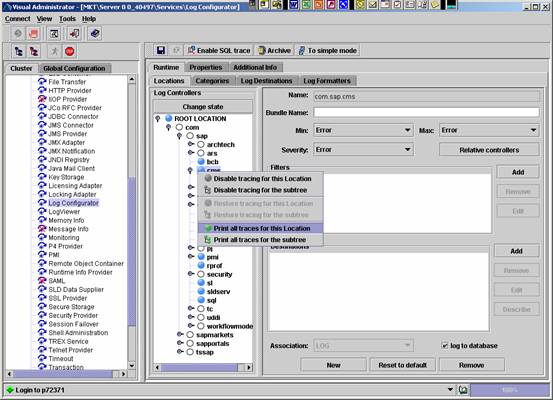
The trace can be configured in the Log Configurator.
1. Select Server ® Services ® Log Configurator.
2. On the right hand side choose the button To Advanced Mode.
3. Select the tab Locations.
4. Expand the tree on the left hand side of this tab.
5. Select the context menu entry Print all Entries for this location on cms (under Root Version ® com ® sap).
You have configured the trace.

It is not necessary to save the changes, but they will be lost after restarting the engine.
6. After you have enabled the debug information you can repeat your error scenario.
7. In the Log Viewer you can get further information about the error.
8. Then select defaultTrace.trc in the tree of the right hand side under cluster ® server ® log ® libraries.
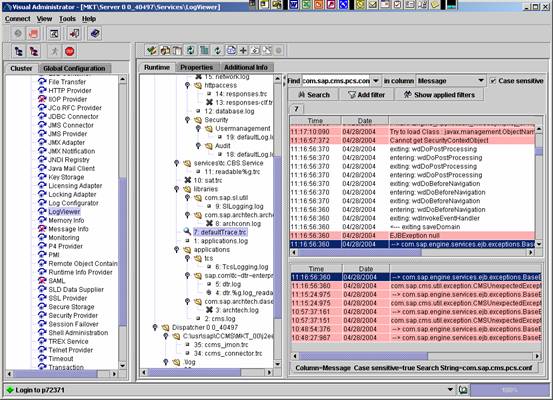
Some additional problem information you can find here are as follows:

Example 1
· Import queue CMT2_C@CMS: SC_CR sap.com.LandscapeTestSC1 Version CMS_CMT2_D.5 Import failed
· Error during loading of propagation request Exc=com.sap.cms.tcs.interfaces.exceptions.TCSFileNotFoundException: File not found: \\pwdfm047\JTrans/CMS/archives/sap.com~LandscapeTestSC1~CMS_CMT2_D~5/\\pwdfm047\JTrans/CMS/archives/sap.com#LandscapeTestSC1#CMS_CMT2_D#5
· Exc=com.sap.cms.tcs.interfaces.exceptions.TCSFileNotFoundException: File not found: \\pwdfm047\JTrans/CMS/archives/sap.com~LandscapeTestSC1~CMS_CMT2_D~5/\\pwdfm047\JTrans/CMS/archives/sap.com#LandscapeTestSC1#CMS_CMT2_D#5
· Process id for import: CMT2_C@CMS200405100632150713
Example 2
· Step CBS-make ended with result 'fatal error' ,stopping execution
· Exc=com.sap.cms.tcs.interfaces.exceptions.TCSCommunicationException: communication error: error: processing of build requests is disabled [Contact CBS administrator]
· Starting Step CBS-make
In general you can find out some additional information:
· Which steps were executed
· What was the sequence of the steps
· Which step ended with error
So it is possible, for example, to compare whether the sequence of the steps was the right one.
Additional Information
 Log Viewer