
 Adobe Connection Error - ABAP
Problem Description
This problem analysis scenario describes the approach in order to investigate and resolve connection errors to the Adobe document services that are accessed from an ABAP environment.
When a connection error appears, one of the following messages is displayed:
· SOAP Runtime Exception
· Invalid HTTP connection
· No system respond, timeout
|
Scenario Type: |
Error analysis |
|
NetWeaver Component: |
SAP Web AS, Adobe document services |
|
Validity: |
SAP NetWeaver ’04 >= SP Stack 12 SAP NetWeaver 2004s >= SP Stack 4 |
Possible Error Sources
Error Source |
Analysis |
Faulty connection |
... 1. Check general availiability of document services 2. Check configuration settings |
Decision Roadmap
Prerequisites
You need to have access to the following systems:
· Web AS Java that hosts the Adobe document services (HTTP connection)
· Web AS ABAP that hosts the ABAP application (SAP GUI connection)
· Web AS ABAP that hosts the Computing Center Management System (CCMS) (SAP GUI connection)
In order to change configuration settings you need the appropriate user rights.
Main Tools
Transactions
- RZ20
- SE 38 (SA38)
- SM59
Execution
The following figure shows the solution path that should be followed in order to correct connection errors. First of all you should check the general availability of the document services. If this does not solve the connection problem, you have to investigate configuration settings within the Web AS ABAP that might be erroneous.
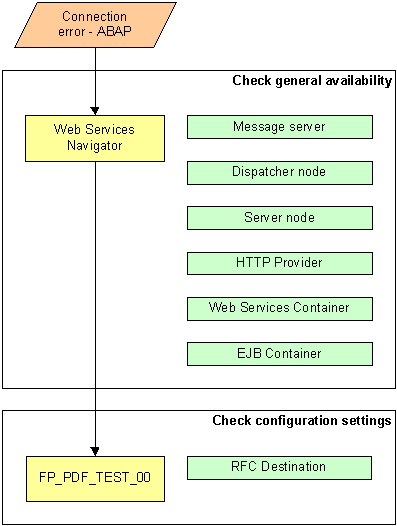
Figure 1: Solution path
Analysis
Check general availability
Heartbeat
First of all you should check the general availability of the document services.
...
1. Connect to the CCMS and start transaction RZ20.
2.
Navigate to the
monitor set SAP J2EE Monitor Templates and load
the monitor Adobe Document Services. The Heartbeat node contains availability information for all
registered servers. For more information, see  Configuring GRMG
Availability for the Adobe Document Services
Configuring GRMG
Availability for the Adobe Document Services
Web Services Navigator
In a second step, you should check the document services by calling it within the Web Services Navigator using the following URL:
http://[host]:[port]/AdobeDocumentServices/Config
You have to enter the host name and the port number of the Web AS Java that runs the document services. The default port number is 50000.
Table 1 shows possible error messages and their probable origins.
Table 1: Error messages
Origin |
Error message |
Message Server |
Cannot find server or DNS Error |
Dispatcher node |
|
Server node |
503 Service Unavailable // Dispatcher running, but no server connected! |
HTTP provider |
|
Web Services Container |
503 Service Unavailable // Application stopped! |
EJB Container |
If necessary restart the appropriate instance, node or service using, for example, the Visual Administrator tool.
Check configuration settings
You can use the program FP_PDF_TEST_00 (transaction SE38 or SA38) in order to check if the document services respond to the Web AS ABAP. If this response is successful, a version information of this software component is shown. Otherwise you should check the RFC connection that is used by the ABAP PDF Object implementation (CL_FP_PDF_OBJECT).
...
1. Log-on to the Web AS ABAP that sends the request and start transaction SM59 (Display and maintain RFC destinations).
2. Navigate to the section HTTP Connections to Ext. Server and ensure that the destination ADS exists (the name might vary) and has the following properties:
¡ Connection type: G
¡ Description: any descriptive text
¡ Technical Settings / Target System Settings
§ Target Host: the host name of the Web AS Java which runs the document services
§ Service No: the HTTP port number (default: 50000)
§
Path Prefix: /AdobeDocumentServices/Config?style=rpc
or
/AdobeDocumentServicesSec/Config?style=rpc
if the connection uses SSL
(a warning might show up that can be ignored)
¡ Logon/Security / Security Options
§ Logon Procedure: select Basic Authentication or SSL Client Certificate
If
Basic Authentication is selected, Logon / User and Logon / Password must refer to the user that has been assigned
to the security role ADSCaller within the Web AS Java that hosts the document
services.
If SSL Client Certificate is marked, an appropriate certificate has to be
selected and additionally SSL / Active has to be chosen.
3. You can test the connection by clicking on the appropriate button (Test connection). Please be aware of the fact that this test does not check for an appropriate authentication.
Additional Information
Refer
to the document Adobe Document
Services Configuration Guide for detailed information regarding the
configuration of the Adobe document services.
SAP Note 717568 contains additional information regarding the analysis of runtime errors.