
 Deployment and Configuration of SC Service
Connector
Deployment and Configuration of SC Service
Connector 
This section describes
...
· Deployment
· System landscape/User Management Configuration
· Configuration
Deployment
To deploy a portal component into the portal, a Portal Archive (PAR) file is needed to be built. The par file is a ZIP file with the extension par. Ant should be used to build the component into a PAR file. For more information of how to build and deploy the portal component, please refer to PDK documentation
System Landscape and User Management configuration
The SC Service Provider may require users to authenticate themselves (to the SC Service Provider in question) before they access these services. The SC Service Connector will indicate this in the pre-configuration of the connector. See the Deafult Configuration section below.
...
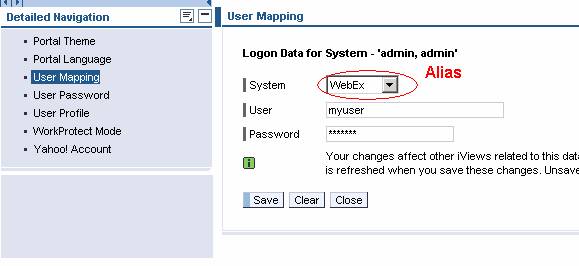
1. If the SC connector indicates in the configuration that the service provider needs user mapping, SCF will automatically create a system and alias for the service provider.
2. In the portal main menu choose Personalize ® Portal. Choose User Mapping and enter the user ID and password for the system in question. Please refer to the picture below for easy understanding.

Above steps may be skipped if your connector does not require external authentication.
Entering user mapping information
Configuration
Editing portalapp.xml
Add “application-config” tag (within “application” tag), as follows, in the portalapp.xml automatically generated by the pdk plugin.
<application-config> <property name="releasable" value="false" /> <property name="ServicesReference" value="com.sap.netweaver.kmc.util,com.sap.netweaver.coll.appl.sync,com.sap.portal.usermanagement,com.sap.netweaver.coll.shared,com.sap.portal.usermanagement,com.sap.portal.usermapping" /> <property name="PreservedConfigPaths" value="" /> </application-config> |
Proper system entries need to be put. Refer PDK documentation for more information. The sample system entry :
<components> <component name="NewConnector"> <component-config> <property name="SecurityZone" value="com.sap.portal/low_safety" /> <property name="AuthRequirement" value="user" /> <property name="ClassName" value="NewConnector" /> <property name="SafetyLevel" value="low_safety" /> <property name="ResourceBundleName" value="" /> </component-config> <component-profile/> </component> </components>
|
Default Configuration/ Pre-configuration
A connector could register the default service provider and service types configuration automatically at the time of loading into the portal. Default configuration can be edited using steps described in the next section (Manual Configuration). Please follow the following steps to make default configuration available:
Configuration Service
Create a class that extends com.sap.ip.collaboration.core.api.fwk.portal.GenericService. Call the following methods of SCConfiguration class in the init() method:
· Create SCService Provider Configuration
createSCServiceProviderConfigurable(String connectorId, String connectorParName, String url, boolean usermapping)
¡
connectorId
Unique Id of the
Connector
¡
connectorParName
Name of the
connector's par that should be deployed in the portal
¡
url
URL of the
provider server which should be contacted: for ex: (for RTC: local host or the
server where application server is installed)
¡
monitoringClass
Fully qualified
name of the monitoring class.
¡
Usermapping
True if
usermapping is required for service provider, false otherwise. False if Single
Sign On from portal to the connector service provider is available.
· Create SCService Type Configuration
createSCServiceTypeConfigurable(String scserviceTypeId, String displayNameKey, String defaultSCService) must be called to register each service type.
¡
scserviceTypeId
Unique Id of the
service type.
¡
displayNameKey
ResouceBundle
(of the connector) key to be used by SCF to retrieve display name of the
service type from the connector in user’s language.
¡
defaultSCService
The service
provider that provides this service. See connectorId parameter of
createSCServiceProviderConfigurable method (described above).
Sample Code Snippet
package com.sap.ip.collaboration.sync.api.scf.connector; import com.sap.ip.collaboration.core.api.fwk.portal.GenericService; import com.sap.ip.collaboration.sync.api.scf.service.SCConfiguration; import com.sap.tc.logging.Location; import com.sapportals.portal.prt.service.IServiceContext; import com.sapportals.portal.prt.service.ServiceException; public class ConnectorConfiguration extends GenericService { public void init(IServiceContext serviceContext) { super.init(serviceContext); try { SCConfiguration scfConfiguration = new SCConfiguration(); // registering Service Provider in SCFConfiguration scfConfiguration.createSCServiceProviderConfigurable( "RTC", "com.sap.netweaver.coll.appl.sync.RTCConnector", "http://localhost", false); // registering Service Types in SCFConfiguration. For each service type //this method should be called scfConfiguration.createSCServiceTypeConfigurable("RTC_ApplicationSharing", "ApplicationSharing", "RTC"); scfConfiguration.createSCServiceTypeConfigurable("RTC_Chat", "Chat", "RTC"); } catch (Exception e) { throw new ServiceException(className + "initialization failed:", e); }
} }
|
Configuration entry in portalapp.xml
Add the service to Portalapp.xml
<services> <service name="ConnectorConfig">( ConnectorConfig is the unique identifier for the connector) <service-config> <property name="className" value="com.sap.ip.collaboration.sync.api.scf.connector. ConnectorConfiguration"/> <property name="classNameFactory" value=""/> <property name="classNameManager" value=""/> <property name="poolFactory" value="0"/> <property name="startup" value="true"/> </service-config> <service-profile> <property name="generic_classloader_registration" value="yes"/> <property name="generic_so_registration" value="no"/> <property name="generic_service_key" value="<name of the par>"/> </service-profile> </service> </services>
|
Manual Configuration
Please refer Synchronous Collaboration Admin Guide which can be found at collaboration under help.sap.com, for detailed information on manual configuration.
Configuration is to be done using Knowledge Management Configuration component of the portal. To configure SCF, the component com.sap.netweaver.coll.appl.sync should be available in the portal. For more information refer to SCF Configuration section in SCF Admin Guide. Some of the attribute values (such as service provider URL) created by pre-configuration steps will have to be changed manually.
Configuration for SCF can be found in the following path:
Configuration -> Collaboration -> Synchronous Collaboration Services
Synchronous Collaboration Services has two different folders for configuration
· Control Settings: To configure SCF Control settings like SCF Repository that has to store sessions data, CM Namespace and Service User
· To configure ServiceRegistry SCServices and SCServiceTypes.
Configuring SC Service Provider
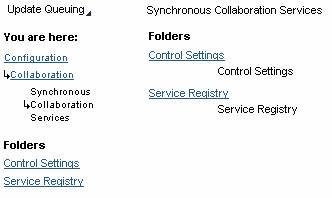
SCF Service Registry
There are three configuration classes
· Service Providers
SC Service Providers is used to configure the service providers. You can create, edit, view or delete SCService. The required attributes to configure are
¡ UniqueId
Name of the portal component for the connector: This will be the new portal component that has been developed and deployed
¡ URL
Url of the provider that the connector contacts
· Requires User Mapping
This can be set to True or False. By default this is set to False. If this is set to True, User mapping has to be done . An alias need to be created which should be identical to unique id created in this section. See help.sap.com for alias creation.
· Available Service Types
This is used to configure all available service types or SCService Types that are provided by the SCService. The required attributes to configure are:
· Unique Id
· Name
This will be displayed in the list of service types to the user
· Default Service Provider
Select the service provider from a list that provides this service type.
· Activated Service Types
The client will not be able to use all the service types that a provider provides. Only activated service types can be used by the clients.
