Navigating Between Two Views
Use
All views within one window can be connected through navigation links. This means that when a user calls a Web Dynpro application the view defined as the start view is the first view displayed on the screen. When an action is triggered (for example, by clicking on a pushbutton), a navigation is triggered resulting in the currently displayed disappearing and a second view being displayed instead.

To set up the navigation between two views, an inbound plug or outbound plug must be created for each view. A plug is a connection point through which a view can be entered or left.
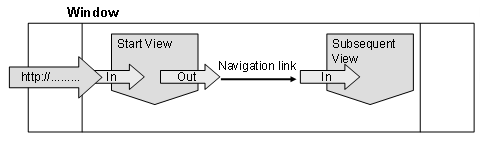
For more information about Plugs and Navigation Links, see the Web Dynpro Architecture Manual. How to creating and maintain plugs in views is described in the Tools Manual in section Views: Inbound and Outbound Plugs. On the other hand navigation links are part of the window structure and are maintained in the Layout of the Window.
Outbound and inbound plugs have different properties:
Outbound Plugs
Outbound plugs are always the starting point of a navigation. They can be called in any method of the view controller with the following call:

Attribute WD_THIS is always a self-reference to interface IF_<MY_VIEW> of the view controller. For each outbound plug you create for this view, this interface is extended with a method FIRE_<MY_OUTBOUND_PLUG>_PLG.
Transferring Parameters
A parameter can be passed with method call FIRE_<MY_OUTBOUND>_PLG. This parameter is entered in the parameter table on tab Outbound Plugs.
For the example shown below method FIRE_<MY_OUTBOUND>_PLG of parameter Editable has been added, which has the type WDY_BOOLEAN, that is, it is either 'X' (true) or '' (false). The method call is therefore either

or

Inbound Plugs
Inbound plugs within a Web Dynpro window are either accessed directly through a navigation link, which has been set up from an outbound plug (see Tools Manual, section Window: Layout). When an inbound plug is called, the call is connected to a uniquely assigned event handler method.This method is created automatically in the view controller when the inbound plug is created, and is listed on tab Methods. It is assigned the generic name, HANDLEMY_INBOUND_PLUG:
This event handler method is empty and can be removed from the program code by application developers. Its technical details are not different to other event handler methods of the controller.
Evaluating Parameters
The event handler method of an inbound plug can transfer parameter values from method FIRE_<MY_OUTBOUND>_PLG. The parameter of the same name must be added to the signature of the event handler method.
The value of the parameter is then known to the event handler method and can be evaluated.
Example of Navigating with Parameter Transfer
In the event handler of an action of a first view an outbound plug has been called and parameter EDITABLE = 'X' transferred. The subsequent view connected to from a navigation link will contain an element that, based on the passed value of parameter EDITABLE, is to be available to the user for changing:
Calling the Outbound Plug OUTin the Event Handler of the First View
Parameter EDITABLE of Dictionary type WDY_BOOLEAN has been created for the outbound plug OUT of the view, as mentioned above. The value of this parameter is passed at runtime with method:

Evaluation of Parameter in Event Handler HANDLEIN of Inbound Plug INof the Second View
Each UI element has property enabled, which is used to enable or disable the entire functions of the element. An element for which the property in its property table is not selected in the View Designer, is displayed on the screen, but the user cannot interact with it (make entries or selections). This means the UI element is disabled. (The default setting of this property of a UI element newly added to the layout is always enabled). Application developers have two ways to control the behavior of the UI element at runtime:
-
Property enabled can be statically set at design time by selecting the checkbox in the property table in the View Designer. Whenever the associated view is called, the UI element behaves the same way.
-
Property enabled can be bound to a context node that contains an attribute of type WDY_BOOLEAN. The value of this attribute is not passed until runtime, which means that depending on what has been programmed, the UI element may be available with its full functions, or may only be able to be displayed.
In our example, the second case is illustrated:
The context of the second view contains a node to control the value of the enabled property of one or more UI elements of the view, as well as context nodes containing application data. This node should have the name STATUS, and contains precisely one attribute ENABLED of type WDY_BOOLEAN. The value of this attribute is now set by event handler method HANDLEIN of the second view.

Since a property of a context node is to be changed using the transfer parameter, methods of interface IF_WD_CONTEXT_NODE are used again in the event handler method (see also section Event Handlers of Actions). In this case method SET_ATTRIBUTE is called and the attribute with name ENABLED is set to the value of parameter EDITABLE.
As a result of this operation the ENABLED attribute of context node STATUS now has the value 'X', which is how it was transferred by method WD_THISFIRE_OUT_PLG( EDITABLE = 'X' ) of the previous view.
Result
If the ENABLED attribute has the value 'X' this means that this UI element or the UI elements that have bound their property enabled to the ENABLED attribute are now available with their full functions. At the time method FIRE_OUT_PLG transfers the value ' ', the ENABLED attribute is also set to ' ' by the event handler of the inbound plug of the subsequent view and the UI element(s) are displayed on the screen without their functions.