Table Properties
Use
-
accessibilityDescription
If you have activated accessibility, the assigned text is added to the quick info. This description provides semantic details of the UI element, and is only read by the screen reader if the user focuses the complete Ul element.
This property can be personalized by administrators.
-
activateAccessKey
Activates access keys.
Both users and administrators can personalize this property.
-
cellStyleClassNames
Similar to property styleClassName with this property you can create your own style definitions for UI elements to change the appearance of a table cell. To do this, you use the view element TableStandardCell (TABLE_STANDARD_CELL). You define the cell using parameters ROW_ID and COLUMN_ID. For more information about styleClassName, see UIElement Properties.
You can find an application example in the system in component WDR_TEST_CUSTOM_STYLES.
-
columnResizeMode
If personalization is activated, the user can change the width of the columns by dragging the column boundary with the mouse. The new values are persisted in the user's personalization data. If the application parameter is WDUIGUIDELINE=GL20, the behavior of this feature can be configured using this property.
This property can be personalized by both administrators and users. Users can do so by activating or deactivating the Allow Horizontal Scrolling option on the table personalization screen.
Value
Description
Can be Set Using Personalization
preserveOtherColumnWidths
If you change the width of a column by dragging the column boundary in the header with the mouse, the width of all other columns is not affected.
If the sum of all column widths is larger than the width of the entire table, standard scrolling on the client is enabled.
Yes
preserveTableWidth (standard value)
The behavior of column resizing is as normal: If you change the width of a column by dragging the column boundary in the header with the mouse, the width of all other columns is also affected.
Yes
You can find an example of both values in the system in the test application WDR_TEST_TABLE_BTC.
-
dataSource
Context node with data for the Table. Each element of the context node corresponds to a table row.
-
defaultButtonId
ID of a ToolBarButton from the ToolBar of the Table. If the user presses (ToolBar) Enter in an InputField in a Table, the action handler of this Button is called. A similar mechanism is available for TransparentContainers, Groups, etc.
You can find an example in the system in component WDR_TEST_TABLE in Cell Alignment. There, when you press Enter in an InputField in the Table, the action handler for the ButtonInsert Cells in the ToolBar is triggered.
This property can be personalized by administrators.
-
design
Table display. You should use design<>standard only if table.readonly=true. The background color of the Table and table cells is also determined by the cellDesign property of TableColumn and cell variants. The table.gridMode determines whether grid lines are displayed.
This property can be personalized by an administrator.
Value
Example of the Visual Display
Description
Can be Set Using Personalization
alternating
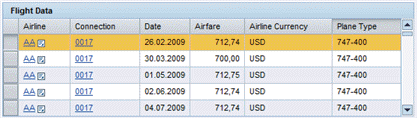
White/grey alternative rows, only possible with readOnly
Yes
standard

Standard table background: The background of Table has one color. The individual cells are displayed with gridlines.
Yes
transparent

The background of the Table is transparent. The individual cells are displayed without gridlines.
Yes
transparentWithGrid

The background of the Table is transparent. The individual cells are displayed with gridlines.
Yes
-
displayEmptyRows
This property checks whether empty rows in the area can be displayed for visible rows. If you set this property to false, the visible rows are collapsed in such a way that the actual number of rows with content is displayed.
If the number of actual rows is less than table.visibleRowCount, additional, inactive blank rows are inserted if displayEmptyRows=true.
-
dropOnRowName
Name of the DropTargetInfo that defines how data is dropped on to Table rows.
If the value is set to initial, it is not possible to drop onto a row. If the value matches the name of a DropTargetInfo, then this DropTargetInfo specifies the behavior of the Table row as a drop target. A different DropTargetInfo can thus be specified for each row by means of a context binding.
More information: Drag and Drop
-
emptyTableText
Text displayed for an empty Table.
This property can be personalized by administrators.
-
firstActualRow
Row of the Table (counted from 0) that corresponds to the first element in the context. This property is used if you want the context to contain only one pane from the Table.
Use this property only for Tables with extremely large data volumes.
-
firstVisibleRow
First visible row of the Table (counted from 0).
This property, which does not have to be bound, can be changed by the client. See also Properties Used in MultiPane or TablePopin
-
firstVisibleScrollableCol
First visible scrollable column of the table (ViewElement ID)
-
fixedTableLayout
With fixedTableLayout each Table column has the exact width specified. In this case, the widths for the Table and TableColumns must be specified. For more information, see SAP Note 1253282
 . If the content is larger it is cut off on the right. Without fixedTableLayout, the width of the column is as specified or as large as the widest visible TableCellEditor. Here, the table column widths are minimum widths. In this mode, the width distribution of the table columns can change when you scroll through the Table vertically.
This property can be personalized by administrators.
-
footerVisible
This property is presently not evaluated.
-
gridMode
Grid mode. This setting is ignored with readOnly-Tables and design=transparent.
This property can be personalized by administrators.
Value
Description
Can be Set Using Personalization
both
Horizontal and vertical lines are displayed
Yes
horizontal
Horizontal lines are displayed
Yes
none
The Table has no grid lines.
Yes
vertical
Vertical lines are displayed.
Yes
-
handleHotkeys
Specifies whether hot keys defined within the UI element can be triggered globally or locally (when the focus is in the UI element).
-
legendId
ID of the assigned Legend.
-
multiColSorting
Enables multiple column sorting. You can find an example in the system in component: WDR_TEST_TABLE in view CELL_POPIN.
By pressing CTRL and clicking on the appropriate columns, you can select multiple columns to sort.
-
readOnly
The Table differentiates between editable mode and readOnly mode. In the editable mode (readOnly=false) input-enabled cells are shown with white a background, and cells not input-enabled are shown with a grayed-out background. Cells are input-enabled when the table is Tableenabled, the TableCellEditor in this table is input-enabled and is not readOnly.
In readOnly mode all cells are not input-enabled. But they are not grayed-out. It is also possible to use semantic colors (TableColumn.cellDesign) and alternating backgorund (Table.design=alternating).
UI elements InputField, DropDownByIndex and DropDownByKey are displayed as text. No value list is provided.
UI elements CheckBox and RadioButton are displayed as readOnly.
This property can be personalized by an administrator. In personalization, this property can be assigned the value: true.
-
rowCount
Number of rows displayed in the Table (for context paging only).
You cannot set the rowCount at the same time as you insert a TreeByNestingTableColumn or a TreeByKeyTableColumn.
-
rowSelectable
The rowSelectable property enables you to make specific table rows selectable or non-selectable.
However, you should not set the rowSelectable value to false without context binding. If you want to deactivate the selection completely, set the selectionMode to selectionMode to none. This means that you cannot set rowSelectable=false for selected rows/context elements!
-
scrollableColCount
Number of scrollable columns that can be displayed at the same time.
Possible Values
Description
Values smaller than -1
not allowed
-1
Columns are displayed. No column scrolling
0
Columns are not displayed. Neither are TableColumn headers displayed, and the following message appears: The table does not contain any visible columns.
Values larger than 0
A scroll bar for column scrolling appears and the specified number of columns is displayed.
This property can be personalized by administrators.
-
selectedPopin
TablePopin currently visible.
ID of the row of visible popins: Either the ID of the TablePopin or the ID of a column popin. Leave this property empty if you do not want to display a popin.
-
selectionChangeBehaviour
The lead selection in the context can be toggled by the user either automatically or manually, that is, by the application itself.
This function only takes effect if the lead selection is set or removed by the user.
Value
Description
auto
Lead selection is toggled automatically
manual
The lead selection is not set by the framework. The application developer can set the lead selection in the event handler of onLeadSelect.
ifNoLoss
For future enhancements
-
selectionColumnDesign
You can use this option to influence the behavior and appearance of a selectable Web Dynpro ABAP Table.
For more information, see Selection in Tables.
Value
Example of the Visual Display
Description
default
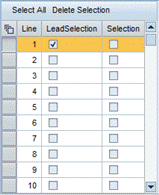
If WDUIGUIDELINE=GL11, standard is used; if WDUIGUIDELINE=GL22, toggle is used (default setting).
none

The selection cells at the start of the row disappear.
standard

There are no changes to the display of the selection cells.
toggle
Selection cells are visible, but behave different to normal. See also Selection in Tables.
-
selectionMode
Specifies how selections are made in the Table. If you click on a selection cell, a row is selected. The lead selection (except with ssingleNoLead and multiNoLead) is set to the associated element. If other selections exist, they are deleted.
In mode multi, multiNoLead and auto with node cardinality 0..n or 1..n the following is possible:
-
CTRL+click, CTRL+spacebar
Toggles a selection.
-
SHIFT+Click, SHIFT+Space
Selects the area from the lead selection to the row selected. If no lead selection is set, the selection starts from the first row. In the multiNoLead mode, the selection starts from the row last selected
Value
Description
auto
Lead selection and single selection or multi-selection, if the context node permits this.
single
Lead selection and single selection.
multi
Lead selection and multiple selection.
none
No selection.
singleNoLead
Single selection (without lead selection).
multiNoLead
Multiple selection (without lead selection).
-
-
visibleRowCount
Number of rows visible at once in the Table.
If the number of rows in the dataSource is smaller than the visibleRowCount, the Table is filled with empty rows. These rows are not input-enabled.
Both users and administrators can personalize this property.
-
width
Width of the Table. The Table is at least as big as the specification here, at any rate big enough that the content fits in the Table. For this reason we recommend you specify a width for the Table only if a percentage is used for the column width. See also SAP Note 1253282
.This property can be personalized by administrators.