 Set Formulas in the Report Writer
Use
In sets, you can use formulas to perform calculations within the set. When the set is used in a report, the result of these calculations then appears in a report column or row.
You can only use formulas in basic sets and key figure sets.
 Example
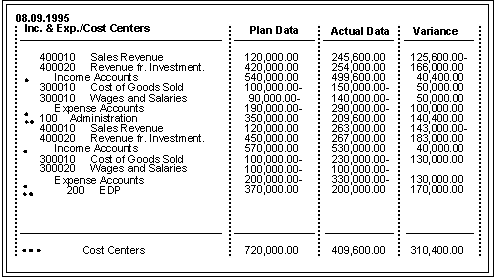
You create a key figure set called TD-ACT-PLN-V, which uses the formula ‘001’ ‘002’ . Line 001 of the set TD-ACT-PLN-V is plan data in local currency (HSL-1) and line 002 is actual data in local currency (HSL-0).
The formula
‘001’ ‘002’
creates the
Variance
column in the report in the following graphic. To create this column, the system subtracted line 002 (actual data) from line 001 (plan data).
Using a Formula to Create a Variance Column in a Report
A formula consists of operators, operands, absolute values, and parentheses.
When you enter a formula in a set, you can use the operators in the following table.
Symbol |
Operation |
+ |
Addition |
- |
Subtraction |
* |
Multiplication |
/ |
Division |
**** |
Exponential value |
( ) |
Parentheses |
SIN |
Sine |
COS |
Cosine |
TAN |
Tangent |
SQRT |
Square root |
TRUNC |
Truncation to integer |
INT |
Truncation to integer |
DIV |
Quotient of whole number division |
MOD |
Remainder of whole number division |
ABS |
Absolute value |
EXP |
Exponential function (n x ) |
LOG |
Logarithm |
ROUND |
Rounding |
Features
You can use the following operands in set formulas:
Line numbers in the form ‘nnn’ (for example ‘001’ for line 001)
Value variables (for example, ‘&PERIOD’ for the value variable PERIOD)
Symbolic names for cells (for example, ‘TOTAL’ for a specific totals row in a report)
 Note
Note
You enter formula operands in the form ‘nnn’ (for example, ‘001’ to enter the row block 001). In earlier releases, you enter formula operands using angle brackets around the operand (for example <001> ).
The system automatically converts any existing formulas into the new format. You do not therefore need to change your sets or reports that contain formulas.
Within a formula you can also use:
Absolute values (for example, 10 or 20 )
Combinations of absolute values and operands (for example,10 * ‘002’ (line 2))
Boolean logic
Example
You enter the following formula in the second line of a set defined for a report column:
IF ‘001’ > 1000 THEN ‘001’ ELSE 0
If the value in the first column (set line 001) is greater than 1000, then this value displays in the second column; if the value in the first column is less than 1000, the value 0 displays in the second column.
For more information on Boolean logic, see Introduction to Boolean Logic .
If you use set formulas that only use the addition and subtraction operators (also known as linear formulas), you can display the units (for example, currency units and units of measure) in the report columns that are calculated using the formula.
Example
You define a data set for the column block, which contains actual and plan costs. You want to define a variance column containing the difference between the actual and plan costs. In line three of the column block, you define the formula ‘001’ - ‘002’ . If the data for the actual and plan costs is displayed with the currency unit USD , the unit USD also displays in the variance column.
The unit is only displayed when the unit displayed in both columns is the same and if the formula only uses the addition and subtraction operators. For example, if actual costs are displayed in USD and plan costs are displayed in DEM , a unit is not displayed in the variance column.
For more information on entering formulas, see Formulas .