Create a Certificate Signing Request
-
Choose the Configuration option in the menu on the left and then click on the On Premise section.
-
On the On Premise screen, choose the button to generate a certificate signing request as shown in the screenshot:

The Generate CSR dialog box appears.
-
Enter the following data for generating a certificate signing request in the dialog box:
Data for Generating a Certificate Signing Request Field
Description
Common Name (CN)
Enter the fully qualified domain name of the server where the Cloud Connector is installed.
Email-Address (EMAIL)
Alternatively, you can enter the email address of the user.
Organizational Unit (OU)
Enter your organizational unit.
Country (C)
Enter your country, for example, DE.
-
Choose the Generate button in the dialog box.
The certificate signing request is created automatically.
-
Choose
 Cloud Connector
  Configuration On Premise System Certificate
 in the Cloud Connector and press the button for importing a certificate (icon with arrow pointing up).
The dialog box Import System Certificate is displayed. Here you have to browse for the certificate that has been created:

-
Select the certificate and choose the Import button.
Now the system certificate is added and displayed. See screenshot:
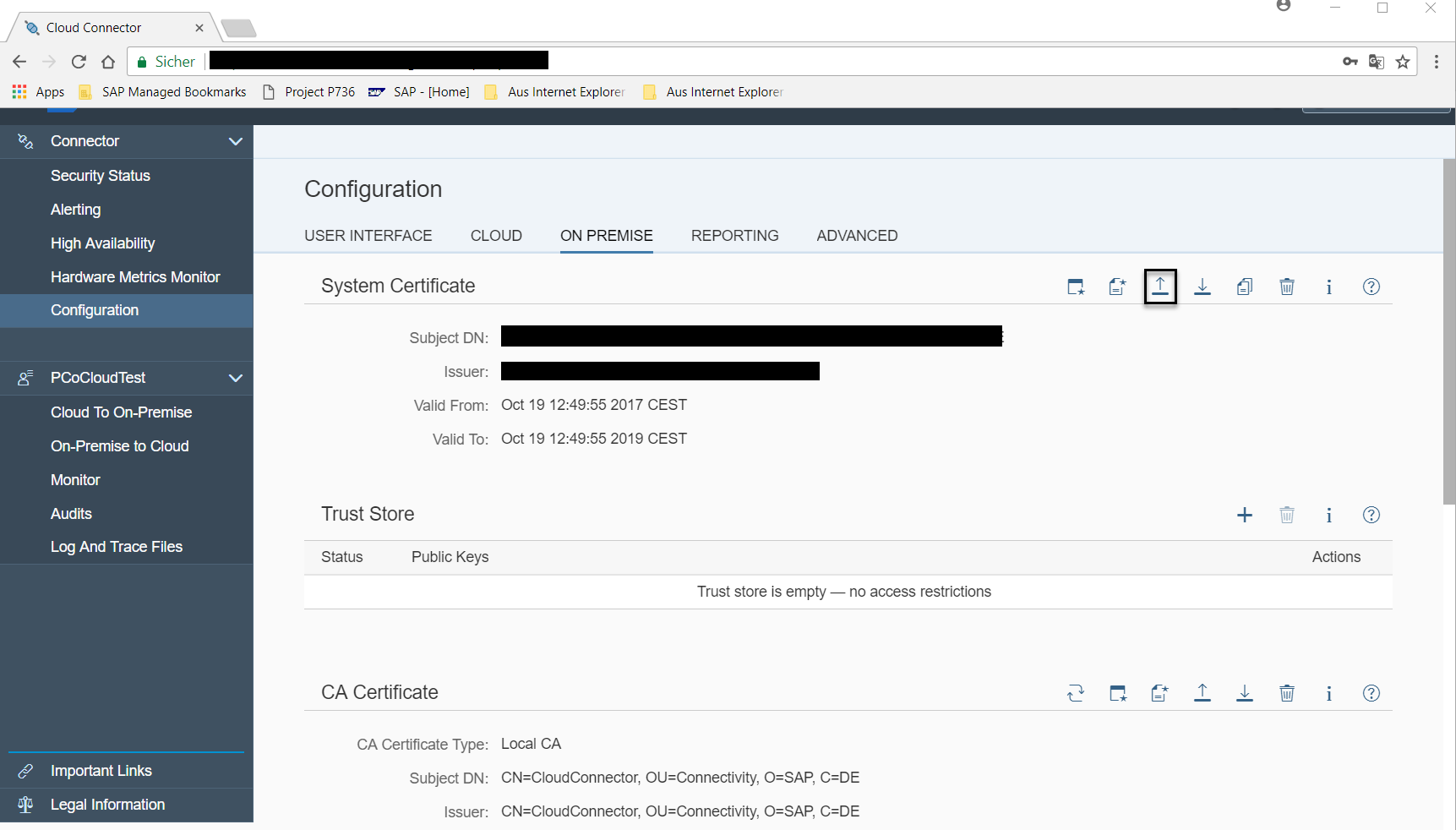
-
In the next step, you have to create a CA certificate that signs the certificates that are used when a request is forwarded from the cloud with the cloud principals.
Press the button for creating and importing a self-signed certificate. See screenshot:

The Create Self-Signed Certificate dialog box appears:

-
In the Create Self-Signed Certificate dialog box you have to enter the following data:
Create Self-Signed Certificate Field
Description
Common Name (CN)
Enter, for example, CloudConnector.
Organizational Unit (OU)
Enter an organizational unit.
Organization (O)
Enter your organization, for example, SAP.
Country (C)
Enter your country, for example, DE.
Then choose the Create button.
The system creates the CA certificate.