 Customizing of Versions
You use this process to assign special versions to valid version combinations. By doing this, definitions are made once only and become available to any number of version combinations.
Prerequisites
You have executed the following activities in Customizing for consolidation:
You have created the consolidation area in which you want to customize your versions.
You have created the version(s).
Process
Defining Valid Version Combinations
You need to define the version combinations that you want to use in the consolidation system. To do this, go to Customizing of versions and choose Version Combinations
.
If there is only one characteristic with the role version
, this version is identical to the version combination.
If there are two or more characteristics with the role version
, you define the (appropriate) combinations with which you want to work. By doing this, you limit the number of valid combinations.
 Example
Example 1
You have two characteristics with the role version
:
Data category with the values actual and plan
Accounting principles with the values U.S. GAAP and IAS
You use both accounting principles for planning, but you use only U.S. GAAP to create consolidated statements with actual data. Therefore, you select the following three combinations (out of the four that are possible):
Actual / U.S. GAAP
Plan / U.S. GAAP
Plan / IAS
Example
Example 2
There are three characteristics with the role version:
Data category with the values actual, plan, and
forecast
Valuation with the values group and profit center
Accounting principles with the values U.S. GAAP and German HGB
You select the following version combinations:
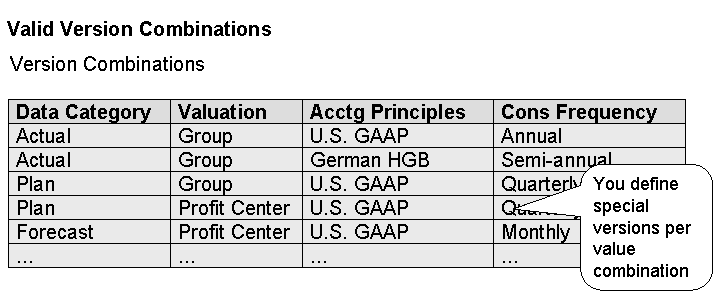
Specify the following for each version combination:
Specify the consolidation frequency.
Specify how you want the system to handle documents that have already been created when you have to repeat the program run. This setting also applies to the deletion function. For more information, see Deletion – Periodic and Nonperiodic.
You can have the system delete or reverse old documents or any documents to be deleted – either for all documents of a version combination or depending on the given document type. If you choose document type-dependent, you need to define the system behavior for all document types of the consolidation functions involved. For more information, see Document Type.
When execution of an automatic-posting task is repeated, the system compares each document to be posted with the old documents. If a matching old document is found, the system retains the old document and does not create a new document. The remaining old documents are either deleted or reversed, depending on what you have defined.
Specify for which hierarchies (for example, item hierarchies) data entry is to be permitted on hierarchy nodes.
For example, if you want to enter plan data onto hierarchy nodes (that is, totals items) to later distribute the data using an allocation task, you need to select the corresponding indicator in Customizing for version combinations. The indicator applies to both manual data entry and data collection using flexible upload.
Specify a method for the validation of totals data.
Special Versions
You can define special versions for each special version type. You can decide for each special version type whether you want to create a special version or use special version 100
provided by SAP.
Special versions enable you to reuse the same Customizing settings in different version combinations. To do this, you define an explicit dependence of the special version rather than a version combination in Customizing.
Use of Special Version Types
Special Version Type |
Description |
Examples of Usage |
|---|---|---|
05 |
|
Task settings |
07 |
|
Task settings Posting item for the adjustment of deferred taxes (business function Document type assignment for the adjustment of deferred taxes (business function |
10 |
|
Task settings Year and period of the first data collection Tax rate |
20 |
|
Task settings |
25 |
|
Task settings |
35 |
|
Task settings |
40 |
|
Task settings |
45 |
|
Task settings |
50 |
|
Task settings |
55 |
|
Task settings |
60 |
|
Task settings Inventory items Data origin of the inventory data (business function |
65 |
|
Task settings |
70 |
|
Task settings Document types for calculation base Combined entry of investment and equity data Goodwill in divestitures and transfers Posting items for equity method |
73 |
|
Task settings |
75 |
|
Task settings |
80 |
|
Task settings |
85 |
|
Task settings |
90 |
|
Task settings |
A0 |
|
Attributes for consolidation unit combinations:
Properties of document types:
Properties of the |
H0 |
|
Hierarchies Preceding task relationships |
I0 |
|
Assignment of breakdown categories to items Balance carryforward: items to be carried forward Selected items: global Selected items: document type-dependent Selected items: consolidation of investments Selected items: elimination of IU profit/loss in inventory Type of assets/liabilities: posting items |
OC |
|
To year, to period Sender/receiver relationship Top node |
T0 |
|
Consolidation unit: tax rate Document type: tax rate |
V0 |
|
Validity of master data |
X0 |
|
Exchange rate indicator: assignment of an exchange rate type |
D3 |
|
Saving of additional financial data |
D4 |
|
Saving of additional financial data |
D5 |
|
Saving of additional financial data |
D6 |
|
Saving of additional financial data |
DD |
|
Saving of additional financial data |
DE |
|
Saving of additional financial data |
95 |
|
Task settings |
 Note
Note
To list characteristics and their dependencies to special version types, select List Field Properties
in the context menu for the consolidation area, and choose Details: Basic Data and Dependencies
.
Validity of Special Versions
If you want the validity of master data to depend on the version, you need to configure the validity of the special versions in Customizing. This Customizing is part of the master data for special versions. For each special version of the type Validity
, you can specify whether the values are to be valid or invalid by default.
In Customizing for the assignment to combinations
, you can then assign these special versions of the type validity
to the individual properties that are used in the consolidation area and that are defined as version-dependent in the data basis.
In the master data for characteristics that are defined as version-dependent, you can then specify whether the master data values are valid by selecting a checkbox. If you do not specify a value for the validity in the master data, the system uses a default value instead. The system determines this default value from the special version that you have specified in Customizing for combination assignments
.
Example
Example 3
You have created a plan version and an actual version.
In the plan version, all companies that are created in the system are to be valid by default. You therefore set the default value for the validity of the plan version to Values are automatically valid
.
In the actual version, you only want to use those companies that you explicitly create for this plan version. You therefore do not set the default value for the validity of the plan version to Values are automatically valid
.
You then assign these special versions of the type validity
to specific characteristics in Customizing for combination assignment
.
Customizing for plan version
In the Customizing settings for
defining
special versions, create a special version of the typevalidity
, for example, special versionV0
200.In the master data for this special version, select the
Values are automatically valid
checkbox.Assign the special version that you created in step 1 to the
company
characteristic in the relevant version combination.Choose

Master Data

Versions
Special Versions
Assign to Combinations
 .
.Select the relevant version combination.
Under the
Validity
node, assign the special version that you created in step 1 (such as 200) to theCompany
characteristic.
Customizing for actual version
In the Customizing settings for
defining
special versions, create a special version of the typevalidity
, for example, special versionV0
100.In the master data for this special version, do not select the
Values are automatically valid
checkbox.Assign the special version that you created in step 1 to the
company
characteristic in the relevant version combination as described above.
Result
When you create a company, the default setting for its validity depends on the permanent parameters currently configured.
If you create the company from the actual version, the company is valid in both the actual version and the plan version by default.
In the Customizing settings for the company, the
Valid
checkbox is selected automatically on theValidity Timeframes
tab page.If you create the company from the plan version, the company is valid in the plan version, but not in the actual version.
In the actual version, the
Valid
checkbox is by default not selected on theValidity Timeframes
tab page.
Example
Example 4: Rules for special versions of the type Currency Translation
Exchange Rates
The following table provides a Customizing example of rules for special versions of the type Currency Translation
Exchange Rates
.
Accounting System |
Data Category |
Valuation |
Special Version |
|---|---|---|---|
All values |
All values |
All values |
100 — actual |
All values |
FC — forecast |
All values |
300 — forecast |
All values |
PL — plan |
All values |
200 — plan |
Result
For the special version type Currency Translation
Exchange Rates
, the system assigns special version 200
to all version combinations with data category plan, and special version 300
to all version combinations with data category forecast .
These rules simplify the assignment of special versions to version combinations. When you use these kinds of rules, you do not have to specify an explicit assignment for each version combination.
Assigning Special Versions to the Valid Version Combinations
You assign the relevant special versions to each version combination.
You can generate default settings that are valid for multiple version combinations. To do this, choose Special Versions
Rules
. The system uses a rule to derive the special version that is valid for a version combination.
At least one default rule must be defined, which always applies when no separate rule is assigned to a version combination. To define the default rule, select All Values
for all characteristics with the role Version
, and enter the required special version. SAP delivers special version 100, which is used by default for all version combinations. You can also use your own special versions for your rules.
Now you can define your own rules for specific version combinations, which can be used to derive other special versions.
Note
You assign the special versions Validity
, Attributes
, and Hierarchy Structure
to the version combinations separately for each characteristic of the special versions.

To assign the required special versions to a version combination, choose Special Versions
Assign to Combinations
. The system shows for the version combination all of the special versions that were determined by the rules. You can overwrite the determined special versions with single values. To do this, select the inheritance symbol  , choose
 Single Value
in the context menu, and enter the required special version.

Example
You use the two version characteristics Data Category
and Accounting Principles
. You use the following as permitted combinations:
Actual / U.S. GAAP
Plan / U.S. GAAP
Plan / IAS
Plan / German HGB
You want to use the value 200 in all plan versions as the special version Data Collection
, except for the combination Plan / U.S. GAAP
, for which you want to use the value 210.
Create a rule for special version Data Collection
as follows: Plan / All Values -> 200.
Overwrite this rule with the value 210 for the combination Plan / U.S. GAAP
.