Backing Up SAP Service and Asset Manager Client Data
If the SAP Service and Asset Manager application is removed from a mobile device or stops working, you can recover your data that was stored in the application.
Use the following solutions to reinstall the SAP Service and Asset Manager client and recover the user data:
Reinstall the Application
If the application stops running or is removed from the mobile device, reinstall the client.
Reinstall the application onto the mobile device. See Installing the SAP Asset Manager Client topic in the SAP Asset Manager User Guide.
Onboarding a User After App Deletion
If the SAP Service and Asset Manager app was deleted and reinstalled, the data from the app is lost, including any data that was not synced to the back end.
-
Reinstall the application onto the mobile device. See Installing the SAP Asset Manager Client topic in the SAP Asset Manager User Guide.
-
Onboard through the SAP BTP services app.
-
Once the onboarding is complete, download data onto the mobile device by performing an initial sync.
App Stops Running and Doesn’t Restart
If the SAP Service and Asset Manager app stops running and doesn’t restart, use the following steps:
-
Save the database files from the app to a location you choose on a PC or a Mac.
-
iOS: Use Finder on Mac or iTunes on Windows
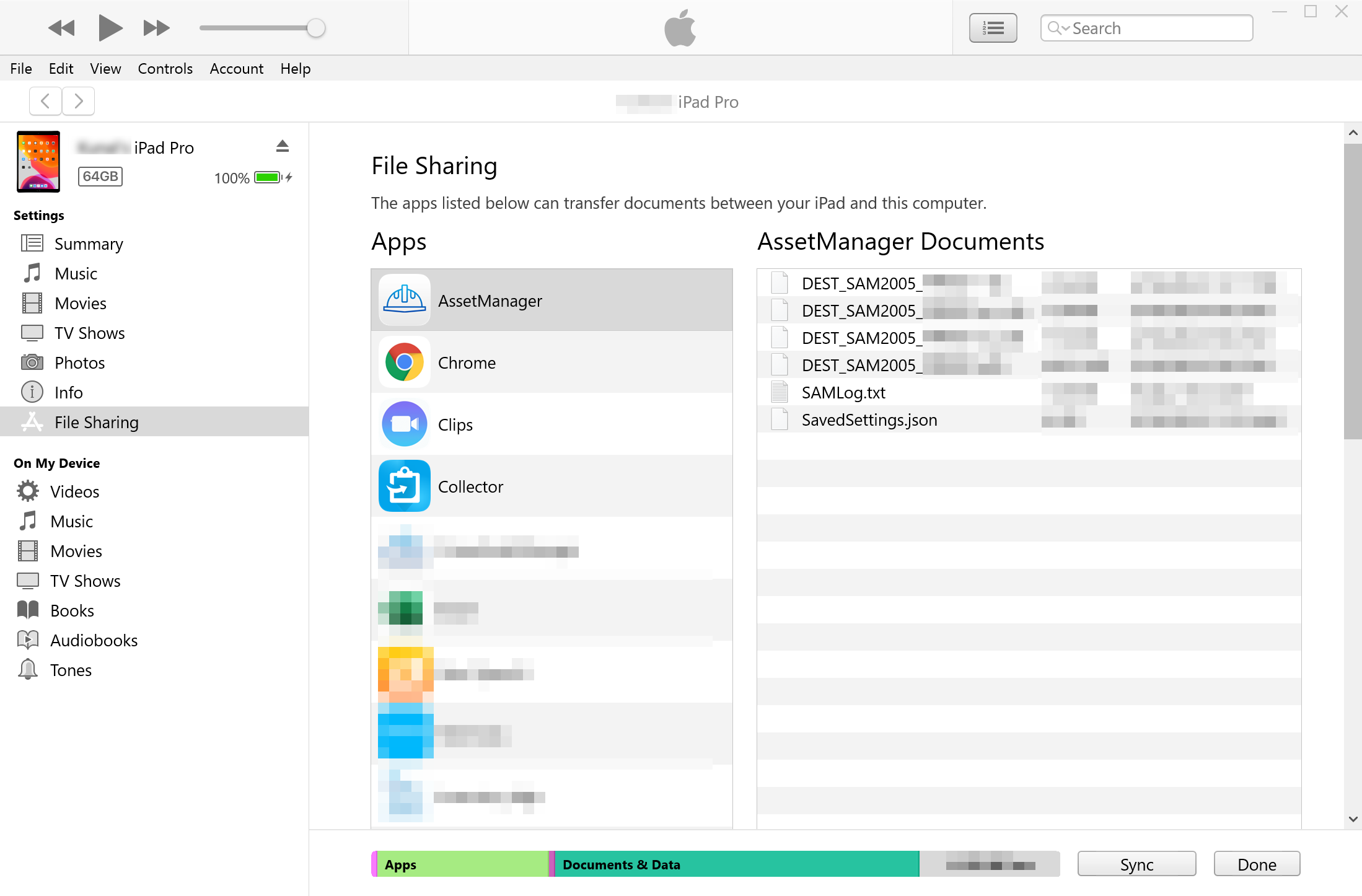
As of the 2005 release of the application, you can also use the Files application.
-
Android: the Android File Transfer tool

-
-
Reinstall the app. See the Installing the SAP Asset Manager Client topic in the SAP Asset Manager User Guide.
-
Copy the database files back onto the mobile device using the same tools for the iOS or Android platform that you used in Step 1.
-
Onboard as you would do in the section Onboarding a User after App Deletion.
The app launches and reads the saved files. You don't need to perform an initial sync. The application state is restored.