Creating a Questionnaire
Use
You create a questionnaire to present the questions that you want to direct to your target group in an organized form, as well as to send and evaluate them.
Surveys and questionnaires are managed as separate object types that are independent of each other in the Web Survey. This means that you can assign a questionnaire created once by reference to any surveys. In this way, you make savings by reusing questionnaires in the same or similar survey projects.
Procedure
General Settings for the Questionnaire
-
Enter the transaction code SURVEY to start the Survey Cockpit.
The Overview of Surveys screen appears.
-
In the list of existing surveys in the line that contains the desired survey, choose
 .
.You get to the Change Survey: <Name of Survey> screen.
-
Make a decision with regard to the questionnaire that you want to assign to the survey:
-
If you have already assigned a questionnaire to the survey, choose
in the right screen area. -
If you are creating a new questionnaire and want to assign the survey, choose
 in the right screen area.
In both cases the Change Questionnaire: <Name of Questionnaire> screen appears.
-
-
Choose
 Header Data
 to make central settings for the questionnaire.
The system opens a dialog box in which you can decide whether the questionnaire can still be changed after sending, and in which way the answers of the returned questionnaires should be updated.
Create Questionnaire Elements
-
In the upper left screen area, select the node "page 1" in the structure view of the questionnaire.
-
For example, choose
 to create a group of individual questions that belong together as regards subject.
The system displays detailed information on the question group in the lower left screen area.
-
Enter a name that is to appear as the title of the question group in the questionnaire.
-
Choose Insert New Question in the Question section of the detail area and then Transfer.
The system displays an entry field in which you can enter the question text.
-
Add other questions that you want to ask to this.
The system updates the status of the questionnaire in the structure view and in the preview every time as soon as you confirm your entries.
-
To set the properties of the questions you created, double-click on a question text in the structure view.
The system displays detailed information on the question in the lower left screen area.
-
Determine with the help of the settings on the type and display of the question in which form the question is to be answered (predefined answers, or free text entry).
-
In the case of a question of the type single choice determine the number of columns that are available to display the answer options.
You control whether the answer options are displayed next to each other or one below the other with this setting.
-
In the case of a question of the type single choice determine the possible answer options from which the interviewees can choose.
-
If necessary, select one of the answer options as a default value that is already selected when you open the questionnaire.
-
Save your entries.
Further Editing Possibilities
-
You can access additional questionnaire elements with the Expert Mode On pushbutton and make extended settings to the existing elements.
-
You define whether the questionnaire should be sent as an e-mail in HTML format or as an e-mail in text format where the actual questionnaire is added as an HTML attachment with the HTML Mail On pushbutton.
-
There are different possibilities to print the questionnaire or its structure.
-
You can use the search function
 to select a certain element in the structure view in extensive questionnaires.
Example
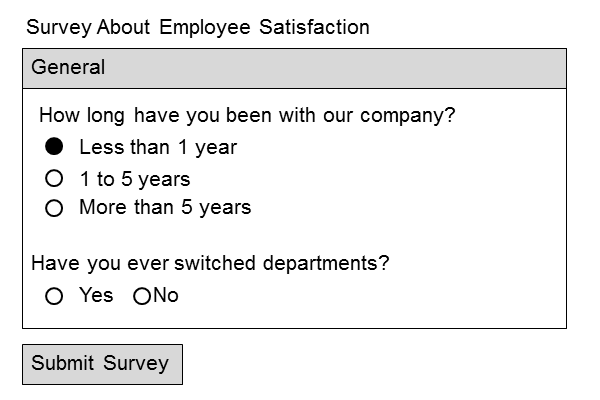
The following graphic shows a simple questionnaire with the following elements:
-
Title (name of questionnaire)
-
Question group "General"
-
Two questions of the type single choice with two or three answer options. The answer options of the first question are arranged in one column, those of the second question in two columns. In addition the first question contains an answer option that is indicated as a default value.
-
Submit Survey pushbutton to return the completed questionnaire.