Saved Cart User Interface
The user interface for the Saved Cart feature consists of the user flow for creating a saved cart, as well as the Saved Cart History Page and the Saved Cart Details Page.
Creating a Saved Cart
You can only save a cart from the Cart page when you are logged in and you have items in your cart. If you are not logged in, the Saved Carts and Save Cart For Later links re-direct you to the login page.
Procedure
- Add one or more items to your cart, then open the Cart page.
The Save Cart For Later link appears next to the Order Summary, as shown in the following example:

- Click Save Cart For Later.
The Save For Later dialog box appears:

Saved Cart History Page
Once you have saved a cart, you can view a list of your saved carts in the Saved Carts history page.
You can access the history page by clicking on Saved Carts in the My Account drop-down menu, as shown in the following example:

From the Saved Carts history page, you can access the details of any saved cart by clicking on the saved cart, or on any element in the row, except for the Make Cart Active link.
The following is an example of the Saved Carts history page:

When you click Make cart active, you have the option to keep a copy of this saved cart before clicking Restore. Once you click Restore, the saved cart becomes the active cart. After being made active, the saved cart disappears from the list of saved carts, unless you have chosen to keep a copy of that saved cart. If you choose to keep a copy of the saved cart, it appears in your list of saved carts. By default, the name of this new saved cart is Copy of existing cart name, but you can instead set the name of the saved cart in the Name of copied cart field, as shown in the following example:

Saved Cart Details Page
The Saved Cart Details page shows all the relevant information about a specific saved cart, such as the items in the cart, the quantities, and the date the cart was saved.
The following is an example:
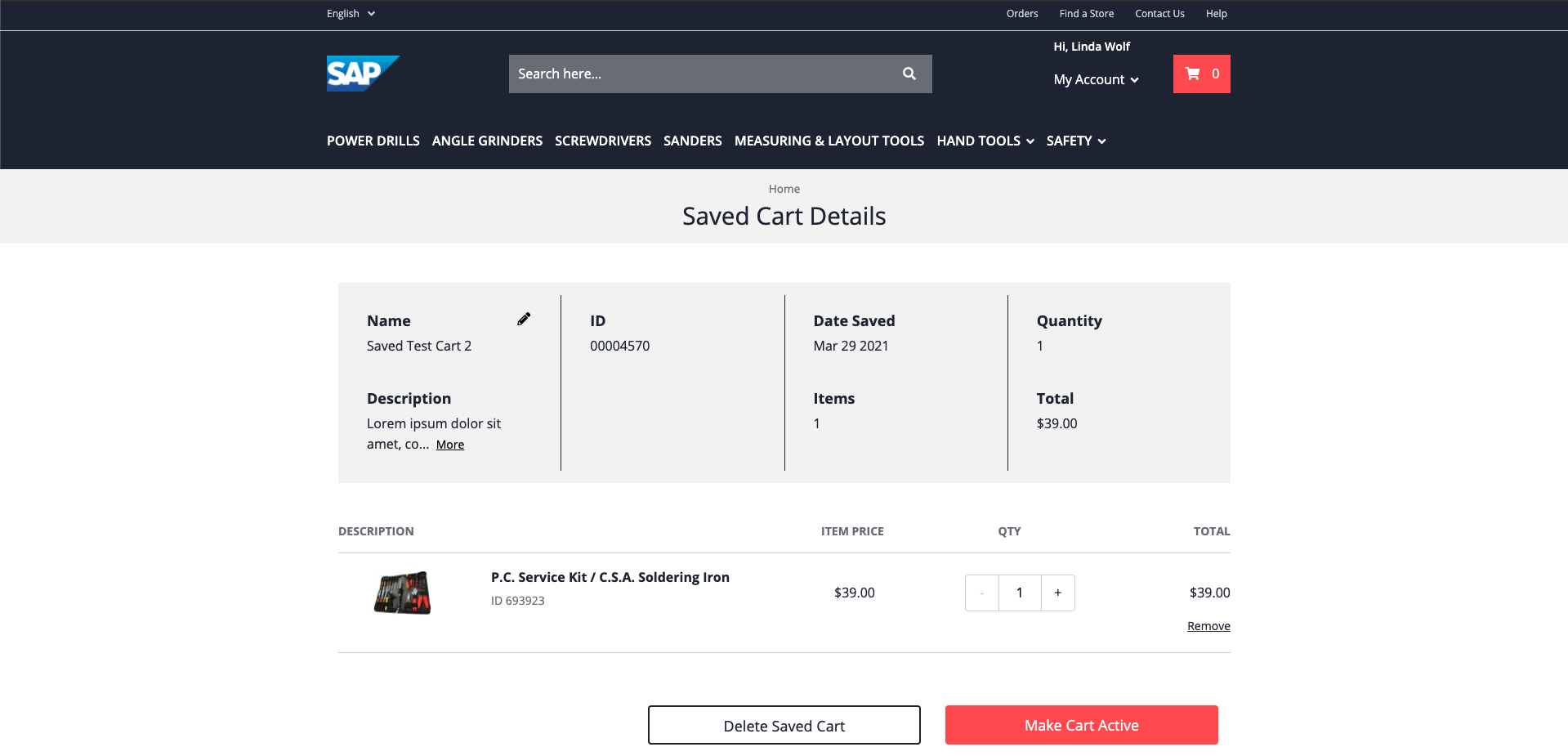
You can perform the following actions in a saved cart:
-
Update the name and description of the saved cart using .
-
Change the quantities of a product in your saved cart.
-
Add a product from the saved cart to an active cart.
If an active cart has not yet been created, a new active cart is created and the product is added to it.
-
Remove a product from your saved cart.