Mobile Application Configuration
The Mobile Application Configuration page allows you to configure general settings for the entire mobile application.
The Mobile Application Configuration page contains the following tabs:
-
General
-
Mobile Status Setting
-
Conversion Exit Setting (not used in SAP Service and Asset Manager)
-
System Components (not used in SAP Service and Asset Manager)
-
Parameters
-
Client Globals (not used in SAP Service and Asset Manager)
-
User Attributes (not used in SAP Service and Asset Manager)
Application Persona
-
Features
General Tab
Use the General tab to create or change basic information about a mobile application.
-
Basic Data section: Enter the name of the mobile application in the <Mobile Application> field, which is limited to 40 characters. Select the type of application in the <Type> field. Note that for SAP Service and Asset Manager, the type is <oData Applications>. Enter a brief, easy to understand description in the <Description> field, limited to 60 characters. Type in the release number of the application in the <Release> field.
-
User Management Setting: When the <Disable Automatic User Creation> box is checked, a new user GUID is not automatically created when a new mobile client is detected in the system. Manually create and maintain mobile users through the Administration portal.
-
Server Management Setting: When the <Disable Automatic Server Registration> box is checked, a new server GUID is not automatically created when a new server is detected in the system. You must manually create and maintain servers through the Administration portal.
-
Life-cycle management: When the <Application Blocked> box is checked, the mobile application is disabled. The mobile user can no longer connect to the back-end system for the mobile application, and the xChange process is also disabled. The <Effective Date> and <Time> fields flag when the change takes effect.
-
xChange Setting: When the <Disable Change Detection> box is checked, the change detection process, or xchange process, for the application is completely disabled.
-
Inbound Transaction Management: Not used in the SAP Service and Asset Manager application.
-
Multi Backend Setting: When checked, enables a specific mobile application to connect to multiple SAP systems, consisting of one host server and one or more satellite servers.
-
System Role: Dropdown menu where you can select either Host or Satellite.
A Host system is the connection between SAP and the SAP Service and Asset Manager application in the SAP Business Technology Platform. The host server provides the logic to the application and functions as the bridge to the satellite server or servers. There can only be one host server per system.
Satellite servers communicate with SAP through the host server. To complete multi backend configuration, configure the host and back-end servers using the System Components tab. See that section for more details.
Mobile Status Setting Tab
Use the Mobile Status Setting tab to map the available mobile statuses that an oData mobile data object (OMDO) supports on the client side. If a user status also exists for the same object type, you can link it to the mobile status and the system status through this tab.
-
Mobile Application Info: The <Mobile Application> field is read only and is the name of the mobile application. The <Mobile Application Description> is read only and is a brief description of the mobile application. The <Release> field is read only and is the release number of the application.
- Mobile Status Mapping: Use the <Add Status> and <Delete Status> buttons to create and delete mobile status mappings. Fill out the <Object Type> with the specific object in the mobile application, for example, <Notification>. The <Mobile Status> is the status defined by the mobile application. The <Label on Mobile> is not used. The <User Status> is an SAP status code as defined in SAP. Note that the status codes are language independent codes.
If the <Initial Status> checkbox is selected, the mobile status is displayed by default when you download the object to the mobile device. To skip a specific mobile status update from a mobile device, use the <Skip Update> checkbox corresponding to the mobile status object.
Use the Mobile Status Alias List table to define language-specific mobile status aliases.
In the following example screen, the highlighted row in the mapping table indicates that if a user sets a work order to completed, the application sets the work order system status to I0045 in SAP.
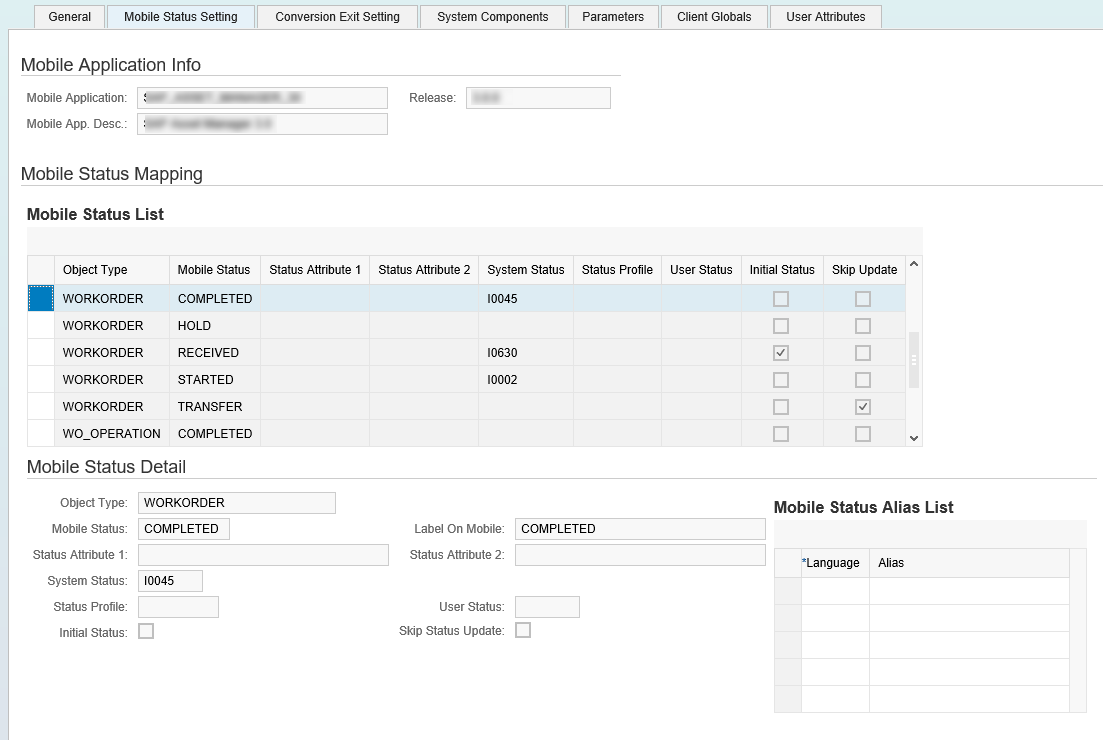
If there is no system status or user status, the mobile status only affects the mobile device and does not affect the backend SAP system.
If there is a user status specified but no status profile when the mobile user sets the mobile status, the app sets that user status for the object, disregarding the status profile of that object.
If there is a user status and status profile specified when the mobile user sets the mobile status, the app sets that user status if the object uses that status profile.
Parameters Tab
The Parameters tab defines system parameters.

-
Mobile Application Info: The <Mobile Application> field is read only and is the name of the mobile application. The <Mobile Application Description> is read only and is a brief description of the mobile application. The <Release> field is read only and is the release number of the application.
-
Application Parameters: Use the <Add> and <Delete> buttons to create and delete parameters.
-
Parameter Detail: The <Parameter Group> is the group to which the parameter belongs. Groups are how you organize parameters. References to a parameter include both the group name and the parameter name. The <Parameter Name> is the unique name of the parameter.
The <Parameter Value> is the currently configured value of the parameter. References to the parameter return the configured value. Use the <Language Specific Value> checkbox to select which parameters you wish to be language dependent. The checkbox and the corresponding Language Specific Values tab are only active after you have clicked the Change button. Note that the language available in the Language Specific Values tab, Value List table, depends on the language you are using to log into the mobile client. You must manually maintain each parameter that you wish to control for a language specific value separately.
Set the <Parameter Scope> to one of the following options:-
Mobile Application: Value for all users of the application
-
Mobile User: Value you can override for individual users. To override a parameter value of a user, see the Administration & Monitoring Portal on parameters
The <Rule ID> field contains the rule used at runtime. If you check the <Use Rule> box, the rule in the <Rule ID> field is active.
Check the <Active Flag> box to ensure that the parameter is used by the mobile application. Inactive parameters are not used by the application. When you check the <No Runtime Change> box, you cannot override the value of the parameter. The configured value is always the value. If the box is not checked, the parameter values can be overridden at runtime through synchronization processing.
-
Application Persona Tab
The persona selected determines the data that is downloaded to the mobile client.
Mobile Application Info
Read-only information about the application.
Application Personas
-
Auto Determination Rule:
-
Persona List: The following personas are standard in an SAP Service and Asset Manager installation:
-
MAINTENANCE_TECHNICIAN (default)
-
INVENTORY_CLERK
-
Features Tab
Switchable features allow you to configure various components into features. Feature assignment determines the data that is downloaded to the mobile client.

Mobile Application Info
Read-only information about the application.
Switchable Features
Check or uncheck a feature from the feature list to enable or disable it.