Enable ARIBA Custom Pick List Upload Connector
Procedure for enabling and configuring the ARIBA Custom Pick List Upload connector in SAP Fieldglass to allow custom pick list data integration. Use this to support tailored data uploads between SAP Fieldglass and ARIBA systems.
Context
This task guides teams as they configure the ARIBA Custom Pick List Upload connector in the FG application to support Request for Estimate integrations. It focuses on selecting the correct connector, enabling it, and entering the required field values so the system can process custom pick list data accurately.
Procedure
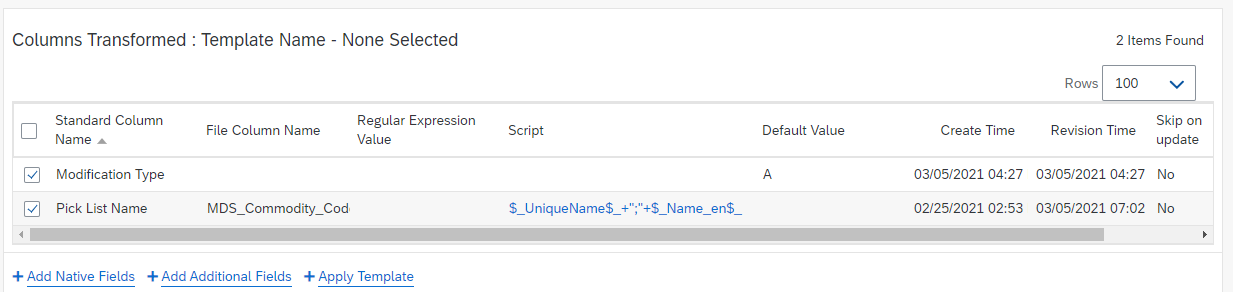
- Select the Upload Column Transform tab then select + Native Fields and enter the following information:
Standard Column Name
File Column Name
Script
Default
Modification Type
A
Pick List Name
MDS_Commodity_Code (This should be the name of your Lookup table)
$_UniqueName$_+";"+$_Name_en$_
Example: