 ERP Central Contract
Use
It is possible to create contracts that do not relate to just one particular receiving plant. In this case, a centrally agreed contract is created without specification of a plant. The plant is not specified until a contract release order is created.
You can maintain different conditions for individual plants in the ERP central contract or different ordering addresses or goods suppliers in the vendor master record, for example.
An enterprise with a central purchasing department (= reference purchasing organization) buying materials for several plants can agree a high-level contract which may apply to a vendor's entire corporate group and which can be utilized by other purchasing organizations within the enterprise. This allows better conditions to be negotiated.
An ERP central contract is involved if one of the following applies:
A single purchasing organization procures for an entire corporate group
A reference purchasing organization makes a contract available to other associated purchasing organizations, enabling the latter to issue release orders against this contract
Features
Plant Conditions
The ERP central contract allows prices and conditions to be determined individually for each receiving plant via the
Plant conditions
function. One advantage of this is that differences in transport costs due to varying distances between vendor and receiving plant locations can be taken into account.
 Note
Note
When you create contract release orders for plants without plant conditions, the conditions of the contract item are used.
If certain plants are not to issue release orders against the contract, you should block the ERP central contract from use as a source of supply by these plants in the source list.
Partner Roles
Vendors may assume different roles (partner roles) in the procurement process. Partner roles (sometimes also referred to as "partner functions") include the roles of "ordering address", "goods supplier", and "invoicing party".
The partners you can store in the vendor master record in the
Partner Roles
view apply to a certain purchasing organization.
In addition to the partners that are valid at purchasing organization level, you can maintain different partners for individual plants or vendor sub-ranges. In this case, the system will determine a different ordering address in a purchase order for your Atlanta plant than the one determined in a purchase order for your Minneapolis plant, for example.
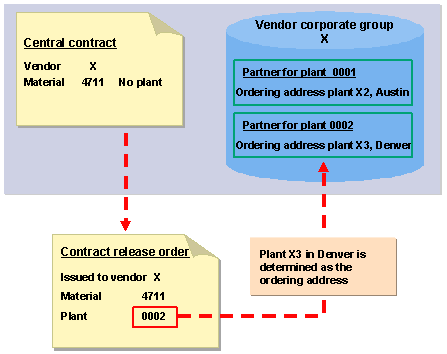
The following graphic shows how partners are determined at the time contract release ordersare created:
 Example
Two individual vendors belonging to the vendor corporate group X supply receiving plants in different regions. In the vendor master record, the receiving plants have been assigned as follows: vendor X2 supplies plant 0001 only, and vendor X3 plant 0002 only.
If a buyer wishes to release material 4711 against the ERP central contract with vendor corporate group X , he or she enters the key for the plant for which the material is to be procured.
If he or she enters plant 0001, the system determines vendor X2 as the ordering address on the basis of the assignment in the vendor master record.
If he or she enters plant 0002, the system determines vendor X2 as the ordering address on the basis of the assignment in the vendor master record.
You can also assign several partners with the same role to a plant (e.g. two ordering addresses). When you create the release order, you are then asked to decide on one of them.
For more information on partners, refer to the sections Partner Roles in Purchasing and Maintaining Different Data .
Note
If you use a reference purchasing organization in the contract, it is also possible to use vendors (= partners) of the purchasing organizations assigned to this reference organization in the partner roles.
If you do not use a reference purchasing organization in the contract, the
Purchasing organization
field is not ready to accept input at the time the different partner roles are maintained.
For more information on reference purchasing organizations, refer to the section Organization of an Enterprise in the SAP System .
Activities
Maintaining Plant Conditions
When maintaining the ERP central contract, choose

Edit

Plant conditions
Overview
 .
.
On the overview screen that then appears, enter the desired plant and choose

Plant prices
.An item overview screen appears, starting from which you can maintain conditions.
Choose
Item
Conditions
to access the condition maintenance screen.
Return to the overview and repeat the process for all plants for which you wish to store plant-specific conditions.
Save your entries.
Maintaining Partners
You can maintain the different partners either in the vendor master record or individually in the contract. If the partners have been maintained in the vendor master, they are suggested in the contract.
Maintaining partners in a contract
In the contract, choose
Header
Partners
.
The
Data Retention Level: Partners
screen appears. Enter the plant and/or vendor sub-range, and choose ENTER . TheMaintain Partners
screen appears. NoteTo see which partners have already been maintained, select the desired item and choose

Level
.End of the note.Enter the desired partner and return to the item overview for the contract.
Save your entries.
Maintaining partners in the vendor master
Choose
Extras
Different Data
on the
Partner Roles
(partner functions) screen in the vendor master record.On the
Create Different Data
screen, enter the plant or vendor sub-range and selectPartner Roles
.Choose
 . The
. The
Change Vendor: Partner Roles
screen appears.Enter the desired partners and choose
 to save your input.