Keyboard Settings
Use
You can create additional keyboard shortcuts or modify existing ones. You can also remove unnecessary key combinations.
Prerequisites
In the right-hand corner of the editor screen, choose the Options pushbutton (  ). In the Options dialog box, choose Keyboard.
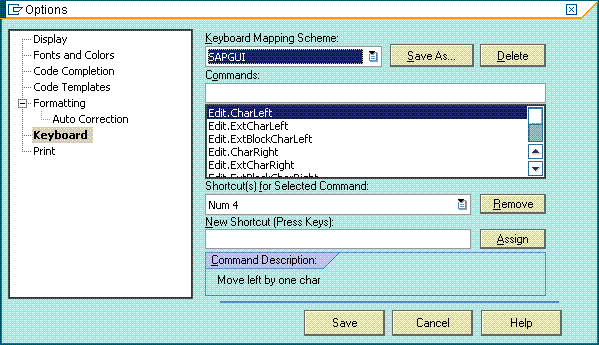
Features
On this screen, you can do the following:
-
Modify, create and delete keyboard mapping schemes.
Choose the Save As... pushbutton to create a new scheme and Delete to delete an existing one.
-
Search for existing shortcuts.
Use the Commands field for that purpose.
-
Change the shortcuts for existing commands.
-
In the list of commands, find the command you need.
-
Position the cursor in the New Shortcut (Press Keys) field.
-
On the keyboard, press the keys for the shortcut (for example CTRL + ALT + P)
-
Choose the Assign pushbutton.
-
-
Remove unnecessary shortcuts.
Use the Remove pushbutton for that purpose.