 Working In The Order Manager
Use
The
Order Manager
provides you a graphic user interface to manage master data. This interface is easy to use, and fast to learn. Collective processing enables the
expert
to process the data efficiently for the management of master data for internal orders.
Order Manager Structure
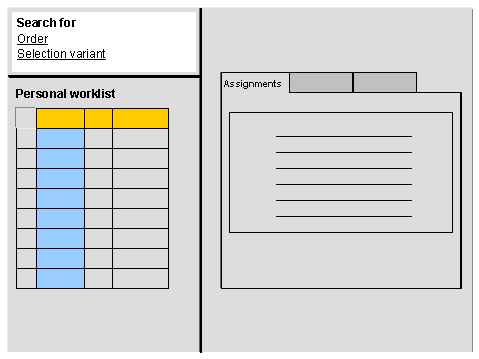
Procedure
Choose

Accounting

Controlling
Internal orders
Master data
Order Manager.

The
Order Manager
screen appears.If you have not yet worked in the
Order Manager
, you need to create a worklist usingSearch for
.
Order
Selection variant
If you have already worked in the
Order Manager
, you can either see the last ten internal orders that you processed in yourpersonal worklist
, or the orders from the lastselection variant
chosen.You can delete or add orders in the worklist, or call up the orders using a different selection variant.
The system lists all the internal orders that correspond to your search.
To display the master data for a single internal order, choose the corresponding internal order by double-clicking on the order number.
To enlarge the master data screen, you can hide the worklist by choosing
Worklist.

You select more than one internal order at the same time by pressing Ctrl and selecting the internal orders in the list with the mouse, row by row.
To delete internal orders in your worklist, select them and choose
Delete from worklist.
To change the master data for more than one internal order in collective processing, select it and chose
Collective processing.
If you selected any special columns as well as the internal orders, then these are available in collective processing. If they are changeable, the selected columns are transferred as ready for input to collective processing. If the columns are not changeable, then they are transferred to collective processing and can be displayed.
If you did not select any special columns, then the predefined columns for
short text
andorder type
are available in collective processing.You receive a note on the selection function and its effects.
You can insert additional columns in collective processing at any time.
When you leave the transaction, the system saves the last ten orders that you selected or the last selection variant that you used, specifically for your user.
When you next call up the Order Manager, these orders are available.
See also: