Find an Agent
Locate and get in contact with the insurance agent through Find an Agent area of Financial Services Accelerator.
Overview
Financial Services Accelerator provides a guided and straightforward process for purchasing insurance products online. In most cases, an assistance from insurance agents is not needed in order to buy an insurance policy. However, if you do need help, go to the Find an Agent area of Financial Services Accelerator to seek guidance and further advice from experts.
In short, the Find an Agent feature allows you to locate points of service and agents on the map, or select agents from the product category list. Moreover, you can also fill in a contact form and submit it to the agent, requesting a contact, or you can schedule an appointment with an agent yourself. With Live Contract integration enabled, you can also see which agents are currently online and start a live call with an agent.
- a Google map with all points of service listed, together with related agents (a map view: Agent Locator)
-
a list of insurance categories with agents related to them (a list view: Find an Agent)
- a Contact Expert page to get in contact with an agent
- a Scheduling Assistent page to schedule an appointment with an agent
- an option to start a video call with an available agent (integration with Live Contract must be enabled for this)
Map View

Locating agents on the map was made possible by implementing and enhancing the store locator feature from B2C Accelerator. The store locator uses Google Map API and geolocation tracking. This means that if you enable you current location in the browser, the search is refined and you can see which agents are closest to you.
The implementation of the store locator feature carries additional useful implications added by Financial Services Accelerator. If you don't allow your current location to be known, you can perform a manual search by typing in the insurance category or the agent name in the search bar. Furthermore, agents can now be linked to one or more points of service (POS). New agents can be easily added to or removed from the point of service in Backoffice. Each change is immediately reflected on the map. For more information, see Install Financial Services Accelerator Using Installer and Adding a New Point of Service.
In the current implementation, up to 10 agents are displayed per page. This parameter can be easily modified in SAP Commerce Administration Console(Administration Console). To change the default pagination value, go to the  Platform
 Configuration
 tab in Administration Console and search for "store.locator.pagination.pageSize". Edit the value as needed.
For information on how to take advantage of the agent availability and Speak to an agent features, see Live Contract Integration Features section of this document.
List View

By going to the list view, you can see a list of agents grouped by their respective areas of expertise. By clicking the Contact button, you are redirected to a Contact Expert form. If you would like first to locate the right agent for you based on your location, click the Locate button.
-
imported data is stored in a Model class
- an empty list gets created: storeCmsPageInModel(model, getContentPageForLabelOrId(AGENT_LIST_CMS_PAGE))
- through the controller, the data from external source is assigned to AgentData list by using the method model.addAttribute(AGENT_DATA, agent)
- final list of combinations is returned as ControllerConstants.Views.Pages.Agent.AgentList
Contact Expert
The Contact Expert form is a separate page for each agent. You can access the page by clicking the Contact button displayed under each agent. Through this page you can provide the relevant details regarding your policy or a quote, and request a contact with a specific insurance agent, in charge of a specific insurance category. As a result of this action, the contacted agent receives an email together with relevant contact details. Upon receiving the request, the agent can assist you by accessing your account through Assisted Service Mode.
The Contact an Expert form is an yForm, which means that it can be easily customized in Backoffice with yForm Builder.
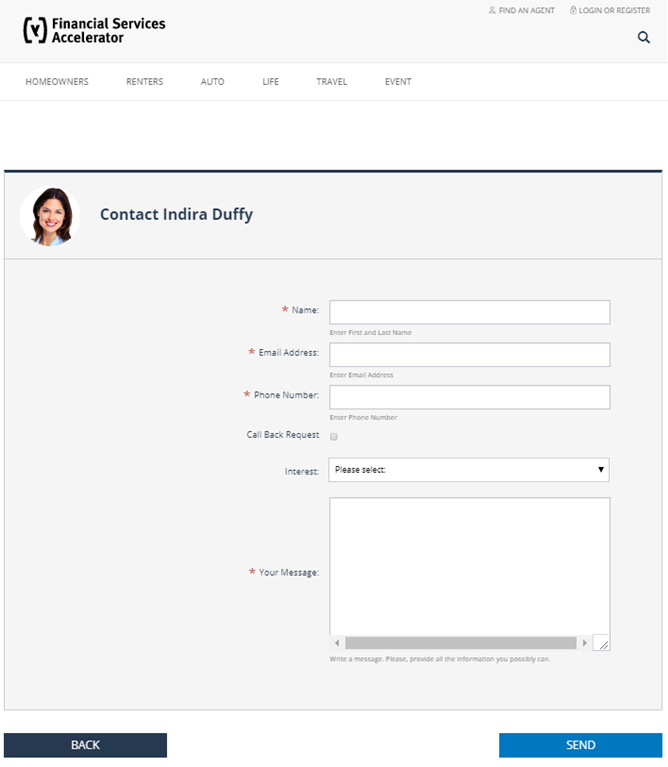
Apart from the fields that you can see in the screenshot above, there is one additional field for Agent, which is optional, not validated and always hidden. The field contains the ID of an agent, filled by the ContactExpertYFormPreprocessorStrategy class.
You are notified about each change made to the ticket via Inbox. The first notification you receive is the confirmation message about the created ticket, which is sent right after you submit the contact request. The message appears in your Inbox under a separate Inbox tab. When the agent starts working on the request, they might change the status of the ticket in the Backoffice. The system informs you about the change by sending another message to your Inbox. This is done through hybrisPrepareInterceptor coupled to the CsTicketModel. In the message, you can see the ticket number and its new status.
Live Contract Integration Features
Financial Services Accelerator integrates with the SAP partner company SYNCPILOT and their solution Live Contract to enable direct communication between customers and insurance agents. On the Find an Agent page, customers can take advantage of this integration in two ways: they can see if a certain agent is currently available and if yes, start a video call with that agent.
Presuming that you have enabled integration with Live Contract, you can allow the following features on the Find an Agent page:
- Agent Availability - customers can see if a certain agent is currently online or offline
- Speak to an Agent - if the agent is online, customers can start a live call with that agent
These features will be visible on both Map and List View.
INSERT_UPDATE Endpoint; id[unique = true]; version[unique = true]; name; specUrl
; syncPilot-agent-request ; unknown ; syncPilot-agent-request ; "https://sync-pilot-integration-server-url"
INSERT_UPDATE DestinationTarget; id[unique = true]
; syncpilot-agent-destination
INSERT_UPDATE ConsumedDestination[impex.legacy.mode = true]; id[unique = true]; url; endpoint(id, version); destinationTarget(id);
; FS-SyncPilot-Agent-Request ; "https://sync-pilot-integration-server-url" ; syncPilot-agent-request:unknown ; syncpilot-agent-destination ;
The SYNCPILOT integration server URL given in the above example is for demonstration purposes only. Replace it with the one created specifically for your project.
For more information about enabling calls with an agent, see Speak to an Agent.