Dynamic Pricing
The dynamic pricing in Financial Services Accelerator enables the users to calculate the price estimation of a service as many times as they want, by entering different inputs. They are also able to see the results of the price calculation on the very same page, without the need to reload the page.
Feature Overview
-
The Calculate button does the price calculation on the same page and shows the data in the mini cart immediately (without page reload)
- The users can change the input data as many times as they want and, when they click the Calculate button, they can preview, in the mini cart on the right, the price estimate with all the data entered
-
The Continue button also does the price calculation, besides the form validation, and triggers the display of the calculated data in the mini cart on the next page
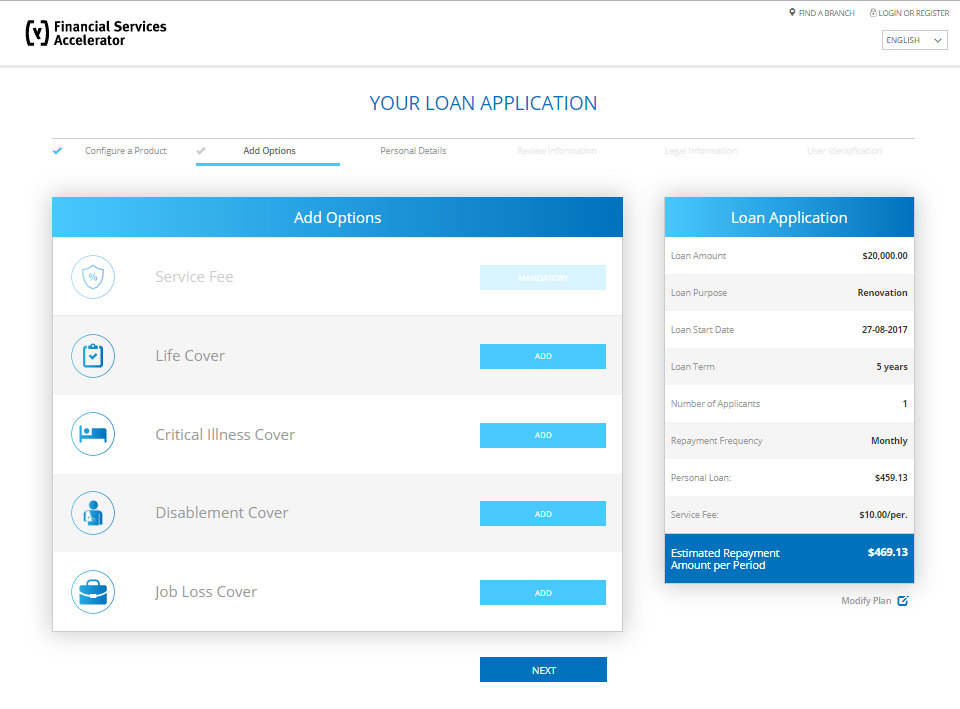
- The users can safely go back and forth between the first two steps (Configure a Product and Add Options) and change the input values; the mini cart gets updated when the user clicks the Calculate or Continue button, or adds additional options, and the correct values are displayed
-
The price calculation doesn't start until all mandatory values are populated

User Walkthrough
- A user accesses the Configure a Product page for the first time - an empty yForm is displayed and an "empty" mini cart with a message.
- (this step can be repeated many times) The user fills in the fields and clicks the Calculate button for the yForm to trigger the calculation:
- If some mandatory fields are not populated or any field is populated with wrong values, the user gets a pop-up error message
- If all fields are filled in correctly, the dynamic call is triggered, and the mini cart gets updated (without reloading the page)
- If the user clicks the Continue button at any time, the regular process takes place, including the form validation:
- the pop-up message is displayed in case of error, or
- the user proceeds to the next step (Add Options)
- The user adds options on the Add Options page (Step2), and the mini cart gets updated immediately.
- When the user goes back to the Configure a Product page (Step1), after adding the optional products, the additional product stays in the mini cart with the previous calculation from Step1.
- If the user changes now the data on Step1 and clicks the Calculate or Continue button, the value of the additional product in the mini cart is also recalculated immediately.
- If the user removes any additional product on Step2, the total amount changes as well.
Implementation

When the configuration page is accessed, a new YFormData configurator instance is created and the yForm is displayed on the front-end (Configure a Product form), with the help of ProductConfigurationController. For more information, see Configurable Products.
The mini cart is also shown on the right (Loan Application form), but since no product has been added to the Cart, the mini cart is empty and a sample text message is shown.
- Calculate - used for the (re)calculation of the loan price based on the details provided in the yForm
- Continue - used to confirm the user's inputs and to proceed to the next step of the checkout (also triggers calculation)
-
mandatory and used in CALCULATION:
-
Loan Amount
- Loan Term
- Repayment Frequency
-
- mandatory but not used in CALCULATION:
-
Number of Applicants
- Loan Start Date
- Loan Purpose
-
In the actual implementation project, you could have different scenarios. Some fields could be set to be non-mandatory and not used in calculation, for example.
When a user clicks the Calculate button for the first time, the yForm is saved, the product is added to the Cart, and the calculation is performed. The mini cart refreshes and the result is visible to the user (see Product is Added To the Cart section).
Every next time, the product isn't added to the Cart, but the Cart gets updated (see Cart Gets Updated section).
Product Is Added To the Cart
When the user submits the yForm, the call to yForms Servlet is done, which in turn asks the Orbeon Web application for the form validation and its saving. The data is saved to YFormData.content as an .xml file. The SAP Commerce logic for adding the product to the Cart is triggered as well. The YFormData.content is kept at the configurationYForm of the product's configurator. At the same time, the form values from the YFormData.content are transformed to the InsuranceQuote.properties by using the AbstractInsuranceAddToCartStrategy./**
* @param quoteModel
* @param properties - map of properties holding the configuration information which can be transformed to
* InsuranceQuoteModel's Properties attribute
* @throws YFormServiceException
*/
protected void populateConfigurationInformation(final InsuranceQuoteModel quoteModel, Map<String, Object> properties)
throws YFormServiceException //NOSONAR
{
// Extract the details from the configuration here in a generic way and populate properties of InsuranceQuoteModel
List<ConfigurationInfoData> configurations = (List<ConfigurationInfoData>) properties.get(
FinancialfacadesConstants.CONFIGURATIONS);
if (configurations != null && !configurations.isEmpty())
{
Map configurationProperties = new HashMap();
for (ConfigurationInfoData configuration : configurations)
{
YFormDataData configurationYForm = configuration.getConfigurationYForm();
if (configurationYForm != null && configurationYForm.getContent() != null)
{
String content = configurationYForm.getContent();
Map elementKeyValues = XmlUtilTransformer.getElementKeyValue(XmlUtilTransformer.createDocument(content),
false);
configurationProperties.putAll(elementKeyValues);
}
}
if (MapUtils.isNotEmpty(configurationProperties))
{
quoteModel.setProperties(configurationProperties);
}
}
}
The ProductConfigurationController delegates the call further to the pricing engine for retrieving the prices based on the user's input. For loan product, for example, we use the LoanQuotationPricingStrategy.
The mini cart refreshes and the result is visible to the user. All fields entered by the user are displayed in the mini cart, together with the calculated price.
Cart Gets Updated
The Cart gets updated when the product is already in the Cart, and the user changes the input values and triggers the recalculation by hitting the Calculate or Continue button.
To handle the product configuration change, we use the FinancialServicesConfiguratorUpdateCartEntryHook class that implements CommerceUpdateCartEntryHook interface and is defined at financialservices-spring.xml. The FinancialServicesConfiguratorUpdateCartEntryHook first checks whether the cart entry contains the configurations. If it doesn't, the cart entry is skipped. Otherwise, the details from the configuration are extracted and populated to the InsuranceQuoteModel.properties.
The ProductConfigurationController is used as well for rendering the updated (recalculated) mini cart.
Front-End Styling of the Calculation Call
- A spinner is implemented to indicate that the calculation or recalculation is in progress
- The spinner element is visible in the mini cart (Loan Application) on the desktop view; on other devices, it covers the entire viewport
- The button is disabled after the initial click to prevent the aggressive clicking on the desktop view or the aggressive touching on mobile devices
- The button is enabled and can be clicked if a field or fields have incorrect values, which will trigger a default pop-up message with a warning to input correct data