Unit 1: Creating an Organizational Plan
Use
An organizational plan consists of the organizational units that exist in the company. The organizational units are related one to the other in a hierarchical reporting structure. However, they can also be created independently of each other.
To create a new organizational plan, you create a root organizational unit. This is the highest unit within the organizational plan (for example, the Executive Board). You then set up the organizational plan, starting at the root organizational unit and working downwards.
Procedure
Creating Root Organizational Units
-
Choose
 Tools
Tools  Business Workflow Development Definition Tools Organizational Management Organizational Plan Create
 .
. -
Confirm the validity period proposed in the Creating a Root Organizational Unit dialog box.
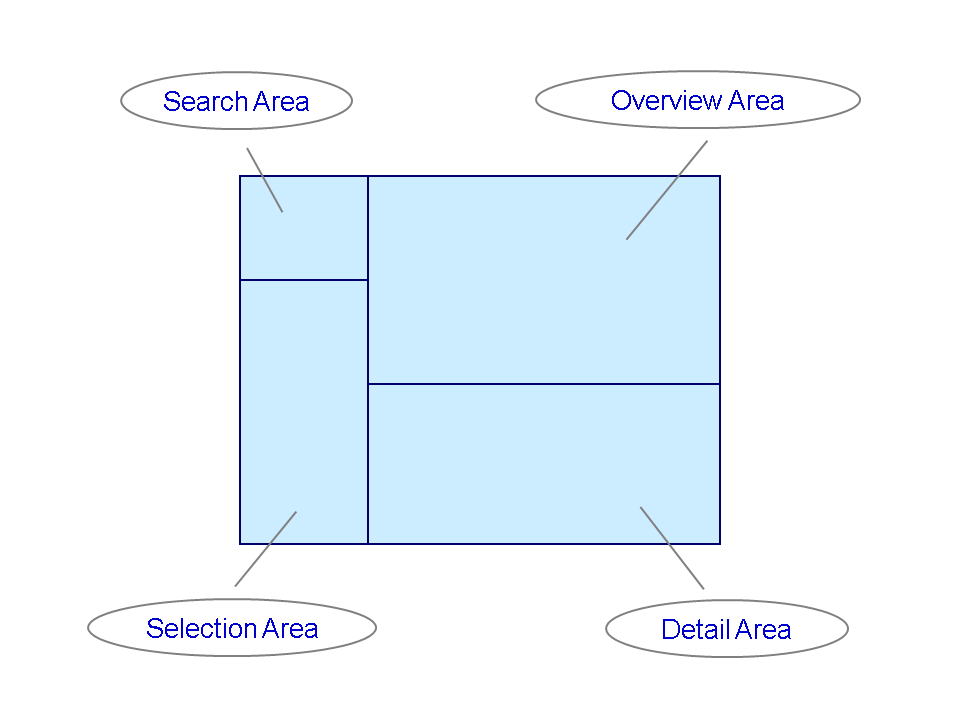
This takes you to the Create Organization and Staffing (Workflow) screen. This user interface is divided into four screen areas:
-
On the Basic Data tab in the details area, enter an abbreviation and a name in the Organizational unit input fields for your root organizational unit.
-
Abbreviation: <ini> _org
-
Description: < Organizational plan ( ini )>
-
-
Choose
 .
.
The root organizational unit you have just created is then selected in the overview area.
Creating further organizational units
Starting from the root organizational unit, you create subordinate organizational units. In this unit, you will create two further organizational units.
-
Choose

 > Organizational Structure, and select your root organizational unit.
 -
Choose
 .
.A new organizational unit is now created below the root organizational unit.
-
In the details area, enter an abbreviation and a description for the Organizational unit in the input fields.
-
Abbreviation: < ini _org_vk>
-
Name:< Sales ( ini )>
-
-
Select your root organizational unit.
-
Choose
.A new organizational unit is now created below the root organizational unit.
-
In the details area, enter an abbreviation and a description for the Organizational unit in the input fields.
-
Abbreviation: < ini _org_fe>
-
Description: < Research and development ( ini )>
-
-
Choose
.
Reassigning organizational units
If changes are made to the organizational plan of your company, you can reassign the organizational units involved.
-
Select the organizational unit that you want to reassign in the selection area.
-
Drag it to the organizational unit under which it is to be assigned.
Delimiting organizational units
You delimit organizational units if you want to change their validity period, that is, bring forward the validity end date.
-
Double-click the organizational unit to open the details view.
-
Switch to display with periods. Choose
 .
. -
Change the entry in the Valid to field.