Activating the SQL Trace
Procedure
- in the SQL Monitor, update the SQL data on your local server using the menu item
 SQL Monitor
  Refresh Local Server.
- Click the Activate/Deactivate SQL Trace button in the toolbar.
Activating the SQL Trace

- In the activation dialog, specify the settings according to your needs, or leave the predefined values unchanged and then click OK to continue.
Activation dialog
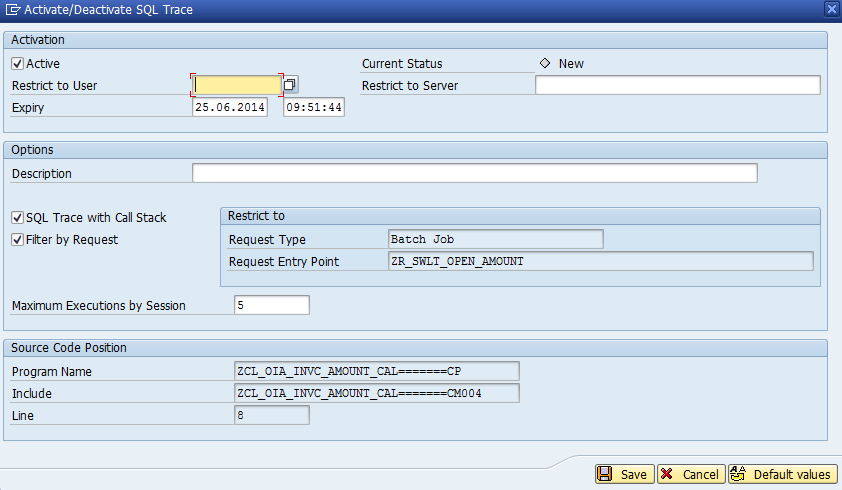
By use of these settings, you can in particular...
- limit the SQL tracing to a user and/or a server
- get the call stacks in addition to the traces by checking SQL Trace with Call Stack
- limit the tracing to the very request for which the selected line was executed
- limit the maximal number of SQL traces executed per session (might be important if the executed line lies within a loop).
Results
Verify that the selected line turns to green after activation of SQL trace.
