Cycle Counting Inventory
Purpose
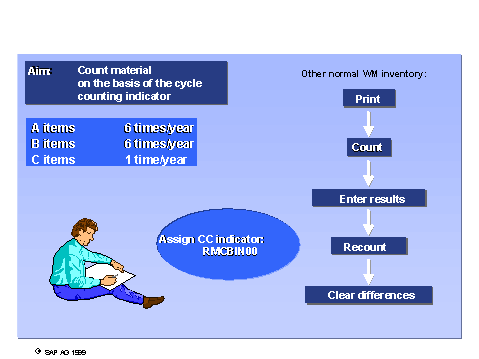
In cycle counting inventory, you enter your material stocks physically at regular intervals within a fiscal year.
By dividing materials into various classes (for example, A, B, C, D, and so on), you specify for those materials at which intervals or cycles the inventory is to be performed. This allows you to make an inventory fast-moving materials in your warehouse more often than slow-moving materials.
Prerequisites
You have used the cycle counting indicator to define material classes and corresponding inventory cycles. For more information, see the Implementation Guide for
Materials Management
under
Inventory Management and Physical Inventory

Physical Inventory
Cycle Counting
 .
.You have assigned every material to be inventoried using cycle counting to a material class. You make these assignments by setting the
Cycle Counting
indicator in theStorage
view in the material master.In the Customizing for Warehouse Management under
Activities
Physical Inventory
Define Types per Storage Type
, you have specified cycle counting as the inventory procedure for the required storage type.
 Note
Note
When using cycle counting, the system only suggests materials for inventory within a storage type that are marked with a cycle counting indicator.
If you want to inventory the other materials in this storage type as well, change the inventory procedure temporarily for this storage type. You can then perform, for example, a Continuous Inventory.
Process Flow
Create and activate system inventory records.
Choose
Logistics
Logistics
Execution
Physical Inventory
Physical Inventory Document
Create
Cycle
Counting
.This report searches for all materials in a storage type that are marked for cycle counting within a given date interval, and it creates a list of storage bins to be inventoried.
Enter the required data, and define the time interval for the inventory.
Choose
Execute
.The system proposes for the physical inventory, all storage bins that are to be inventoried by cycle counting.
In the case of mixed storage, the system checks all quants and proposes those quants in the storage type for inventory as soon as one of the quants is relevant for cycle counting. In this case the message
Several quants
appears.To plan the inventory count for the suggested bins, choose
List
Post documents
.To activate the inventory documents immediately, choose
Activate Documents
.
Print the warehouse inventory list.
In the SAP Menu, choose
Logistics
Logistics Execution
Internal Whse Processes
Physical Inventory
In Warehouse Management
Physical Inventory Document
Print Warehouse Inventory List
. Enter data as required.
If you only want to display the inventory document on the screen, deselect the
Print List
indicator.
Carry out the physical inventory.
Enter the count results in the WMS.
Enter the inventory differences in
Inventory Management
.After the entire physical inventory is complete for the fiscal year, you reset the inventory data for storage bins and storage quants using the
RLREOLPQ
report. In the next inventory period, you can then perform a new physical inventory for these storage bins.
Note
You should not reset the quant data, since the reference to the inventory date is then lost, and the system proposes too many bins for your next cycle counting inventory.