 Zero Stock Check
Purpose
In a zero stock check you use the fact that during checks of the bin stocks, according to the storage bin data in the Warehouse Management System
(WMS), a storage bin should be empty after a stock removal. During the physical removal of stock from storage, you check whether the storage bin data matches the actual stock situation.
You can implement the zero stock check in different ways:
The system automatically activates the zero stock check as soon as you create a transfer order (TO) for a storage bin that should be empty after the stock removal.
You request the zero stock check manually if you realize that a storage bin is empty after stock removal, but that no zero stock check has been planned for this storage bin.
You use the zero stock check as a procedure for continuous inventory.
When you confirm the transfer order, the system updates data about physical inventory for the storage bin and the quant. After the zero stock check, you have performed the inventory for this storage bin in the current fiscal year.
 Note
Note
If you use continuous inventory during zero stock check, it is possible that not all storage bins become empty due to stock removals. SAP recommends that you plan an annual inventory as well as the zero stock check for this storage type, so that you can perform an annual inventory at the end of the fiscal year for storage bins that were not otherwise entered.
Prerequisites
You have set the Execute Zero Stock Check
indicator for the storage types for which you want to perform an automatic zero stock check in Customizing for Warehouse Management
under 
Activities

Physical Inventory
Define Types per Storage Type
 .
.
For those storage types in which you want to set the zero stock check as inventory procedure, you have set the Continuous inventory based on zero stock check
indicator in Customizing for Warehouse Management
under Activities
Physical Inventory
Define Types per Storage Type
.
Note
To take advantage of the zero stock check as a continuous monitoring facility for the actual warehouse stock, you should ensure that transfer order creation, the physical stock movement, and transfer order confirmation follow each other in quick succession.
 Caution
The zero stock check is not suitable for storage types with mixed storage.
The zero stock check is not suitable for storage unit-managed bulk storage.
Process Flow
Automatic Zero Stock Check
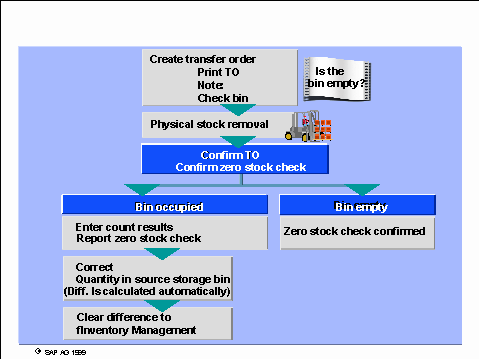
When you create TOs, the system checks whether the storage bin should be empty after the stock removal.
The printout of the stock removal TO as the picking document contains a note that the zero stock check is active for this storage bin.
During the physical removal of stock from storage, you perform an inventory and check whether the storage bin is actually empty.
The bin is empty:
You need to confirm the transfer order. You confirm that the bin is empty when you confirm the transfer order.
The bin is not empty:
The actual situation in the warehouse does not match the book inventory balance for the storage bin. When you confirm the transfer order, you enter the actual quantity of the material that you found in the storage bin.
When you confirm the TO, the system automatically calculates the difference and corrects the book amount for the storage bin. The system also posts the difference to the interim storage area for differences.
Clear the differences from the interim storage area for differences in order to enter them in IM.
Manual Zero Stock Check
When you remove stock from a storage bin, you notice that the storage bin is now empty after the stock removal, even though the storage bin’s book amount in the system shows a remaining quantity.
When you confirm the individual item in the transfer order, request the zero stock check manually.
In the following dialog box, enter the required data for the stock difference.
When you confirm the TO, the system automatically calculates the difference and corrects the book amount for the storage bin. The system also posts the difference to the interim storage area for differences.
Clear the differences from the interim storage area for differences in order to enter them in IM.
See also: