Capturing SAPUI5 and S/4HANA Applications
-
Start Desktop Studio and in the menu bar select
 File
 New Project...
 .

-
Enter the properties for the project and click Save.

-
In the menu bar select
File Edit Project....
Go to the Libraries tab and tick the SAP UI5 box in the CRM applications section.

-
Open an SAPUI5 or S/4 HANA page in your Web browser.

-
Go back to the Desktop Studio and in the Explorer perspective select + Add Application from the context menu.

-
In the Capture Application window, select the SAPUI5 or S/4HANA page you previously opened in your web browser. Click Save.
A new object is added to your project.
-
Go to Parameters and in the General section, select SAPUI5 in the Custom Types.

-
Double-click the new page in the capture panel.

-
Go to the SAPUI5 or S/4HANA page opened in your browser, and press Ctrl. A red rectangle appears meaning that the page is now selected.

-
Go back to the Capture Page window in the Desktop Studio and click Scan and Capture.
After a few moments, the SAPUI5 or S/4HANA page is now added to your project. However, the page name is shown in red because a recognition criterion is missing.

-
In the Captured data window, select the URL and then click the plus icon (+) in the criteria window.
-
The page is now ready for you to add UI objects. In the capture panel, click the object you want to add. In this example, we'll add a radio button.

-
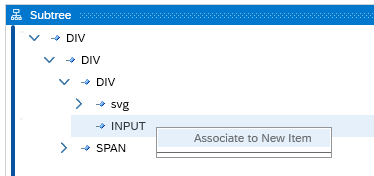
Go to the Subtree tool window and select the input corresponding to the UI object you want to add.

Right click the input and select Associate to New Item.