Creating a Theme for SAPUI5 Desktop Applications
This example shows how you design a theme for SAPUI5 desktop applications.
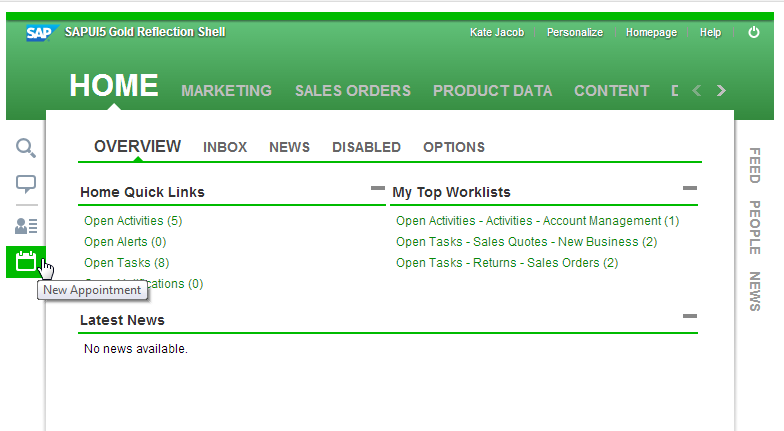
In the following steps, you will create a new theme with the primary colors green and white and with your company logo in the header area. The result should look as follows:
- Start the UI theme designer.
- In the initial screen, select the theme SAP Gold Reflection and choose Open.
- Add the preview application for the UX3 Shell.
- Click on the link UI5 Control Previews.
- In the UX3Controls section, mark the Shell checkbox.
- In the Target Pages panel, select the control preview you just added.
- Change the brand color to green.
In the Quick tab, enter a color (for example "green") or a color code (for example #00bb00) for the Brand Color input field.
You can also select the value help and use the color picker to define the color value. - Change the background color to white.
- Change the Shell Header Color to #1C4A21.
- Change the highlight color to green (#00bb00).
- Insert your company logo.
- Open the value help for the Company Logo input field.
- Drag and drop an image file from your local files to the Assign Image dialog box or choose
 to call up a file browser.
 - Confirm the dialog box.
If you know the URL of the image you want to use, you can specify this directly as the value of the input field.
- Change the link color to #068A06
- Change the field border color to green (#068A06).
- Switch to the Expert tab
- Choose
 to switch to the tag view.
 - From the list of toggle links, choose Field.
- Change the value of the sapField_BorderColor parameter to a shade of green.