Best Practices for Excel Activities
This section describes best practices for Excel activities that help you design automations to perform various Excel events in an Excel document.
Get Sensitivity Label ID
Use the Get Sensitivity Label ID activity at design time to get all the sensitivity label IDs of your organization.
To get a specific sensitivity label ID, refer to the following steps:
-
In the Studio, do an automation with the following activities:
-
Open Excel Instance
-
Open Workbook
-
Get Sensitivity Label ID
-
Close Workbook
-
Close Excel Instance
-
-
Set a breakpoint on the Get Sensitivity Label ID activity.
-
Run the automation and reach the breakpoint.
-
Manually change the sensitivity of the open workbook to get its label ID.
-
Resume the automation.
-
Read the output of the Get Sensitivity Label ID activity in the timeline.
Then, you can use the collected label ID or Globally Unique Identifier (GUID) as input parameters of the Set Sensitivity activity at run time.
For security Reasons, you can’t change the sensitivity using the SDK on a workbook where it has already been changed manually. Therefore, ensure you don’t use the Set Sensitivity activity on a saved or auto-saved workbook where you’ve already manually changed the sensitivity. Otherwise, the following error message is displayed.
The labelID is invalid (use Get sensitivity GUID On any workbook with a manually set sensitivity to get the corresponding GUID) or you are trying to override a manually set sensitivity which is forbidden
Get Values (Cell)
Use the Get Values (Cell) activity to return (read) the values of a specified cell range in the ACTIVE worksheet.
Using the Get Values (Cell) activity, an out of memory error can potentially happen at runtime. Different causes can lead to an out of memory error: hardware lack of performance, lots of applications opened at once, important volume of cells...
-
use the pagination to read you data by "block" of cells
-
consider using the 64 bit version of Microsoft Excel instead of the 32 bit version
Select Range
You must use three different activities in your automation to select a range in the active worksheet.
Use the Get UsedRange Row (Cell) activity to return the row index. A variable defined as an output parameter is automatically created.
Use the Get UsedRange Column activity to return the column index. A variable defined as an output parameter is automatically created.
Then, use the Select Range activity to select the range of your data in the active worksheet.
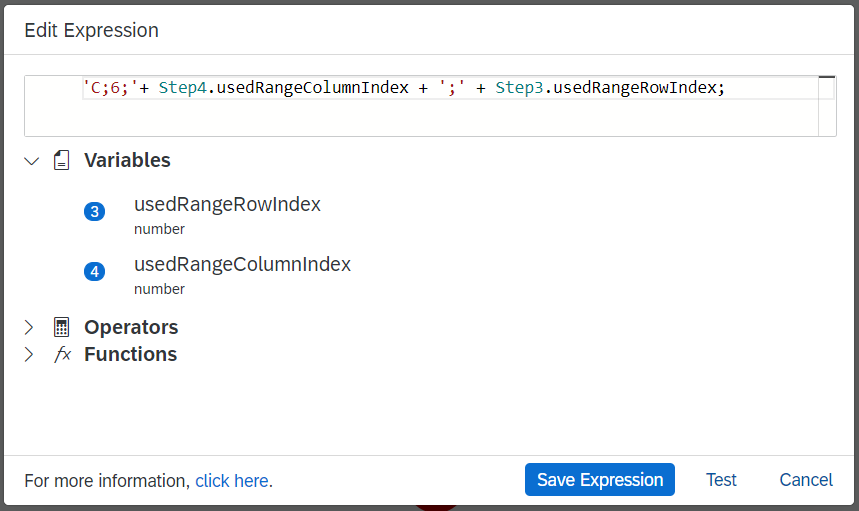
To select the range, open the Expression Editor next to the rangeDefinition field in the Input Parameters section. The expression must contain the first cell of the range you want to select and the output parameters of the Get UsedRange Row and Get UsedRange Column activities.
setFullRangeValues
You can use setFullRangeValues to set (write) the values of a range of cells from a given workbook or worksheet.
Sometimes, while using this activity to set (write) the values of a full range of cells, an out of memory error can potentially happen at runtime.
-
The performance of an algorithm on Excel is totally depending on the resources and the status of the memory of your machine. It is very complex to give a ratio from where the number of cells will not be able to be written. So, we recommend you not to write too many cells with the setFullRangeValues activity. Once again, it depends on the resources and memory of your machine, but 10,000 cells should be an average.
-
Consider using the 64 bit version of Microsoft Excel instead of the 32 bit version
Get Row From Data
The Get Row From Data activity returns the index of the last row with data. That means that if in the column (either the column of the active cell or the column of the referenceCell) there is a cell without any data it will return the index of the row before this cell.
For example,
If you launch the activity with the A1 cell as the reference cell the output will be 19.

But if you put D1 as the reference cell, the output will be 3. Why 3? Because the D4 cell is empty so the count stops there. This is an excel behavior that can be simulated by pressing CTRL + DOWN ARROW (or UP ARROW) directly in Excel.
Get Column From Data
The Get Column From Data activity returns the numerical index of the last column with data. That means that if in the row (either the row of the active cell or the row of the reference cell) there is a cell without any data it will return the index of the column before this cell.
For example,
If you launch the activity with the A1 cell as the reference cell the output will be 8 (the index of the H column is 8).
But if you put A4 as the reference cell, the output will be 2. Because it the same as the row, the index is the column of the last non empty cell on a row. So here the C4 cell is empty so the column is B which index is 2. This is an excel behavior that can be simulated by pressing CTRL + RIGHT ARROW (or LEFT ARROW) directly in Excel.
Get Used Range Row
The Get Used Range Row activity returns the index of the last row used. It means that even if you delete the data of the last row used, the activity will still return the index of this one.
For example,
If you test the activity with the excel as it is (without putting data further than the H19 cell) the result would be 19. Now if you put some data further so for example in the J21 cell, you will have 21 as the result which is expected.

Now you can test if you delete the data of the J21 cell, you will still have 21 as the result. You can test this behavior by pressing CTRL + END on excel, it shows the last cell used.
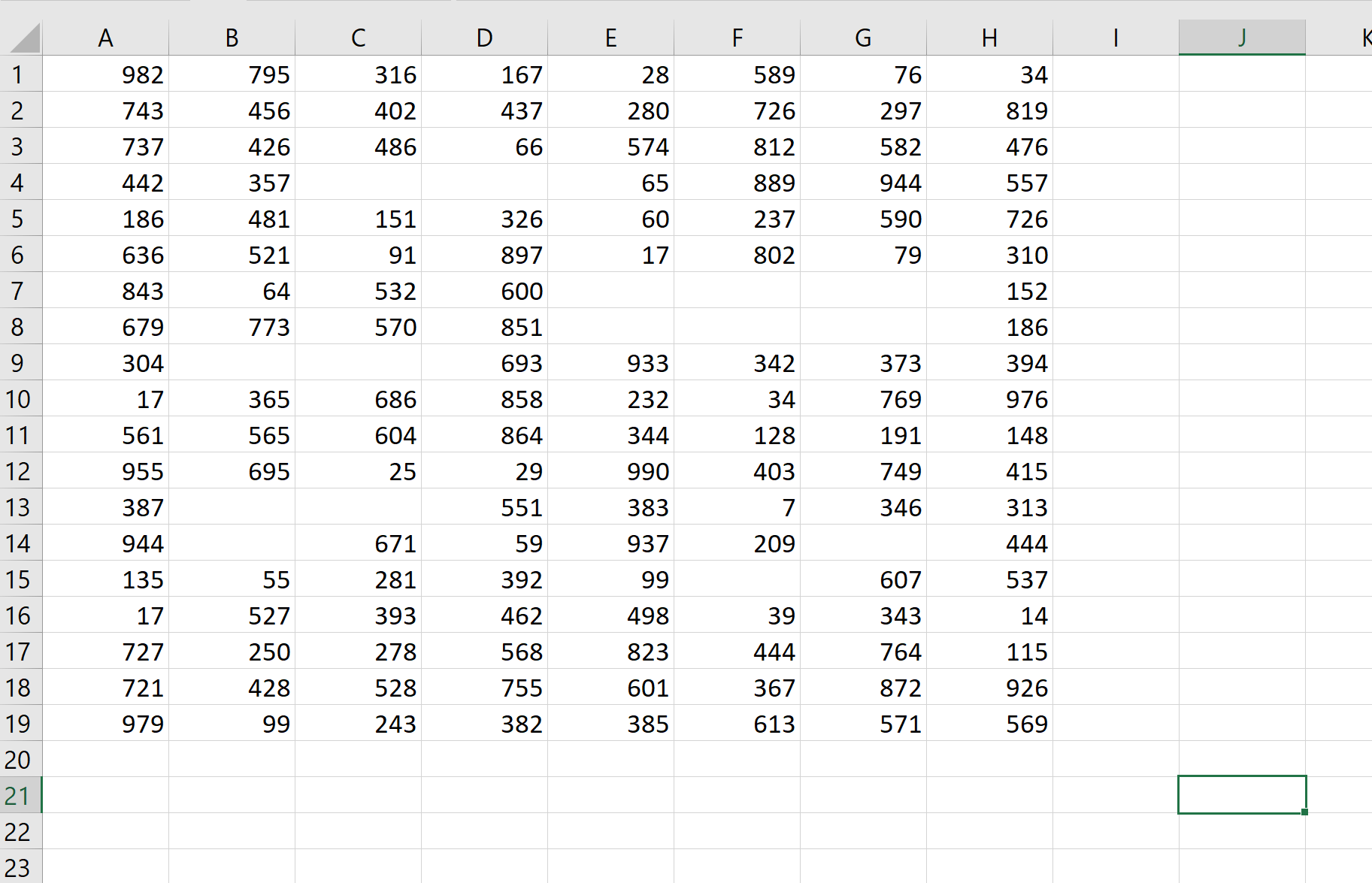
You can see that, if you delete the data from the J21 cell than do a CTRL + END, Excel will focus the last cell which is still J21.
Get Used Range Column
The Get Used Range Column activity returns the index of the last column used. It means that even if you delete the data of the last column used, the activity will still return the index of this one.
For example,
If you test the activity with the excel as it is (without putting data further than the H19 cell) you will have 8 as the result (H has for index 8). Same as for the row, when you put “hello” on the J21 cell, the activity will output 10, and if you delete the data it will still output 10.
As you may have noticed the column indexes can be letters as well as numbers. The activities seen above, on the columns, outputs numbers. So, it can be useful to have activities that can convert indexes to letters and vice versa.
Convert Column Index to Name
This Convert Column Index to Name activity converts the column index number to column name. For the index 2 it will output B, for 42 it will output AP, etc.
Convert Column Name to Number
This Convert Column Name to Number activity converts the column name to index number. For the name B it will output 2, for AC it will output 29.
Deal With File Path
When you are working with MS Excel, you cannot use a file path that contains a slash (/). Indeed, if you want to open or save a workbook, an exception will be thrown.
To avoid this exception, use a file path that contains only single backslashes (\). For example, if you use a file path similar to C:\Temp\book1.xlsx, Excel does not throw an exception.
Use the Get Absolute Path Name (File) activity in your automation to get the correct file path to your Excel document.

Open Excel Instance
When you use the Open Excel Instance activity in your automation, you must always add either the Release Excel Instance activity or the Close Excel Instance activity to your automation to properly close Excel.
But sometimes, Excel is not properly closed after an automation job.
-
You have not added one of these activities at the end of your automation or,
-
There was an uncatched error in your automation, and your automation stopped before reaching the Release Excel Instance activity or the Close Excel Instance activity.
Moreover, you have manually closed the Excel instance that opened during this automation job.
Thus, Excel has not been properly closed by either the Release Excel Instance activity or the Close Excel Instance activity. When you run the automation for the second time, the Open Excel Instance activity uses the Excel instance that has been opened during the previous run and that you have manually closed. This Excel instance is displayed again, and you can see the automation running on your screen. In this case, you will have to enter again the current Worksheet or Workbook used by Excel SDK activities after the Open Excel Instance one.
You can also prevent the automation from opening the previous Excel instance that you have manually closed when running again. To do so, you can manually end the Excel.exe task using the Windows Task Manager. This will force the automation to open a new Excel instance.
Clear Cells (Excel)
Use the Clear Cells (Excel) activity to clear cells or ranges of cells in an Excel worksheet.
With this activity, you can also clear notes, formats and hyperlinks from the cells or ranges of cells.
If you clear a hyperlink contained in a cell or a range of cells, the hyperlink will keep its format (color, underline) but it will no longer be clickable.
Set Cell Note (Excel)
Use the Set Cell Note (Excel) activity to write notes in cells.
If you set a note on a range of cells, the note will be created in the upper-left corner of the range of cells.
Get Cell Note (Excel)
Use the Get Cell Note (Excel) activity to retrieve the note from a cell.
The input parameter that you need to set is a single cell and not a range of cells.
Get Cell Number Format (Excel)
Use the Get Cell Number Format (Excel) activity to get the number format of a cell or a range of cells.
The input parameter that you set for the rangeDefinition field can be a single cell or a range of cells. Note that if the cells that you set as input have different number formats, you will get the null number format return value.
Merge Cells (Excel)
Use the Merge Cells (Excel) activity to merge the cells of a range of cells into a single cell.
If you set the lineMerge input parameter to true, you can merge cells of a row into a single cell.
If the cells that you want to merge contain values, only the value contained in the upper-left cell will be kept and the other values will be deleted.
Unmerge Cells (Excel)
Use the Unmerge Cells (Excel) activity to split the current cell into multiple cells.
With this activity, you can split all the merged cells contained in the range definition you set in the rangeDefinition field into multiple cells.
Sort Range
Use the Sort Range activity to sort a range.
The Sort Range activity is still mainly designed to sort a range outside a table; however, it has been adapted to do sorts within a table too.
With this activity, you can sort all the cells contained in the range definition you set in the rangeDefinition field.
-
outside a table, the sorting works is done on the range on a given column.
-
inside a table, Excel sorts the whole table. Excel can’t sort a part of a table. In that case, the header of the table is always considered as header.
-
across a table and another table, or a zone without a table, an InvalidArgument exception is raised. Excel cannot sort such range.
Excel and COM Add-ins
-
The Open Excel Instance activity.
-
The Open workbook activity.
-
The Register and Install Excel Add-in or Connect COM Add-in activity.
-
Enter the addinname in the input parameters.
-
To get the name, add the List Add-ins or List COM Add-ins activity.
-
