Repeat
This control allows you to define a loop that will repeat a step for a defined number of times.
Using the Repeat Control
-
In your automation, on the right-hand side panel, go to the Controls section.

-
Drag and drop Repeat in the workflow of your automation.
-
Select Repeat. The Repeat side panel appears.

The Repeat control has the following parameters:
-
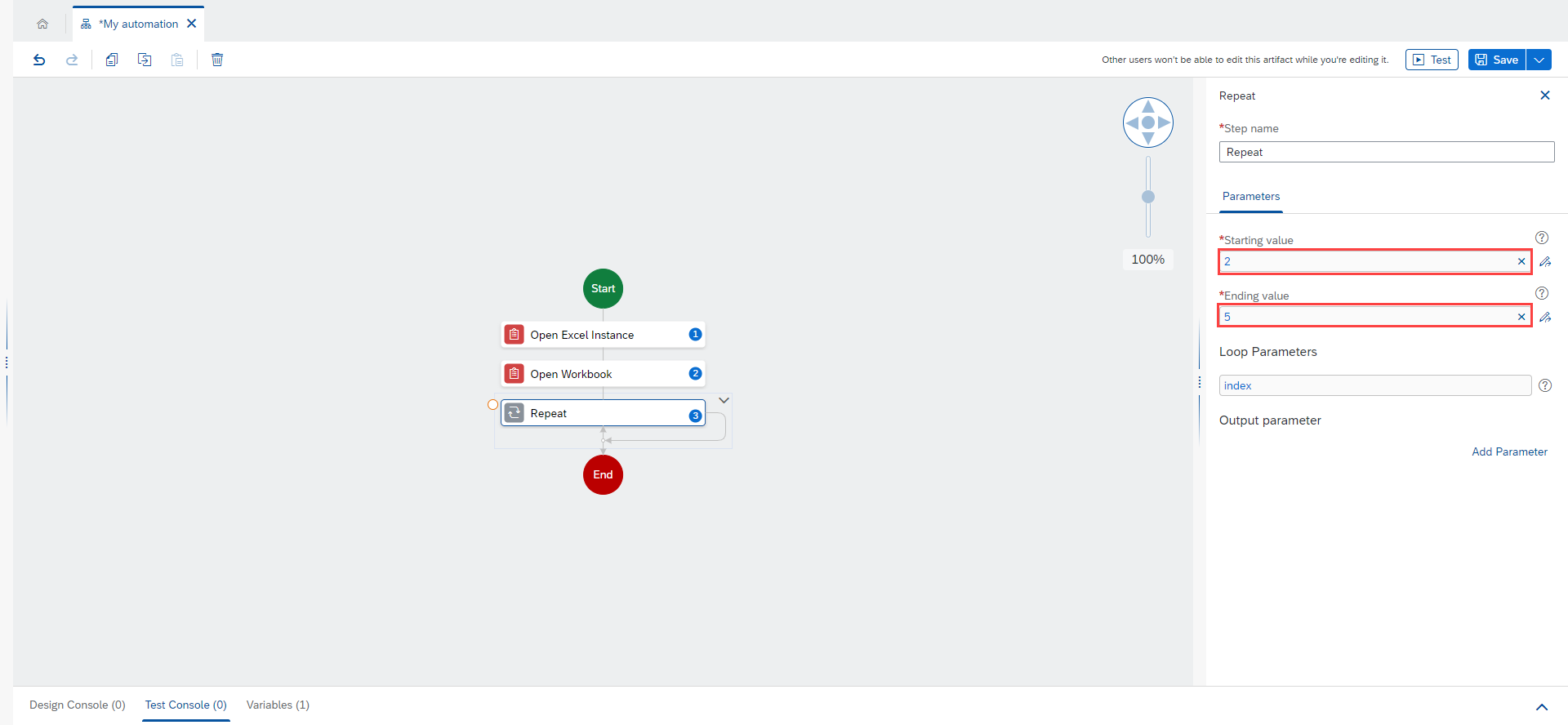
Starting value: Set a starting number where the iteration starts.
-
Ending value: Set an ending number where the iteration stops.
-
index: A number that starts at the set starting value, and increases by one with every loop until it reaches the set ending value.
-
-
Optional: Add an output parameter to the repeat control.

-
Enter a name.(1)
-
Set a value for the output parameter.(2)
-
-
Save your automation.
Use Case Example
The following use case demonstrates the use of the repeat control by setting values in an Excel file.

Prerequisite
You have created the automation My automation.
Procedure
-
In your automation, on the right-hand side panel, go to the Activities section.
-
Drag and drop the activity Open Excel Instance.
-
Drag and drop the activity Open Workbook.
Write the path of your Excel file in the input parameters.

-
Drag and drop the Repeat control in your workflow.

-
Select Repeat. On the side panel, enter the starting and ending values in the parameters.
-
Drag and drop the activity Set Values on the repeat branch.

-
Select Set Values. In the input parameters of the activity:
-
Click the button to set the rangeDefinition.

-
Enter the value Hello.

With these input parameters, the automation sets the value Hello in a new cell with each iteration of the loop.
-
-
Drag and drop the activity Save Workbook.
-
Drag and drop the activity Close Excel Instance.
-
Save and test your automation.
Result
The value Hello is entered on the Excel worksheet in cells A2 to A5.
