Purchase Org
Replicate purchase org master data inbound to SAP Fieldglass from SAP S/4HANA.
Context
This integration uses the 'Purchase Unit Upload' connector for importing data from MDI with an endpoint and subscription in SAP Fieldglass.
The connector details are as follows.
|
Connector Details |
Purchase Unit Upload |
Comments/Notes |
|---|---|---|
|
Real Time vs. Batch |
Real Time |
|
|
Transfer Method |
Web Service |
|
|
File Type |
JSON |
|
|
Version |
API-A-V1.0 |
|
|
Field Layout/ Data Mapping |
Refer to the upload column transform mapping below. |
Refer to the following image.

Procedure
- Follow the instructions below and in the setup wizard to configure the connector, choosing Next to advance through the setup pages.
-
Enter a custom connector name.
-
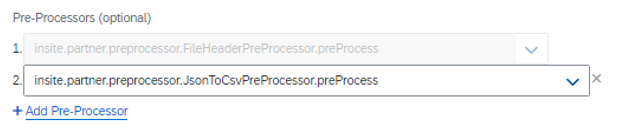
Add the Pre-Processor as shown next.
-
On the Upload Column Transform tab of the connector, fields and values must be added. Refer to the following mapping tables to create the upload column transform.
Below Upload column mapping copy name value to description.
Upload Column Mapping Details Standard Column Name
File Column Name
Script
Default Value
Description
TransformUtil.ifElseCondition($_Name$_.equals("") || $_Name$_ == null,"",$_Name$_)
-
- Create a new End Point with the following values:
-
Enter the ID, such as MDI_PurchaseUnit_Company Code. (Precede Company Code with _ (underscore).)
-
Enter the Category as webservice.
-
For Activity, choose Active.
-
Enter the following Additional Fields:
End Point Additional Fields Name
value_text
_webservice_transport_class
insite.onemasterdata.transport.OneMasterDataWebserviceTransporter
apiVersion
v0/odm-draft/4.0.0-20220408192429
ClientId
<client ID value>
clientSecret
<client secret value>
limitHint
20
serviceEndPoint
The end point you created in the previous step.
since
For a new setup, use initial. The system will generate this value after it's created.
tokenIssuerEndpoint
https://<system URL>/oauth/token
Refer to the following image:

-
- Add a new subscription with the following values:
Subscription Details Field
Value
Type
Upload
Connector
MDI_PurchaseUnit_Company Code (refer to "MDI_PurchaseUnit_Company Code End Point Config" in step 6 above)
End Point
Choose the new end point you created.
Parameters
Enter one_mds_purchaseunit (required value).
Subscriber
Enter insite.subscription.OneMasterDataWebserviceUploadSubscription (required value).
Notification Email
Email to notify on status. Optional field.
Delivery Time
Series of selections that set the scheduling for the subscription. Note that you can multiple values in the boxes using CTRL- or SHIFT- clicks. Set the subscription to run once daily.
Time Zone
Choose a value where the subscription runs.
Status
Choose Enabled.
Refer to the following image.
