Exchange Rate
Replicate exchange rate master data inbound to SAP Fieldglass from SAP S/4HANA.
Context
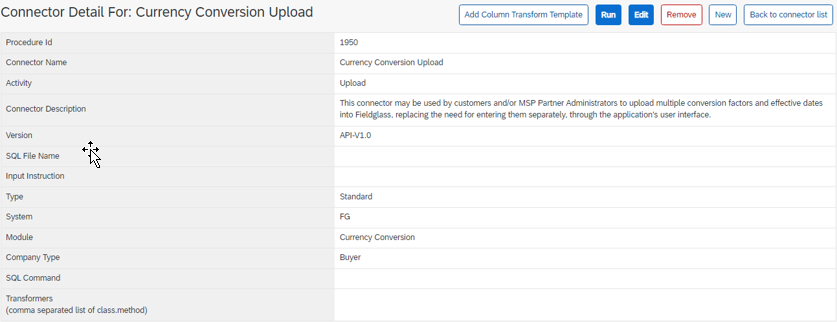
This integration uses the 'Currency Conversion Upload' connector, version API-V1.0, for importing data from MDI with an endpoint and subscription in SAP Fieldglass to upload currency conversion factors and effective dates from SAP S/4HANA.
The connector details are as follows.
|
Connector Details |
Plant Upload |
Comments/ Notes |
|---|---|---|
|
Real Time vs. Batch |
Real Time |
|
|
Transfer Method |
Web Service |
|
|
File Type |
JSON |
|
|
Version |
API-A-V1.0 |
|
|
Field Layout / Data Mapping |
Refer to the Upload Column Mapping Details below. |
Refer to the following image.
Procedure
- Follow the instructions below and in the setup wizard to configure the connector, choosing Next to advance through the setup pages.
-
Enter a custom connector name.
-
Add the Pre-Processor as shown next.

-
- Create a new End Point for the Currency Conversion Upload with the following values:
-
Enter the ID, such as MDI_ExchangeRate_Company Code. (Precede Company Code with _ (underscore).)
-
Enter the Category as webservice.
-
Select the company from the Company list.
-
For Activity, choose Active.
-
Enter the following Additional Fields:
End Point Details Name
value_text
_webservice_transport_class
insite.onemasterdata.transport.OneMasterDataWebserviceTransporter
apiVersion
v0/odm-draft/4.0.0-20220408192429
clientId
<client ID value>
clientSecret
<client secret value>
limitHint
5
serviceEndPoint
The end point you created in the previous step.
since
For a new setup, use initial. The system will generate this value after it's created.
tokenIssuerEndpoint
https://<system URL>/oauth/token
Refer to the following image:

-
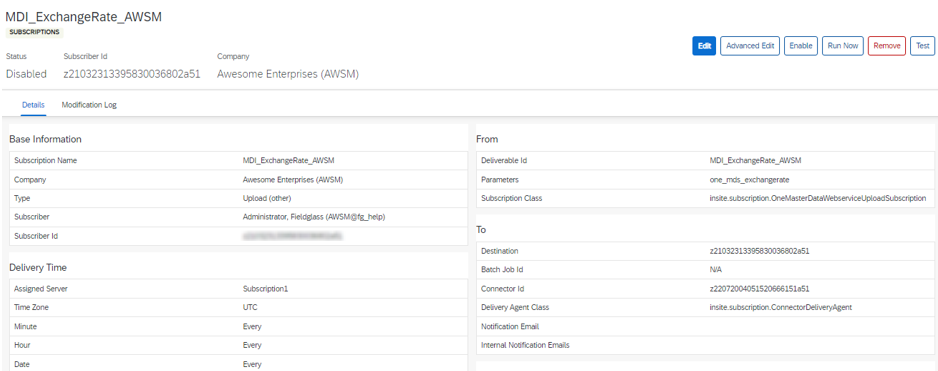
- Add a new subscription with the following values:
Subscription Details Field
Value
Type
Upload
Connector
MDI_ExchangeRate_Company Code
End Point
MDI_ExchangeRate_Company Code (refer to 'MDI_ExchangeRate_Company Code End Point Config' in the section above).
Parameters
one_mds_exchangerate
Subscriber
insite.subscription.OneMasterDataWebserviceUploadSubscription
Notification Email
Optional field.
Delivery Time
Series of selections that set the scheduling for the subscription. Note that multiple values can be selected in the boxes using CTRL- or SHIFT- clicks. Set this subscription to run once daily.
Time Zone
Choose a value for where the subscription runs.
Status
Choose Enabled.
Refer to the following image: