Render Modes
Use
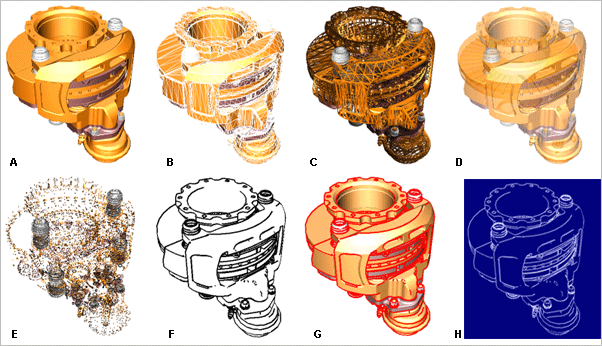
You can use render modes to apply preset scene settings that manipulate a number of scene display elements. Render modes can be applied globally to all viewports or locally to individual viewports depending on the menu from which you select the command as described below.
You can modify the render mode settings using the Display Settings panel, and then save as “themes” so you can select and apply them quickly.
Various shortcuts are available from where to apply certain render modes.
Features
You can use the Render Mode function to select the render mode in which your object is to be displayed from the offered menu options.
|
Menu Option |
Functional Description |
|---|---|
|
|
Displays each object as solid |
|
|
Displays each object as transparent |
|
|
Displays each object as a solid rendering with outlines overlaid on top |
|
|
Displays each object as solid with outlines. That is, only silhouette and crease edges are shown. |
|
|
Displays each object as solid with outlines with material color overrides. That is, the objects’ material colors can be replaced or blended with other colors using the Display Settings panel. |


Activities
Applying a Global Render Mode
Select the mode that you wish to apply, from the Display menu in the Navigation toolbar.
Applying a Local Render Mode
Right-click the label for the viewport you wish to modify and select the button for the mode you wish to apply to the viewport.