Animation Timeline
Use
You can use the Animation Timeline to create and modify keyframe animation on models. It shows the animation sequence hierarchy for the selected object, with time progressing in a graph-like display beginning at the left. “Time” is marked in frames, seconds, MM:SS, or SMPTE in the “time display slider” depending on the current time display. The relationship of frames to real time varies depending on the FPS setting for the selected sequence. The default is about 30 frames to 1 second.
All sequences for the selected object are displayed in the hierarchy, and each sequence can contain a “track” for the animation position, rotation, scale, and opacity.
You can create keys for four different tracks: position, rotation, scale, and opacity. A context menu is available to modify the animation tracks. This menu can also be used to insert, edit, and delete keys, and to choose a “mode” in which to select keys and view the timeline.
The purple time/frame line shows your current time or frame depending on the current time display. You can change the view by clicking within the timeline, or by moving the time/frame slider in the animation controls. The time/frame line reflects the selected view.
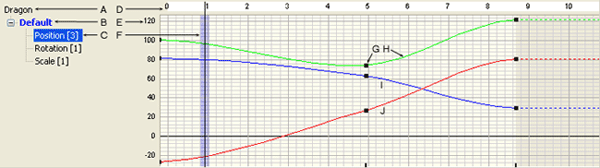
Features
|
Option |
Functional Description |
|---|---|
|
Sequence Hierarchy |
Displays the hierarchy of animation sequences for the selected object
|
|
Time Display Slider |
Shows time progressing in a graph-like display beginning at the left with time marked in frames, seconds, MM:SS, or SMPTE depending on the current time display |
|
Component Values |
The value divisions of the selected track
|
|
Time/Frame Line |
Shows your current time/frame. If you move the time/frame slider in the animation controls, this line reflects the selected view |
|
Key |
A fixed position in time and space |
|
X Axis (green) |
The X axis on which the track can be positioned, rotated, or scaled |
|
Y Axis (blue) |
The Y axis on which the track can be positioned, rotated, or scaled |
|
Z Axis (red) |
The Z axis on which the track can be positioned, rotated, or scaled |