Model Views and Portfolios
Use
You can create user-defined views that are based on the current view of the scene. These model views and emulate the properties of schematic diagrams found in various types of manuals. For example, training and reference manuals. Each model view associates the current camera position, render mode, and layer. The associated layer comprises all of the currently visible objects including callouts.
When you select a model view, the following happens:
-
The active viewport is set to the associated camera render mode.
-
The objects in the associated layer are made visible.
-
All objects that are not associated with the view become invisible.
All viewports display the select model view’s object visibility; you cannot display differing model views in separate viewports.
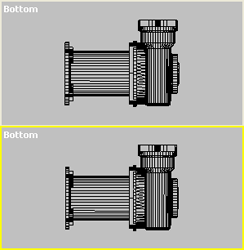
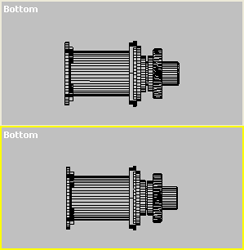
If you are using multiple viewports, different views can be used in each viewport.
For example, you can display a model view in one viewport, a 27 Isometric RBA view in another, and a perspective view from the top in yet another. The viewport label displays the current view in each viewport.
You can also run a query to select objects relating to a particular model view, from the Model View Properties window. The query is executed when the model view is invoked, and saved with the file. Any fully defined query may be associated with a model view.
Note that whenever a markup is added to a scene, model views, based on the current view of the scene, are created or updated. The results depend on whether existing model views exist, or whether the scene has been transformed:
-
If there are no existing model views, a new model view is created that incorporates the new markup.
-
If the scene has not been transformed, the existing model view incorporates the new markup. Note that you must update the model view to see the changes.
-
If the scene has been transformed, a new model view is created that incorporates the new markup.
Activities
Creating a Model View
-
Modify the scene view as you require.
-
Open the Model Views and Portfolios panel.
-
Choose
 .
.
Editing a Model View
Right-click the view you wish to edit, choose Properties, and edit the view as required.
Updating a Model View
Right-click the view you wish to update, and select Update Model View. The selected model view is updated with the current render and viewport settings.
Deleting a Model View
Do one of the following:
-
Select the view and click
 in the Model Views and Portfolios panel.
 -
Right-click the view you wish to delete, and select Delete.
Viewing a Model View’s Properties
Select the view for which you wish to view the properties, right click and select Properties .
Activating a Model View
Do one of the following:
-
Select the view and choose
 in the Model Views and Portfolios panel.
 -
Double-click the view.
-
Right-click the view and choose Activate.
-
Right-click the viewport label, choose Views and click the required view.
Switching Between a Thumbnail and a Detailed View
Click  in the Model Views and Portfolios panel. If the list was displayed in a detailed view, thumbnails are displayed. If the list was displayed as thumbnails, a detailed view is displayed.
Rendering the Model View to a Raster File
-
Right-click the model view you wish to render in the Model Views and Portfolios panel, and select Render to Raster.
-
Modify your raster settings as required, and click OK.
Rendering the Model View to a Vector File
Right-click the model view you wish to render in the Model Views and Portfolios panel, and select Render to Vector.
Storing a Transformed Object with the Model View
Click  in the Model Views and Portfolios panel.
Restoring the Model View’s Objects to their Original Position
Click  in the Model Views and Portfolios panel.