Viewport Background
Use
You can open an image into the scene background to assist with simple composition of models to create a sense of world orientation, and of the model’s scale and position. The use of image backgrounds is well-suited to marketing presentations by giving products a place in the world to inspire the imagination. For example, you could match a 3D model of a car against a landscape in which the car is parked.
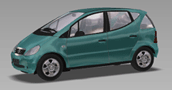
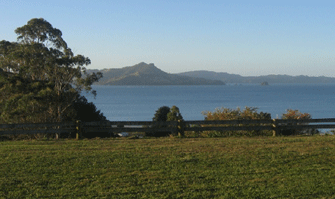
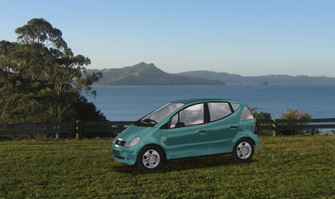
The image can be scaled to fit the viewport in real-time, and you can tile and center it in the viewport.
A graduated (gradient) can also be selected for the viewport background by selecting top and bottom background colors using the Preferences or Scene Properties windows.
Activities
Opening an Image into a Scene
-
Right-click the scene, and select Open Background.
-
Navigate to and select the file that you wish to open and click Open.
Modifying the Background Image
-
Right-click the scene, and select Background Image.
-
Do one of the following:
-
Click Stretch to scale the image to fit the viewport in real-time.
-
Click Tile to tile the image in the viewport.
-
Click Center to center the image in the viewport.
-
Clearing the Background Image
Right-click the scene, and select  Background Image
  Clear Background
 .
.