
Configuring Function Parameters
When creating a function button, first select the function that will be called on the POS using this button. You can either use the function's default configuration or adjust the configuration parameters according to your needs. To set the function parameters, click on the "+" icon in the section Configuration.
A dialog appears with all the parameters available for this function.
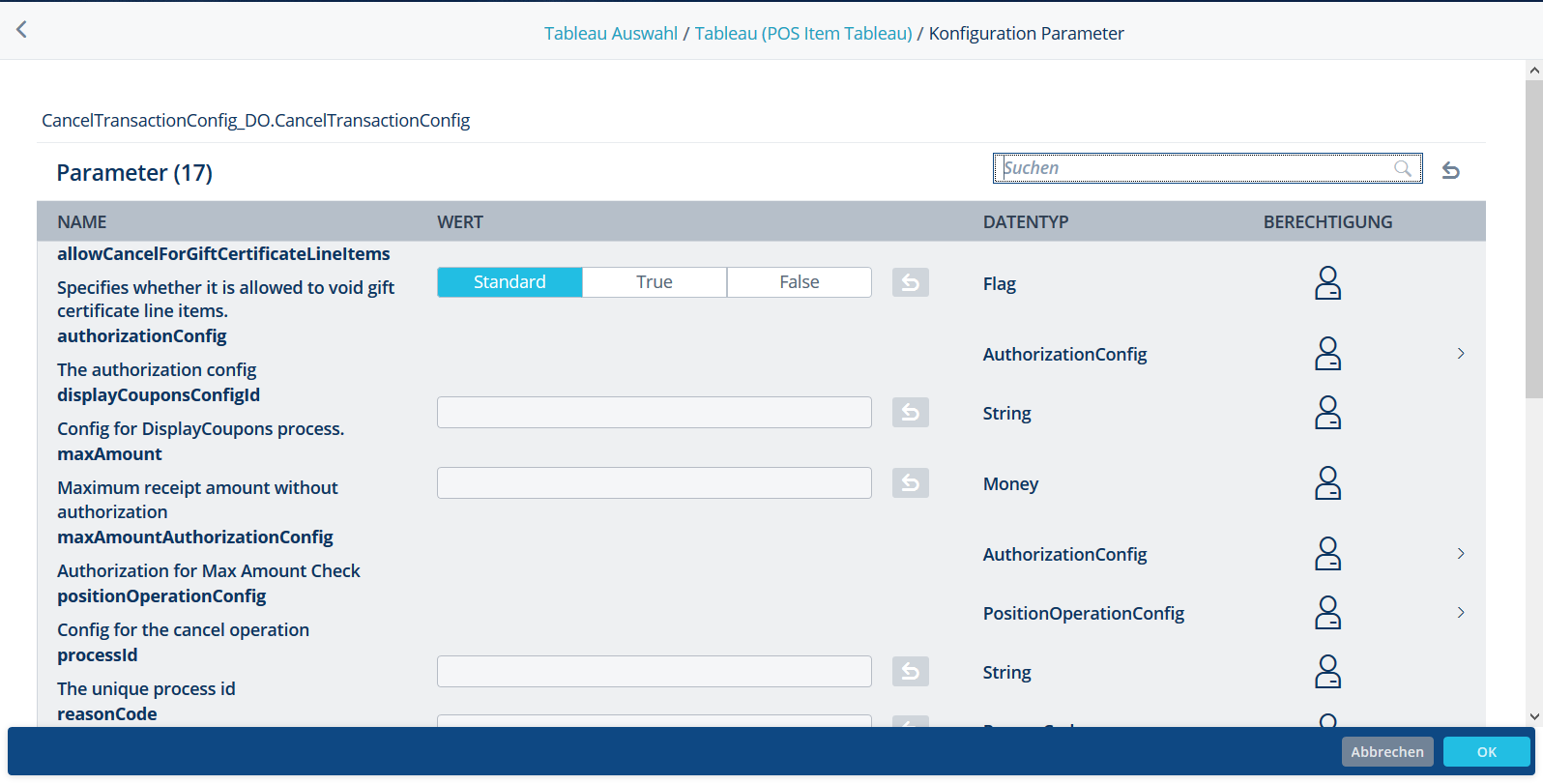
You can use the search function to search for functions. Different entry options are available depending on the data type of the parameter, such as text entry or selection fields (true/false).
For parameters with complex data types, you can switch to another view by clicking on the ">" icon next to the corresponding parameter. It is possible to edit the individual parameters here.
To reset the parameter changes for the whole function, click on the button  which appears next to the search field.
To reset the configuration of a particular parameter, click on the button  which appears next to the entry field of the respective parameter. This button is only enabled for parameters that have been changed.
If the configuration is reset, the function's default configuration will be used on the POS.
Some function parameters are defined as string lists. These parameter lists are displayed as follows:

You can add a text string in the entry field and then click on the "+" button to add it to the parameter list. Click on the trash button next to a value to remove this value from the list again. As explained above, the Reset button allows the complete list of parameters to be reset.