Tutorial: How to Use the Dictionary as a Modeler
Learn how to use the Dictionary as a business process or a business decision modeler.
-
Reference and create dictionary objects directly from the modeling canvas.
-
Drag & drop existing dictionary entries as modeling elements from the element repository onto the canvas.
-
Manage changes to diagram elements.
Following our recommendations will increase your modeling speed as well as the consistency and completeness of your process landscape.
Let's start by creating a new process as part of our example process landscape.
First, we create a pool for our company. The pool ACME AG can be dropped from the dictionary entry repository on the left side of the modeling canvas. It is directly available under Frequently used dictionary items :

Drag & drop from the element the dictionary entry repository
In the attribute panel on the right-hand side we can see that element attributes have been filled in automatically, based on the attribute values of the dictionary item:

The attribute values are fetched from the referenced dictionary entry
Subsequently, we want to add the organizational role Approver as a lane.
We are not sure if a corresponding dictionary entry exists, so we simply start to fill in the corresponding label. As we type, the dictionary entry Approver is suggested as a reference.
We select the entry to assign it to the lane:
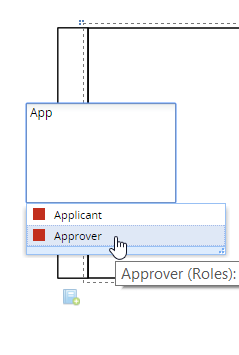
Select the dictionary entry you want to reference
Now we add a start event and name it Employment contract received
We can assume that this event is only occurring in this one diagram, so we don't need to create a dictionary entry for it.
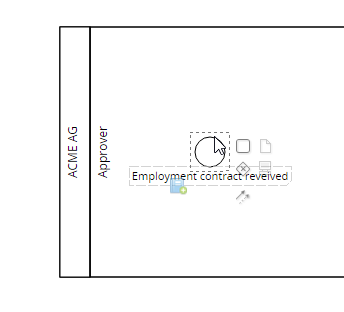
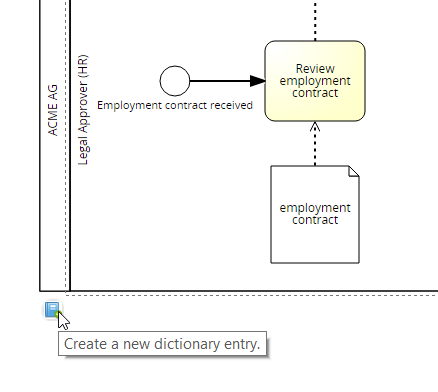
Subsequently, we create the task Review employment contract. No dictionary entry is suggested by the system. Let's now assume that we need to create the same task in a different process later on. Thus, we create a new dictionary entry by clicking the dictionary icon at the lower left corner of the element:
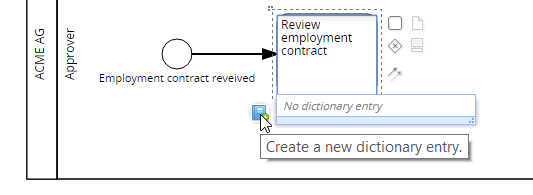
Create a new dictionary entry
The dictionary entry is now available in the dictionary element repository.
The document employment contract already exists:
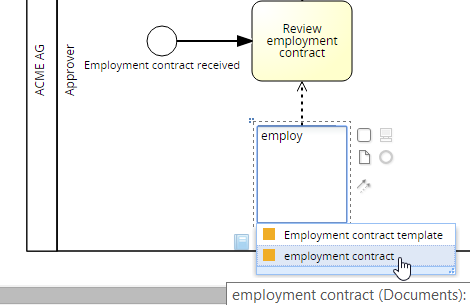
Reference the dictionary item employment contract.
Now, we want to link the IT system that the approver needs to use. We don't know which system to use exactly, so we use the filter function of the dictionary element repository to gain an overview over our IT systems:
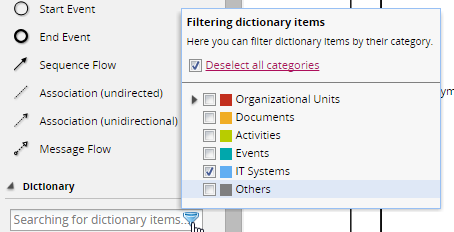
Filter the dictionary for IT systems
We identify Personnel System as the correct IT System and drag it onto the modeling canvas:
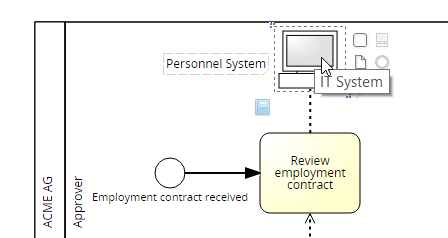
We can refer to the steps described above to continue adding elements to our model.
Generally, we recommend to re-use dictionary entries wherever it makes sense and to create or reference dictionary entries for all elements that are likely to be re-used. This prevents duplicates and inconsistent information in your SAP Signavio workspace.
However, when revising the process, we find that the role Approver is too generic for our purpose:
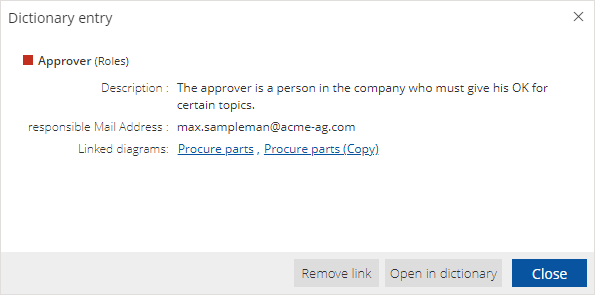
The dictionary entry does not provide specific information
To adjust the element, we have three options:
-
Edit the element ( not recommended ):
We can edit the attribute documentation and adjust it to a more specific description.
Before editing the attribute, a warning will appear:
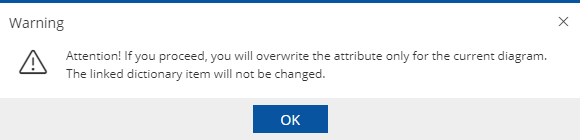
A warning is displayed, as element attribute and dictionary item attribute will no longer be consistent.
After the attribute was edited, a warning icon next to the attribute indicates that the value is not consistent with the corresponding value of the referenced dictionary item:
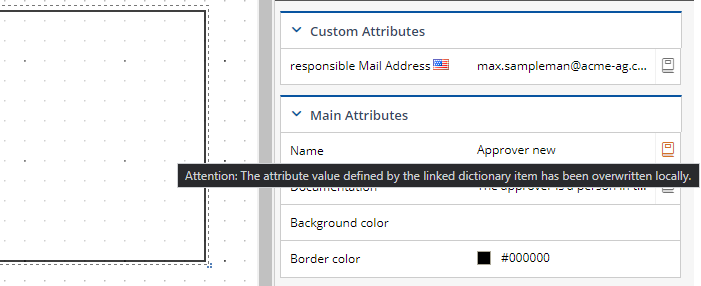
The warning sign indicates the inconsistency between element attribute and dictionary item attribute.
However, this procedure is not recommended, as it makes it very hard to detect the difference between the approver in our current lane and other lanes referencing the approver object. Moreover, it is no longer possible to centrally manage the attribute value via the dictionary.
Adjust the Dictionary Entry:
We can select the dictionary item and choose Open in dictionary:

Now, we can choose Edit and adjust the dictionary entry our needs:
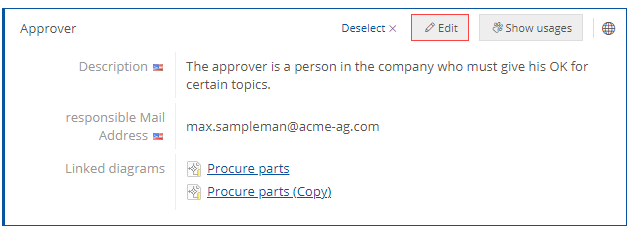
This option is recommended if the dictionary entry is generally not correct or lacks information. This does not apply in our case.
Create a New Dictionary Entry (Recommended)
As our approver is a human resource/legal specialist, we need to add more specific information. However, we can assume that the approver reference in other diagrams doesn't match our new specification. In that case, we will need to select the dictionary icon next to the entry and choose Remove link:
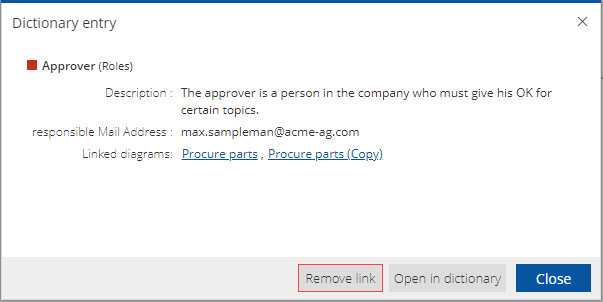
We confirm the action and rename the lane with a more specific term, for example Legal approver (HR) . Subsequently, we add a new dictionary entry: