Translating Diagrams
You can model your diagrams in multiple languages. This allows viewers and modelers who do not understand your standard diagram language to collaborate with you.
Multilingualism is a feature which is available in the Editor, SAP Signavio Process Collaboration Hub and in the Dictionary. You need to configure languages in the Explorer (see section Configure language settings for all users) to use this feature.
The following explains how to translate a diagram and the modeling elements. Note that you need to have already defined your desired language in the Explorer.
Changing the Language
When creating a new diagram, it will be displayed in the default language of the workspace. To change the default language, read the section Set a default language.
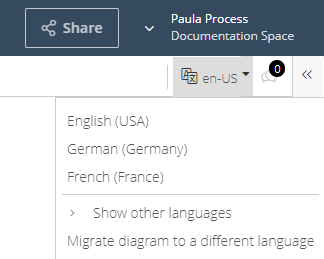
The current language of a diagram can be switched in the editor via the drop-down list  on the right side of the upper toolbar.
Select one of the available languages. The diagram will adapt to the language immediately and may look like the following:
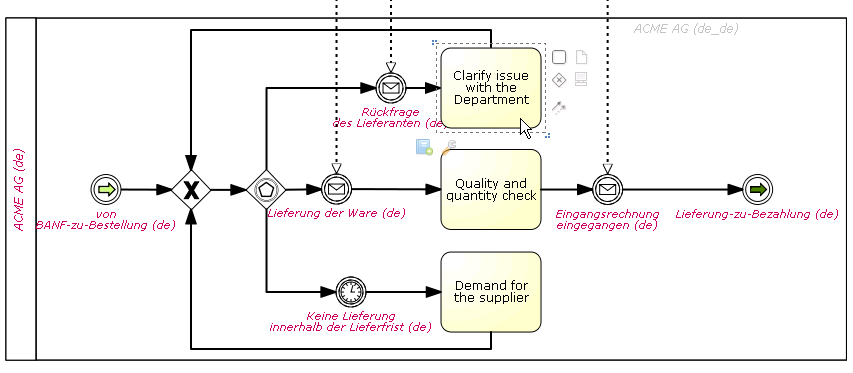
The highlighted elements have not been translated into English, yet.
Diagram elements that were already translated are displayed will be displayed normally. In our example, the task 'Problem lösen' was already translated. If the label was formatted, this formatting will be kept.
Diagram elements that are not yet translated are highlighted in red--in this example, the incoming message event 'Lieferung der Ware' is only available in German (thus, the "de" in brackets).
The following chapter describes how diagram elements can be translated.
Translating Diagrams
Translating diagrams means defining a translation for each diagram element in each required language, which can include all element labels and documentation.
This chapter describes how diagrams can be translated into other languages. This is especially useful when multiple people are involved on the translation, each translated into one language. Later in this chapter, you will learn how to translate a diagram in different languages at the same time.
The following example shows a translation from English to German:
-
First, select which language you want to translate. Proceed as explained above. Elements that were not yet translated are highlighted in red.
-
Double-click an element to define its label.
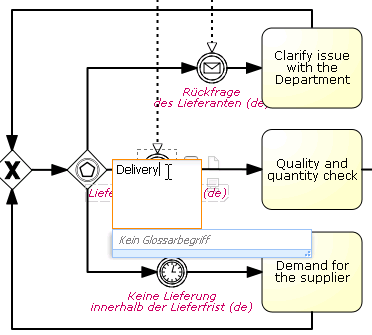
-
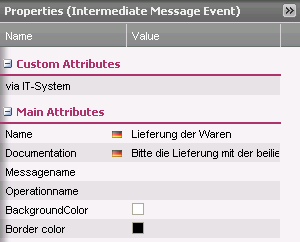
Select somewhere on the canvas to accept the new label. The translation will now be stored in the attribute panel on the right.
-
In the attribute panel, you can also add documentation in the current language.
Translate the remaining diagram elements in the same way. After saving the diagram, it will be accessible in all languages of the workspace.
Translating Diagrams into Multiple Languages at the Same Time
Sometimes, a modeler might want to define a diagram in multiple languages while modeling the diagram. In this case, it is recommended to have the required languages set available while modeling.
-
Add languages to the diagram via the language tool of the Editor toolbar.
-
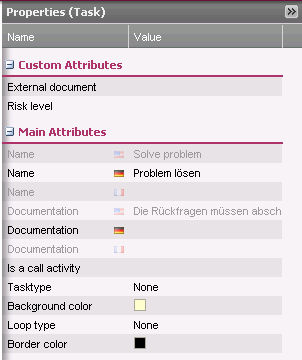
Select all the languages you want to work with in your diagram. They will appear in the attribute panel on the right hand side.
-
Now you translate diagram elements into the desired languages simultaneously in the attribute panel by simply entering the translations into the corresponding columns and lines.
-
To view the result in the other languages, switch the display language on the flag icon in the toolbar.
Migrating Diagrams to a Different Language
You can migrate the contents of a digram from one language to another. This is especially helpful when switching between dialects of a specific language (for example, British English to American/Canadian English). or if the diagram was created in the wrong language and you want to correct this.
To migrate a diagram into another language, proceed as follows:
-
Choose the language drop-down list, then select Migrate diagram to a different language. The corresponding dialog box opens.
-
Now choose the source and the target language for the migration. You can choose between all languages that are defined for the workspace.
-
Optionally, you can delete information in the source language. Activate the checkbox Delete original texts to do so.
-
Choose OK. A confirmation prompt is displayed.
-
Confirm with Yes.
In this example a diagram was created without language definitions. The content was defined in German. As the workspaces' default language is English, the diagram was configured to be in English when the language tools were activated. The content is now supposed to be migrated from German to English and the German contents are supposed to be removed.
Translating Diagram, Folder, and File Names
-
Select the name of a diagram, folder or file name you want to translate in the Explorer.
-
Open the Edit menu and choose Change name/description (for files and folders) or Rename (for diagrams).
-
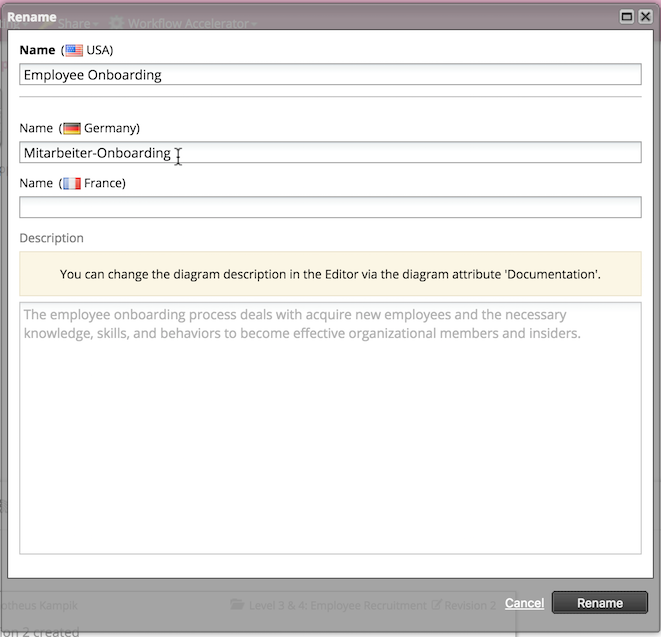
Now you can add translations of the name in all available languages.
-
Choose Change name/description or Rename to save your settings.