Generating Process Documentation Reports
With the process documentation report you can generate a report that includes information about diagrams, element descriptions and dictionary entries in your organization. The process documentation report comes in PDF or Microsoft Word format.
You can generate process documentation reports containing all your diagrams, including all element descriptions, and dictionary entries.
You can generate process documentation report in a PDF or Microsoft Word format.
Generate a Process Documentation (PDF) Report
Follow these steps:
-
Open the explorer and choose
 Reporting
  Process documentation (PDF)
 .
.The process documentation (PDF) dialog opens.
-
Select the required diagrams.
-
To add a filter, choose Add filter.
The edit filters dialog opens.
-
Select a folder from the drop-down list where you want to search in.
-
Define the rules for the filter query.
-
Confirm with OK.
Diagrams discovered by the filter query are selected for the process documentation (PDF) report.
The Edit filters dialog opens and displays the number of results returned from your filter query.
-
Choose OK.
-
In the Configuration section, select a template for the report from the Template drop-down list.
If there are existing custom process documentation templates, you can use them when creating a process documentation report. Otherwise, the SAP Signavio template is set by default.
-
Select the required language for the report from the Language drop-down list.
-
Enter information for the Title, Organization, Author, Date, and Version fields.
-
In the Export linked subprocesses section, select which linked subprocesses must be included in the report from the drop-down list.
The following options are available:
-
No linked subprocesses
-
Linked subprocesses of all levels
-
Linked subprocesses of the first level
-
-
Choose Generate documentation.
The process documentation report in PDF format generates. Access the report from your browser's downloads folder.
Generate a Process Documentation (Word) Report
Follow these steps:
-
Open the explorer and choose Reporting > Process documentation (Word).
The process documentation (Word) dialog opens.
-
Select the required diagrams.
-
To add a filter, choose Add filter.
The edit filters dialog opens.
-
Select a folder from the drop-down list where you want to search in.
-
Define the rules for the filter query.
-
Choose OK.
Diagrams discovered by the filter query are selected for the process documentation (Word) report.
The edit filters dialog opens and displays the number of results returned from your filter query.
-
Choose OK.
-
In the Configuration section, select a template for the report from the Templatedrop-down list.
If there are existing custom process documentation templates, you can use them when creating a process documentation report. Otherwise, the SAP Signavio template is set by default.
-
Select the required language for the report from the Language drop-down list.
-
Enter information for the Title, Organization, Author, Date, and Version fields.
-
In the Export linked subprocesses section, select which linked subprocesses must be included in the report from the drop-down list.
The following options are available:
-
No linked subprocesses
-
Linked subprocesses of all levels
-
Linked subprocesses of the first level
-
-
Choose Generate documentation.
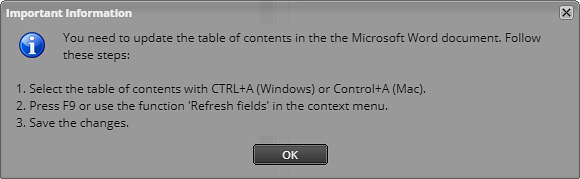
The Important information dialog opens.
-
The dialog indicates that the table of contents won't be up-to-date when opening the generated report. Choose OK and follow the steps described below after the report generation is complete.
The process documentation report in Word format generates. Access the report from your browser's downloads folder.
Updating the table of contents in Microsoft Word
Follow these steps:
-
Open the process documentation (Word) report.
-
Select the table of contents and choose F9 or right-select each table of contents entry and choose Update Field.
The table of contents updates with the correct page numbers.